
The Ultimate Guide to Filevault: Unlocking Your Mac’s Data Protection
In today’s digital age, protecting our personal and professional data has become an absolute priority. With the increasing reliance on technology, it’s essential to safeguard our sensitive information from unauthorized access. Among the various available solutions for Mac users, FileVault stands out as one of the most effective. But what exactly is FileVault, and how does it function? In this comprehensive guide, we’ll delve into the world of FileVault and explore its features, benefits, and setup process.
What is Filevault?
FileVault is a built-in security feature in macOS that provides end-to-end encryption for your Mac’s data. When activated, FileVault encrypts the entire contents of your disk, making it accessible only through a valid password or recovery key. This ensures that even if someone gains physical access to your Mac, they won’t be able to access your sensitive information without the correct credentials.
How Does Filevault Work?
FileVault works by using XTS-AES 128-bit encryption to protect your data. When you activate FileVault, it encrypts all the files on your disk, including the operating system, applications, and personal data. The encrypted data is then stored on your Mac’s disk, making it inaccessible without the correct password or recovery key.
Setting Up Filevault
To set up FileVault, follow these steps:
- Make sure you’re running macOS High Sierra or later.
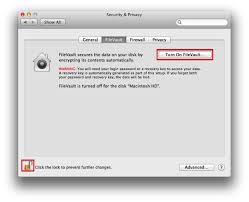
- Go to System Preferences > Security & Privacy > FileVault.
- Click on “Turn On FileVault” and enter your administrator password.
- Choose how you want to unlock your Mac: Using an Apple ID account, a recovery key, or both.
Benefits of Using Filevault
Using FileVault provides several benefits, including:
- End-to-end Encryption: FileVault encrypts all the data on your disk, making it inaccessible without the correct credentials.
- Protection Against Unauthorized Access: Even if someone gains physical access to your Mac, they won’t be able to access your sensitive information without the correct password or recovery key.
- Compliance With Regulatory Requirements: FileVault helps you comply with regulations such as GDPR and HIPAA by protecting sensitive data.
Other Ways to Protect Your Mac
While FileVault is an excellent security feature, it’s not the only way to protect your Mac. Here are some other methods:
- Use Strong Passwords: Use unique and complex passwords for all your accounts.
- Keep Your Macos Up-to-date: Regularly update your operating system to ensure you have the latest security patches.
- Use a Reputable Antivirus Software: Install an antivirus program that scans your system for malware and other threats.
- Be Cautious With Downloads: Only download files from trusted sources, and be wary of suspicious emails or attachments.
Cleanmymac X: A Powerful Tool For Mac Maintenance
In addition to FileVault, CleanMyMac X is a powerful tool that can help you maintain your Mac’s performance and security. This all-in-one app scans your system for:
- Malware: Detects and removes malicious software.
- Cache Files: Clears cache files that slow down your system.
- Translation Files: Removes unnecessary translation files.
- Old Files: Deletes old files and folders that take up space.
Conclusion
FileVault is an essential security feature in macOS that provides end-to-end encryption for your Mac’s data. By understanding how FileVault works and setting it up correctly, you can protect your sensitive information from unauthorized access. While there are other ways to secure your Mac, FileVault remains a powerful tool in the fight against cyber threats.
Frequently Asked Questions (FAQs)
- What is The Difference Between Filevault And Encryption?
FileVault is an end-to-end encryption feature that encrypts all data on your disk, making it inaccessible without the correct credentials. Encryption refers to the process of protecting data using algorithms and keys.
- Can I Use Filevault With Other Security Features?
Yes, you can use FileVault in conjunction with other security features, such as strong passwords and reputable antivirus software.
- How do I Recover my Encrypted Files if I Forget my Password?
If you forget your password or recovery key, you may not be able to access your encrypted files. It’s essential to store your recovery key securely and use it only when necessary.
- Can I Use Filevault on an Older Mac?
FileVault is available on macOS High Sierra or later. If you’re running an earlier version of macOS, you won’t have access to this feature.
- What Are The System Requirements For Cleanmymac X?
CleanMyMac X requires macOS 10.8 Or later and a minimum of 1 GB RAM.
- Is Cleanmymac X Safe to Use?
Yes, CleanMyMac X is a reputable tool that’s designed to improve your Mac’s performance and security. However, always be cautious when installing new software and ensure you have the latest version.
- Can I Use Cleanmymac X With Other Cleaning Tools?
While it’s technically possible to use multiple cleaning tools, we recommend using only one app to avoid conflicts or unnecessary cleanup.
- What Happens if I Uninstall Filevault?
Uninstalling FileVault will remove its encryption feature from your Mac, making all data on your disk accessible without credentials.


