
Are you tired of scrolling through long documents or web pages searching for a specific word? Do you wish there was an easier way to find what you’re looking for? Look no further! In this article, we’ll show you how to search a word in a text using various software and online tools.
Searching a Word in Microsoft Word
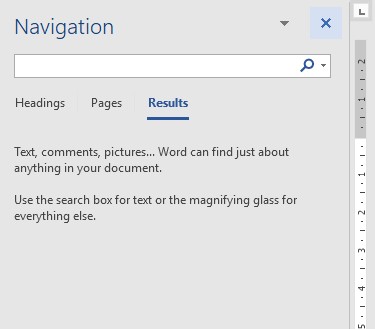
If you use Microsoft Word on your desktop or mobile device, searching for a word is as easy as pie. Here’s what you need to do:
- Open the document containing the word you want to find.
- Click on the “Home” tab in the top toolbar.
- Select the “Find” button from the dropdown menu.
- Type the word you’re looking for in the search bar that appears.
- Press Enter, and Word will take you directly to the first instance of the word.
Searching a Word in Apple Pages
If you use Apple Pages on your Mac or iOS device, searching for a word is just as simple. Here’s how:
- Open the document containing the word you want to find.
- Go to the “Edit” menu and select “Find > Find…”
- Type the word you’re looking for in the search bar that appears.
- Press Enter, and Pages will take you directly to the first instance of the word.
Searching a Word on The Internet
If you need to search for a word on the internet, there are several options available. Here’s how:
- Google: You can type the word you’re looking for in quotation marks (“”) and Google will show you all instances of that word on the web.
- Chrome: If you use Chrome as your web browser, you can press Ctrl + F (Windows) or Command + F (Mac) to open the search bar. Type the word you’re looking for, and Chrome will take you directly to the first instance of that word on the current webpage.
- Edge: Similar to Chrome, if you use Edge as your web browser, you can press Ctrl + F (Windows) or Command + F (Mac) to open the search bar. Type the word you’re looking for, and Edge will take you directly to the first instance of that word on the current webpage.
- Firefox: If you use Firefox as your web browser, you can press Ctrl + F (Windows) or Command + F (Mac) to open the search bar. Type the word you’re looking for, and Firefox will take you directly to the first instance of that word on the current webpage.
Searching a Word in a Pdf Document
If you need to search for a word in a PDF document, there are several options available depending on your reader software. Here’s how:
- Adobe Acrobat Reader: If you use Adobe Acrobat Reader on Windows or Mac, you can go to the “Edit” menu and select “Find” to open the search bar. Type the word you’re looking for, and Acrobat will take you directly to the first instance of that word in the document.
- Mobile Version of Adobe Acrobat Reader: If you use the mobile version of Adobe Acrobat Reader on Android or iOS devices, you can tap on the magnifying glass icon at the top-right corner of the screen. Type the word you’re looking for in the search bar that appears, and Acrobat will take you directly to the first instance of that word in the document.
Searching a Word on Android And Iphone
If you need to search for a word on your Android or iOS device, there are several options available depending on the app you’re using. Here’s how:
- Google: You can type the word you’re looking for in Google Search, and Google will show you all instances of that word on the web.
- Chrome: If you use Chrome as your web browser on Android or iOS devices, you can press Ctrl + F (Android) or Command + F (iOS) to open the search bar. Type the word you’re looking for, and Chrome will take you directly to the first instance of that word on the current webpage.
- Other Apps: Many apps on your device have a built-in search function. Look for the magnifying glass icon at the top-right corner of the screen or in the app’s menu to open the search bar.
Tips And Tricks
Here are some additional tips and tricks to help you search a word more efficiently:
- Use Quotation Marks: When searching for a phrase on Google, enclose it in quotation marks (“”) to ensure that the exact phrase is found.
- Use The * Symbol: If you’re not sure of the spelling of a word, use the asterisk () as a wildcard character. For example, “collaborate” will find all instances of words starting with “co” and containing the letters “l”, “l”, and “b”.
- Use The OR Operator: You can use the OR operator to search for multiple words or phrases at once. For example, “I love * AND travel” will find all instances of the phrase “I love travel”.
Conclusion
Searching a word in a text is a straightforward process that can be accomplished using various software and online tools. By following the steps outlined above, you’ll be able to quickly locate the word or phrase you’re looking for, saving you time and effort.
We hope this guide has been helpful! Do you have any further questions on how to search a word in a text? Let us know in the comments below!
Frequently Asked Questions
Q: How do I search a word in Microsoft Word?
A: To search a word in Microsoft Word, click on the “Home” tab and select the “Find” button. Type the word you’re looking for in the search bar that appears.
Q: How do I search a word in Apple Pages?
A: To search a word in Apple Pages, go to the “Edit” menu and select “Find > Find…”. Type the word you’re looking for in the search bar that appears.
Q: How do I search a word on the internet?
A: You can search for a word on Google by typing it in quotation marks (“”). You can also use the Ctrl + F (Windows) or Command + F (Mac) keyboard shortcut to open the search bar in Chrome, Edge, or Firefox.
What’s Next?
If you have any further questions on how to search a word in a text, please don’t hesitate to ask! We’ll be happy to provide more guidance and support.
Stay tuned for our next article, where we’ll explore another exciting topic!
References
- “Searching in Microsoft Word” by Microsoft Support
- “Searching in Apple Pages” by Apple Support
- “Search on the web” by Google Help


