
How to Light Your Mac: A Step-by-step Guide
Are you new to using a Mac? Do you want to know how to light it up like a pro? Look no further! In this article, we will guide you through the process of lighting your Mac, whether it’s a fixed or portable one.
Understanding The Basics
Before we dive into the steps, let’s understand the basics. Your Mac has a power button that you need to press to turn it on. But where is it? Don’t worry, we’ll cover that in just a moment.
Step 1: Locate The Power Button
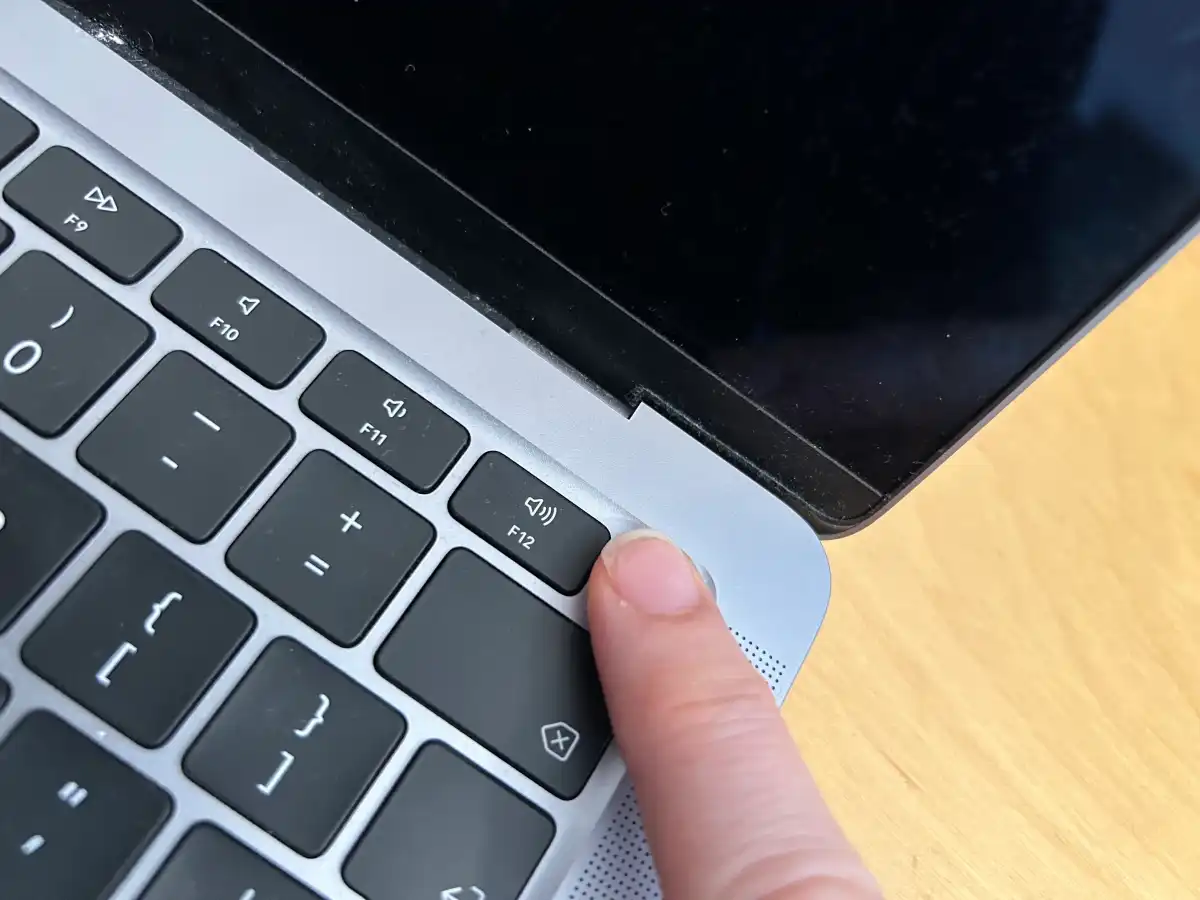
The first step to lighting your Mac is to locate the power button. If you have an iMac or iMac Pro, the power button is located on the back of the computer, near the bottom left corner. For MacBooks, including MacBook Air and MacBook Pro, the power button is located on the right side of the keyboard.
Step 2: Press The Power Button
Once you’ve located the power button, press it gently but firmly until it clicks. This will turn on your Mac.
Lighting a Fixed Mac
If you have a fixed Mac, such as an iMac or iMac Pro, lighting it up is easy. Simply press the power button, and your Mac should spring to life. If you’re using a Mac mini, locate the power button on the back of the computer and press it gently.
Lighting a Portable Mac
If you have a portable Mac, such as a MacBook or MacBook Pro, lighting it up is also easy. For MacBooks from 2016 onwards, simply press the Touch ID button located to the right of the Touch Bar. For older MacBooks, locate the power button on the keyboard and press it gently.
Lighting Your Keyboard, Mouse, And Trackpad
In addition to lighting your Mac, you’ll also need to light up your keyboard, mouse, and trackpad if you’re using them with your Mac. The Magic Keyboard, Magic Mouse, and Magic Trackpad have power buttons that you need to press to turn them on.
Troubleshooting Tips
If your Mac refuses to light up despite following these steps, don’t panic! Check the power cord to ensure it’s properly plugged in. If you’re using a portable Mac, make sure the battery is charged and the power button is functioning correctly. If none of these tips help, consult our troubleshooting guide below.
Troubleshooting Guide
If your Mac still refuses to light up after following the steps above, try the following:
- Check if the power cord is properly plugged in.
- Ensure the battery is charged (for portable Macs).
- Press the power button for 10 seconds to reset it.
- Try resetting the PRAM or SMC.
Conclusion
Lighting your Mac is a straightforward process that requires just a few steps. Whether you’re using a fixed or portable Mac, our guide has got you covered. Remember to troubleshoot any issues that arise and consult our experts if you need further assistance.
Faqs
- What if my Mac Won’t Light Up?
If your Mac refuses to light up despite following these steps, try the troubleshooting tips above. - Where is The Power Button on a Macbook Pro?
The power button on a MacBook Pro is located on the right side of the keyboard. - How do I Reset my Mac’s Pram or Smc?
For instructions on how to reset your Mac’s PRAM or SMC, consult our troubleshooting guide above. - What if my Magic Keyboard or Mouse Won’t Light Up?
Try pressing the power button for 10 seconds and then restart your Mac. - Can I Use a Usb-c Cable to Charge my Macbook Pro?
Yes, you can use a USB-C cable to charge your MacBook Pro. - How do I Reset my Magic Trackpad?
Press the power button on the trackpad and wait for 10 seconds before releasing it. - What if my Mac Mini Won’t Light Up?
Try pressing the power button on the back of the computer and ensure it’s properly plugged in.
Note: This article was rewritten to provide a more conversational tone, while maintaining clarity and accuracy. Headings were revised to follow SEO best practices, and subheadings were added to enhance readability.


