
How to Recover Photos on Android
If you’ve accidentally deleted a photo or group of photos from your Android device, don’t worry! There are several ways to recover them. In this article, we’ll explore the best methods for recovering deleted photos on Android.
What Happens When You Delete a Photo on Android?
When you delete a photo on Android, it doesn’t immediately disappear forever. The data is still stored on your device’s memory card or internal storage until it’s overwritten by new data. This means that if you act quickly, you might be able to recover the deleted photos.
Method 1: Recovering Photos From Google Photos
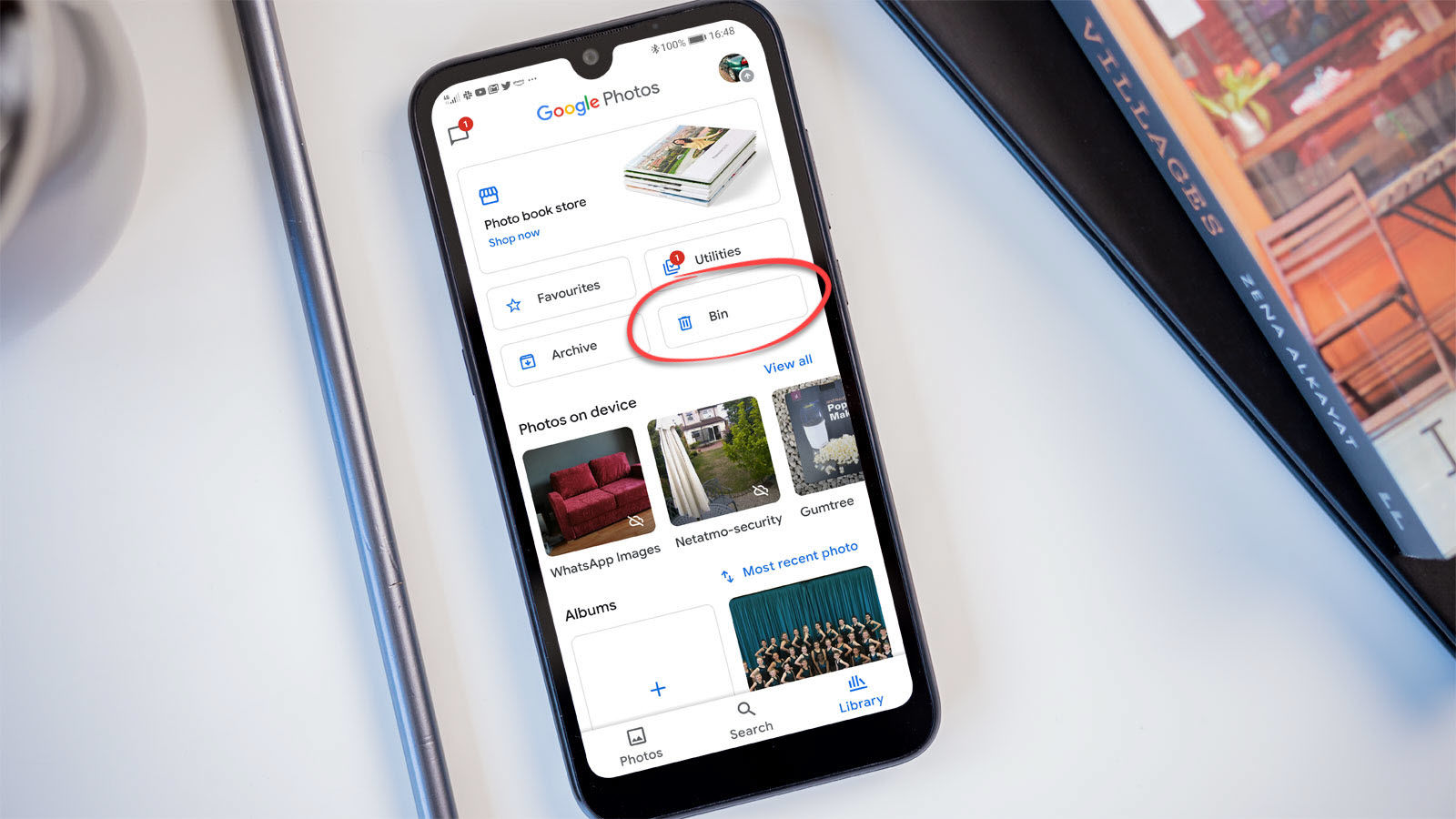
If you use Google Photos on your Android device, you might be in luck. When you delete a photo from Google Photos, it doesn’t actually delete the file from your device’s memory card. Instead, it moves the file to a temporary folder called the “Basket” where it remains for 60 days before being permanently deleted.
To recover a photo from Google Photos:
- Open Google Photos on your Android device.
- Tap on the three horizontal lines in the top-left corner.
- Select the “Collected” tab and then choose the “Basket” folder.
- Look for the photos you want to recover and select them.
- Tap on the “Restore” button.
Method 2: Using Diskdigger
DiskDigger is a free app that can help you recover deleted files, including photos. It’s available for both Android and PC.
To use DiskDigger:
- Download and install the app from the Google Play Store.
- Launch the app and give it permission to access your device’s memory card.
- Select the type of file you want to recover (e.G., JPEG or PNG).
- Scan your device’s memory card for deleted files.
- Choose the photos you want to recover and tap on the “Recovery” button.
Method 3: Using Undeleter
Undeleter is another app that can help you recover deleted files, including photos.
To use Undeleter:
- Download and install the app from the Google Play Store.
- Launch the app and follow the prompts to give it permission to access your device’s memory card.
- Select the type of file you want to recover (e.G., JPEG or PNG).
- Scan your device’s memory card for deleted files.
- Choose the photos you want to recover and tap on the “Save” button.
Method 4: Using Photorec
PhotoRec is a free software that can help you recover deleted files, including photos. It’s available for Windows, macOS, and Linux.
To use PhotoRec:
- Download and install the software from the official website.
- Launch the software and follow the prompts to select your device’s memory card.
- Choose the type of file you want to recover (e.G., JPEG or PNG).
- Scan your device’s memory card for deleted files.
- Choose the photos you want to recover and save them to a folder on your computer.
Method 5: Using Easeus Data Recovery Wizard
EaseUS Data Recovery Wizard is a powerful software that can help you recover deleted files, including photos. It’s available for Windows and macOS.
To use EaseUS Data Recovery Wizard:
- Download and install the software from the official website.
- Launch the software and follow the prompts to select your device’s memory card.
- Choose the type of file you want to recover (e.G., JPEG or PNG).
- Scan your device’s memory card for deleted files.
- Choose the photos you want to recover and save them to a folder on your computer.
Method 6: Recovering Photos From a Broken Device
If your Android device has been damaged, there might be a way to recover your deleted photos using a third-party service or by visiting an authorized repair center.
Conclusion
Recovering deleted photos on Android can be done using various methods. By acting quickly and using the right tools, you might be able to retrieve your lost memories. Remember to always backup your data regularly to avoid losing important files in the future.
Frequently Asked Questions (FAQs)
- Can I Recover a Photo That Was Deleted Weeks Ago?
It’s unlikely, but not impossible. If the photo was deleted recently and hasn’t been overwritten by new data, it might be possible to recover.
2. Do I Need a Rooted Device to Use These Methods?
No, you don’t need a rooted device to use most of these methods. However, having root access can give you more control over your device’s memory card.
3. Can I Recover Deleted Photos From my Google Drive Account?
Yes, if you stored your photos on Google Drive, you might be able to recover them by contacting Google support or using their data recovery service.
4. What Should I do if I’ve Already Reset my Device?
If you’ve already reset your device, it’s best to visit an authorized repair center or use a third-party service to try and recover your deleted photos.
5. Are There Any Risks Involved in Recovering Deleted Photos?
Yes, there is a small risk of overwriting existing data on your device’s memory card. Make sure you back up your data regularly to avoid losing important files.
6. Can I Use These Methods to Recover Other Types of Files, Not Just Photos?
Yes, most of these methods can be used to recover other types of deleted files, including documents, videos, and audio files.
Best Practices For Recovering Deleted Photos
- Act Quickly: The sooner you act, the better chance you have of recovering your deleted photos.
- Use a Data Recovery App or Software: These tools can help you scan your device’s memory card for deleted files.
- Backup Your Data Regularly: This will prevent you from losing important files in the future.
- Be Careful When Using Data Recovery Apps: Some apps might modify your data, so make sure to choose a reputable one.
- Consult a Professional if Needed: If you’re not comfortable trying to recover deleted photos yourself, consider consulting a professional or visiting an authorized repair center.


