
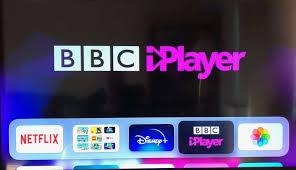
How to Download Apps on Apple Tv: A Step-by-step Guide
Are you wondering how to download apps on your Apple TV? Look no further! This article will guide you through the process of downloading and installing apps on your Apple TV, making it easy for you to enjoy your favorite content.
What You Need to Know Before Downloading Apps on Apple TV
Before we dive into the instructions, there are a few things you need to know. Not all Apple TVs support app downloads, so make sure yours is one of the models that do. Currently, only the 4th generation and later Apple TVs can download apps.
The Requirements For Downloading Apps on Apple TV
To download apps on your Apple TV, you’ll need:
- An Apple TV (4th generation or later)
- A stable internet connection
- An Apple ID account associated with your Apple TV
Step 1: Connect Your Apple TV to The Internet
To start downloading apps, you need to connect your Apple TV to the internet. Follow these steps:
- Go to Settings on your Apple TV
- Select “Network” and choose your Wi-Fi network from the list
- If prompted, enter your password
Step 2: Associate Your Icloud Account With Your Apple TV
To access the App Store and download apps, you need to associate your iCloud account with your Apple TV. Follow these steps:
- Go to Settings on your Apple TV
- Select “Account” and choose “iCloud”
- Enter your Apple ID password to authorize access
Step 3: Download Apps From The App Store
Now that your Apple TV is connected to the internet and associated with your iCloud account, you can download apps from the App Store. Follow these steps:
- Go to the Home screen on your Apple TV
- Select the “App Store” icon
- Browse through the different categories or search for a specific app
Step 4: Install Apps
Once you’ve found an app you want to download, follow these steps:
- Select the app icon
- Review the app’s description and terms of service
- Click on the “Install” button to download and install the app
Troubleshooting Common Issues
If you’re experiencing issues with downloading apps on your Apple TV, try the following:
- Check that your Apple TV is connected to the internet and associated with your iCloud account
- Restart your Apple TV if it’s not responding
- Visit the Apple Support website for more troubleshooting tips and resources
Frequently Asked Questions (FAQs)
Q: What apps can I download on my Apple TV?
A: You can download a wide range of apps, including games, entertainment, lifestyle, and productivity apps.
Q: How do I know if an app is available for my Apple TV?
A: Check the App Store on your Apple TV or visit the developer’s website to see if they have an Apple TV version of their app.
Q: Can I download free apps on my Apple TV?
A: Yes, you can download free apps directly from the App Store on your Apple TV.
Q: How do I update my apps on my Apple TV?
A: To update your apps, go to the Home screen on your Apple TV and select “Settings” > “General” > “Software Update”.
Conclusion
Downloading apps on your Apple TV is a straightforward process that requires a few simple steps. By following this guide, you can enjoy access to thousands of apps on your Apple TV, making it an even more entertaining device.
Common Issues With Downloading Apps on Apple TV
- Issue: My Apple TV won’t connect to the internet
- Solution: Check your Wi-Fi network and restart your Apple TV if necessary.
- Issue: I’m unable to access the App Store on my Apple TV
- Solution: Make sure you’ve associated your iCloud account with your Apple TV and try restarting it if necessary.
- Issue: An app won’t download or install on my Apple TV
- Solution: Check that you have enough storage space on your Apple TV and try restarting it if necessary.
Benefits of Downloading Apps on Apple TV
- Access to Thousands of Apps: With the App Store, you can access a wide range of apps, including games, entertainment, lifestyle, and productivity apps.
- Convenience: Downloading apps on your Apple TV is easy and convenient, making it simple to enjoy your favorite content.
- Entertainment Options: With a vast library of apps available for download, you’ll never be bored again.
Why Use The App Store on Apple Tv?
- Safety: The App Store ensures that all downloaded apps are safe and virus-free.
- Security: Your Apple ID account is protected by strong security measures, making it secure to download and install apps.
- Convenience: Downloading apps directly from the App Store is easy and convenient.
What Apps Can I Download on My Apple Tv?
- Games: Enjoy a wide range of games, including puzzle games, action games, and adventure games.
- Entertainment: Access thousands of entertainment apps, including movies, music, and podcasts.
- Lifestyle: Discover lifestyle apps that can help you stay organized, relaxed, or entertained.
Why Should I Download Apps on My Apple Tv?
- Increased Enjoyment: By downloading your favorite apps, you’ll increase the enjoyment you get from your Apple TV experience.
- Convenience: Downloading apps is easy and convenient, making it simple to access your favorite content.
- Improved User Experience: The App Store offers a wide range of apps that can enhance your user experience and make your Apple TV more enjoyable.


