
Unlocking The Power of Opera Vpn: A Comprehensive Guide
In today’s digital age, having a reliable Virtual Private Network (VPN) is no longer a luxury, but a necessity. With the increasing importance of online security, anonymity, and freedom to access content from anywhere in the world, VPNs have become an essential tool for individuals and businesses alike.
Introduction to Opera Vpn
Opera VPN is a free, built-in VPN service that comes with the popular web browser, Opera. This service offers a basic level of protection against online threats, allowing users to browse the internet securely and privately. In this article, we will delve into the world of Opera VPN, exploring its features, limitations, and how to use it effectively.
Understanding The Limitations of Opera Vpn
Before diving into the steps to activate Opera VPN, it is essential to understand its limitations. The free version of Opera VPN comes with some restrictions:
- Limited traffic: Unlike other VPNs, Opera’s free version has a limited monthly data cap.
- Server selection: Users can only choose from three continents: Europe, America, and Asia.
- No country-specific servers: Unlike the paid version, the free version does not offer server options for specific countries.
Actuating Opera Vpn on Android
To activate Opera VPN on your Android device:
- Open the Opera app
- Tap on the icon of the “omino” in the bottom menu
- Select the “VPN” option from the new screen that appears
- Tap on the “Connect” button to activate the VPN
Actuating Opera Vpn on Iphone
To activate Opera VPN on your iPhone:
- Open the Opera browser
- Tap on the icon of three dots in the bottom right corner
- Select the “VPN” option from the menu that appears
- Tap on the “Connect” button to activate the VPN
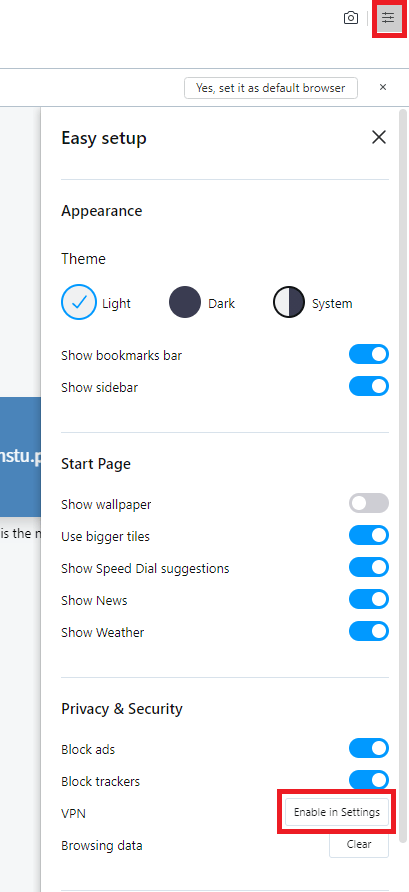
Actuating Opera Vpn on PC And Mac
To activate Opera VPN on your Windows or macOS device:
- Open the Opera browser
- Click on the icon of three dots in the top right corner
- Select the “Settings” option from the menu that appears
- In the settings window, click on the “Functionality” tab
- Scroll down and select the “VPN” option
- Toggle the switch to turn on the VPN
Unlocking Additional Features With Opera Vpn Pro
While the free version of Opera VPN offers basic protection, upgrading to Opera VPN Pro unlocks additional features:
- Unlimited traffic: No data caps or restrictions.
- Country-specific servers: Choose from over 30 countries worldwide.
- Advanced security: Enjoy enhanced encryption and security protocols.
Conclusion
Opera VPN is a powerful tool for protecting your online identity and freedom. While the free version comes with some limitations, upgrading to Opera VPN Pro unlocks additional features that make it an essential tool for anyone who values their online security and anonymity.


