
How to Make Google Your Default Home Page on Any Browser
Are you tired of seeing a different homepage every time you open your browser? Do you want to make Google your default home page, just like in the good old days? Look no further! In this article, we will guide you through the step-by-step process of making Google your default home page on any browser, whether it’s Chrome, Edge, Firefox, Safari, or Opera.
Why Make Google Your Default Home Page?
Making Google your default home page can be beneficial in many ways. For one, it allows you to access Google search directly from the homepage, saving you time and effort. Additionally, Google is an extremely powerful search engine that can help you find what you’re looking for quickly and efficiently.
How to Make Google Your Default Home Page on Chrome
If you’re using Chrome as your browser, making Google your default home page is a breeze. Here’s how:
- Open The Chrome Browser: First, open the Chrome browser on your computer.
- Click on The Three Vertical Dots: In the top right corner of the browser window, click on the three vertical dots.
- Select Settings: From the drop-down menu, select “Settings”.
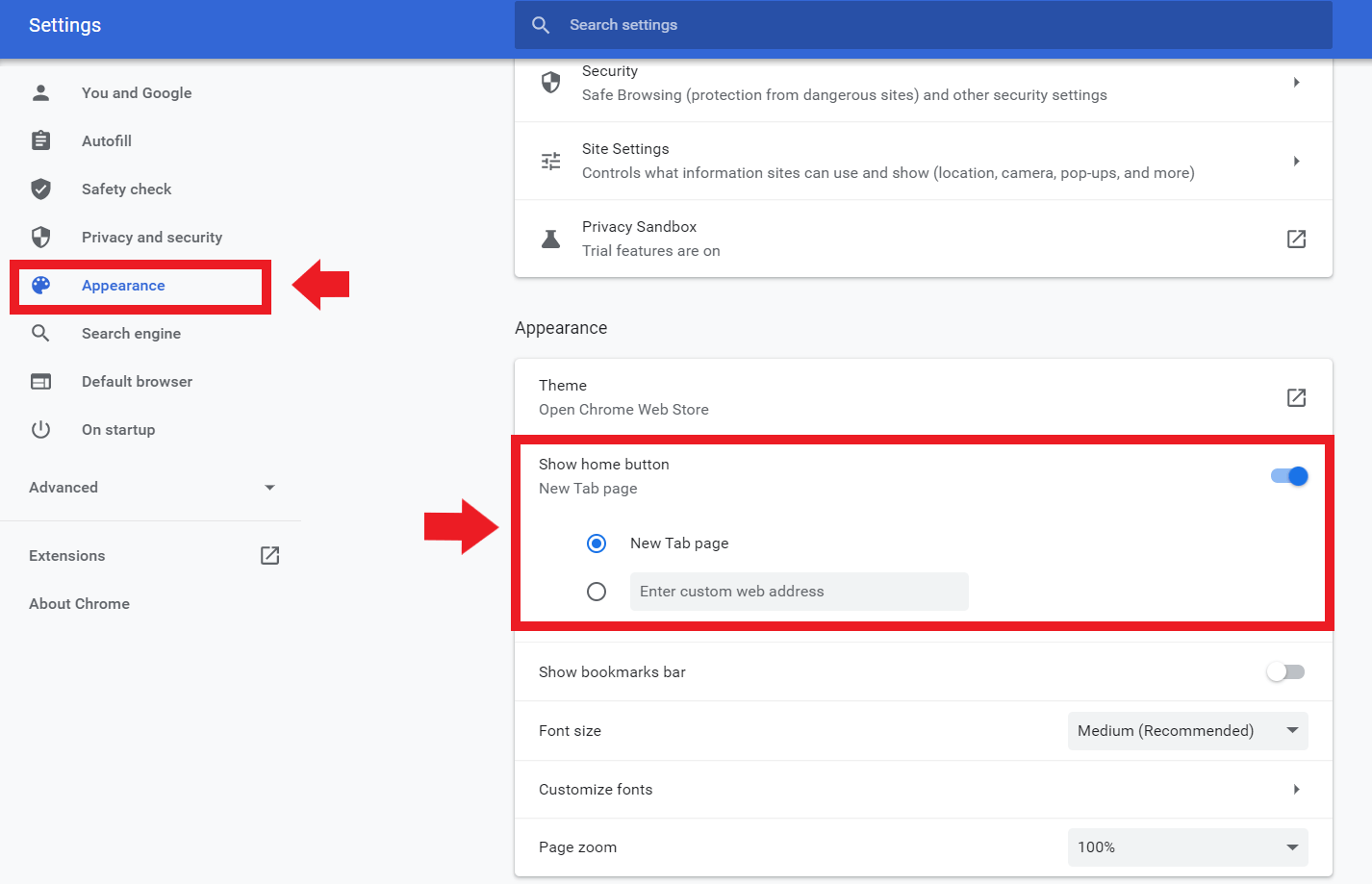
- Scroll Down to The “Appearance” Section: Scroll down to the “Appearance” section and click on it.
- Click on “Show Home Button”: Click on the toggle switch next to “Show home button”.
- Type in The Google Homepage Url: Type in the URL of the Google homepage, which is
https://Www.Google.It/. - Save Changes: Save your changes by clicking on the blue “Done” button.
How to Make Google Your Default Home Page on Edge
If you’re using Microsoft Edge as your browser, making Google your default home page is also quite easy. Here’s how:
- Open The Edge Browser: First, open the Edge browser on your computer.
- Click on The Three Horizontal Dots: In the top right corner of the browser window, click on the three horizontal dots.
- Select Settings: From the drop-down menu, select “Settings”.
- Scroll Down to The “Start, Home And New Tabs” Section: Scroll down to the “Start, home and new tabs” section and click on it.
- Click on “Show Start Page”: Click on the toggle switch next to “Show start page”.
- Type in The Google Homepage Url: Type in the URL of the Google homepage, which is
https://Www.Google.It/. - Save Changes: Save your changes by clicking on the blue “Done” button.
How to Make Google Your Default Home Page on Firefox
If you’re using Mozilla Firefox as your browser, making Google your default home page is also quite easy. Here’s how:
- Open The Firefox Browser: First, open the Firefox browser on your computer.
- Click on The Three Horizontal Dots: In the top right corner of the browser window, click on the three horizontal dots.
- Select Options: From the drop-down menu, select “Options”.
- Scroll Down to The “Home” Section: Scroll down to the “Home” section and click on it.
- Click on “Use Current Page”: Click on the toggle switch next to “Use Current Page”.
- Type in The Google Homepage Url: Type in the URL of the Google homepage, which is
https://Www.Google.It/. - Save Changes: Save your changes by clicking on the blue “Done” button.
How to Make Google Your Default Home Page on Safari
If you’re using Apple’s Safari browser on your Mac, iPhone, or iPad, making Google your default home page is also quite easy. Here’s how:
- Open The Safari Browser: First, open the Safari browser on your device.
- Click on The Safari Menu: In the top left corner of the browser window, click on the Safari menu.
- Select Preferences: From the drop-down menu, select “Preferences”.
- Scroll Down to The “Home” Section: Scroll down to the “Home” section and click on it.
- Type in The Google Homepage Url: Type in the URL of the Google homepage, which is
https://Www.Google.It/. - Save Changes: Save your changes by clicking on the blue “Done” button.
How to Make Google Your Default Home Page on Opera
If you’re using the Opera browser, making Google your default home page is also quite easy. Here’s how:
- Open The Opera Browser: First, open the Opera browser on your computer.
- Click on The Opera Menu: In the top right corner of the browser window, click on the Opera menu.
- Select Settings: From the drop-down menu, select “Settings”.
- Scroll Down to The “Start Page” Section: Scroll down to the “Start page” section and click on it.
- Type in The Google Homepage Url: Type in the URL of the Google homepage, which is
https://Www.Google.It/. - Save Changes: Save your changes by clicking on the blue “Done” button.
Conclusion
Making Google your default home page on any browser is a simple process that can be completed in just a few steps. By following the instructions outlined above, you can ensure that every time you open your browser, you’ll see the familiar Google homepage. This can save you time and effort, as well as provide you with quick access to Google search.
Frequently Asked Questions
- Q: How do I Make Google my Default Home Page on Chrome?
A: To make Google your default home page on Chrome, follow the steps outlined above for making Google your default home page on any browser. - Q: Can I Make Google my Default Home Page on Edge?
A: Yes, you can make Google your default home page on Microsoft Edge by following the same steps as outlined above. - Q: How do I Make Google my Default Home Page on Firefox?
A: To make Google your default home page on Mozilla Firefox, follow the steps outlined above for making Google your default home page on any browser. - Q: Can I Make Google my Default Home Page on Safari?
A: Yes, you can make Google your default home page on Apple’s Safari browser by following the same steps as outlined above. - Q: How do I Make Google my Default Home Page on Opera?
A: To make Google your default home page on Opera, follow the steps outlined above for making Google your default home page on any browser.


