
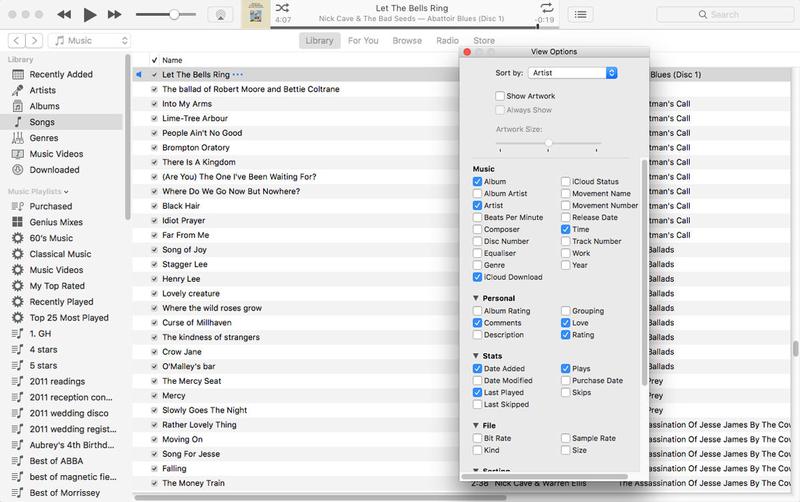
How to Add Songs on Itunes: A Step-by-step Guide
Are you struggling to add songs to your iTunes library? Look no further! In this article, we will guide you through the process of adding songs to iTunes on both Windows and Mac computers.
Adding Music to Itunes on PC (Windows)
To start, make sure that iTunes is installed on your computer. If it’s not, you can download it from the official Apple website. Once iTunes is open, click on the menu tab at the top left corner of the screen and select “Music”. Then, click on the “+” button at the bottom left corner to add a new song or folder.
You can also drag and drop songs directly into the iTunes window. If you want to add music from an external source, such as a CD, make sure that your computer is equipped with a CD reader. Insert the CD, and iTunes will automatically detect it. Click on the “Yes” button to confirm the import process.
Adding Music From External Sources
If you have music stored on an external hard drive or cloud storage service, you can add it to iTunes by following these steps:
- Open iTunes and click on the “Music” tab at the top left corner of the screen.
- Click on the “+” button at the bottom left corner to add a new song or folder.
- Select the external source where your music is stored (e.G., Hard drive, cloud storage).
- Choose the songs you want to add and click “Open” to import them into iTunes.
Adding Music From Itunes Store
If you have purchased music from the iTunes Store in the past, you can easily add it to your library by following these steps:
- Open iTunes and click on the “Music” tab at the top left corner of the screen.
- Click on the “+” button at the bottom left corner to add a new song or folder.
- Select the music purchased from the iTunes Store that you want to add.
Adding Music From Apple Music
If you are an Apple Music subscriber, you can access millions of songs with no ads. Here’s how to add music from Apple Music to your library:
- Open iTunes and click on the “Music” tab at the top left corner of the screen.
- Click on the “+” button at the bottom left corner to add a new song or folder.
- Select the song you want to add and click “Play” to listen to it.
Adding Music to Iphone or Ipad
To transfer music from your iTunes library to your iPhone or iPad, follow these steps:
- Connect your device to your computer using a USB cable.
- Open iTunes and select your device from the top left corner of the screen.
- Click on the “Music” tab at the bottom left corner of the screen.
- Select the music you want to transfer by clicking on it.
Adding Music to Mac (macOS 10.14 Mojave or Earlier)
If you have iTunes installed on your Mac, follow these steps:
- Open iTunes and click on the “Music” tab at the top left corner of the screen.
- Click on the “+” button at the bottom left corner to add a new song or folder.
- Select the music you want to add.
Adding Music to Iphone (iOS 10 or Later)
To transfer music from your iTunes library to your iPhone, follow these steps:
- Connect your device to your computer using a USB cable.
- Open iTunes and select your device from the top left corner of the screen.
- Click on the “Music” tab at the bottom left corner of the screen.
- Select the music you want to transfer by clicking on it.
Tips And Tricks
- Make sure that your iTunes library is organized and easy to navigate.
- Use the search bar at the top right corner of the screen to find specific songs or artists.
- Create playlists to organize your favorite songs and make them easily accessible.
Conclusion
Adding music to your iTunes library on both Windows and Mac computers is a straightforward process. With these step-by-step guides, you should be able to transfer music from various sources to your device. Remember to keep your library organized by creating playlists and using the search bar to find specific songs or artists.
Faqs
- Q: How do I Add Music to Itunes on Windows?
A: To add music to iTunes on Windows, open iTunes, click on the “Music” tab at the top left corner of the screen, and select the “+” button at the bottom left corner to add a new song or folder. - Q: Can I Add Music From External Sources to Itunes?
A: Yes, you can add music from external sources such as CDs, hard drives, or cloud storage services by following the steps outlined in this article. - Q: How do I Transfer Music From Itunes to my Iphone or Ipad?
A: To transfer music from iTunes to your iPhone or iPad, connect your device to your computer using a USB cable, open iTunes, select your device from the top left corner of the screen, and click on the “Music” tab at the bottom left corner of the screen. - Q: Can I Use Apple Music on my Mac?
A: Yes, you can access millions of songs with no ads by using Apple Music on your Mac. - Q: How do I Add Music to Itunes on Macos 10.14 Mojave or Earlier?
A: To add music to iTunes on macOS 10.14 Mojave or Earlier, open iTunes, click on the “Music” tab at the top left corner of the screen, and select the “+” button at the bottom left corner to add a new song or folder. - Q: Can I Use Apple Music on my Iphone?
A: Yes, you can access millions of songs with no ads by using Apple Music on your iPhone. - Q: How do I Organize my Itunes Library?
A: To organize your iTunes library, create playlists and use the search bar at the top right corner of the screen to find specific songs or artists. - Q: Can I Add Music From Itunes Store to my Library?
A: Yes, you can easily add music purchased from the iTunes Store by following the steps outlined in this article.


