
Updating Outlook: A Step-by-step Guide
Are you tired of using an outdated version of Outlook? Do you want to take advantage of the latest features and security updates? Look no further! In this article, we will guide you through the process of updating Outlook on your PC, Mac, smartphone, and tablet.
Why Update Outlook?
Outlook is a powerful email client that plays a crucial role in our daily lives. Whether you use it for work or personal purposes, keeping it up-to-date is essential to ensure that you can send and receive emails securely and efficiently. Outdated versions of Outlook may contain vulnerabilities that can compromise your data and security.
Updating Outlook on PC
If you have an outdated version of Outlook installed on your PC, updating it is a relatively straightforward process. Here are the steps:
- Check if Updates Are Available: Click on the Start menu and search for “Outlook”. Right-click on the icon and select “Properties”.
- Look For Update Options: In the Properties window, click on the “Update” tab.
- Click on Update Now: If updates are available, you will see a button to click on “Update Now”.
Updating Outlook 365
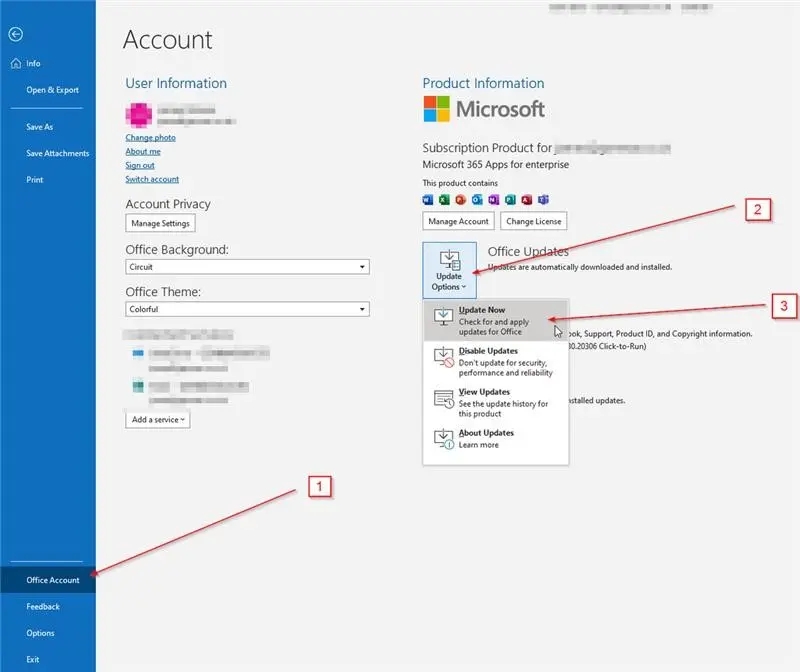
If you have an active subscription to Microsoft 365, you can take advantage of automatic updates. Here’s how:
- Open Outlook 365: Launch the application and navigate to the account section.
- Click on Update: Look for the update button in the top right corner of the window.
Updating Outlook 2021
If you have an outdated version of Outlook 2021 installed on your PC, updating it is a straightforward process. Here are the steps:
- Open Outlook 2021: Launch the application and navigate to the account section.
- Click on Update: Look for the update button in the top right corner of the window.
Updating Outlook 2016
If you have an outdated version of Outlook 2016 installed on your PC, updating it is a relatively straightforward process. Here are the steps:
- Open Outlook 2016: Launch the application and navigate to the account section.
- Click on Update: Look for the update button in the top right corner of the window.
Updating Outlook 2013
If you have an outdated version of Outlook 2013 installed on your PC, updating it is a straightforward process. Here are the steps:
- Open Outlook 2013: Launch the application and navigate to the account section.
- Click on Update: Look for the update button in the top right corner of the window.
Updating Outlook 2010
If you have an outdated version of Outlook 2010 installed on your PC, updating it is a relatively straightforward process. Here are the steps:
- Open Outlook 2010: Launch the application and navigate to the account section.
- Click on Control Updates: Look for the update button in the top right corner of the window.
Updating Outlook 2007
If you have an outdated version of Outlook 2007 installed on your PC, updating it is a relatively straightforward process. Here are the steps:
- Open Outlook 2007: Launch the application and navigate to the account section.
- Click on Control Updates: Look for the update button in the top right corner of the window.
Updating Outlook on Mac
If you have an outdated version of Outlook installed on your Mac, updating it is a relatively straightforward process. Here are the steps:
- Open Outlook: Launch the application and navigate to the account section.
- Click on Update: Look for the update button in the top right corner of the window.
Updating Outlook on Smartphone And Tablet
If you have an outdated version of Outlook installed on your smartphone or tablet, updating it is a relatively straightforward process. Here are the steps:
- Open Outlook: Launch the application and navigate to the account section.
- Click on Update: Look for the update button in the top right corner of the window.
Frequently Asked Questions
Q: Why should I update my Outlook?
A: Updating your Outlook ensures that you have the latest security updates and features.
Q: How do I know if I need to update my Outlook?
A: Check for update options in the account section of the application.
Q: Can I update my Outlook manually?
A: Yes, you can update your Outlook manually by following the steps outlined above.
Q: What happens if I don’t update my Outlook?
A: Failing to update your Outlook may leave it vulnerable to security threats and compromise your data.
Conclusion
Updating your Outlook is a crucial step in ensuring that you have the latest features and security updates. By following the steps outlined above, you can keep your Outlook up-to-date on your PC, Mac, smartphone, and tablet. Remember to always check for update options in the account section of the application to ensure that you are running the most recent version.
Additional Resources
We hope this article has been helpful in guiding you through the process of updating your Outlook. If you have any further questions or concerns, please don’t hesitate to reach out to us.
Faqs
Q: Can I update my Outlook on multiple devices at once?
A: No, each device requires a separate update process.
Q: Do I need to restart my computer after updating my Outlook?
A: Yes, restarting your computer may be required to complete the update process.
Q: Can I roll back an update if it causes issues with my Outlook?
A: Yes, you can roll back an update by uninstalling the latest version and reverting to a previous one.
Q: Do I need to update my Outlook if I’m not using it for work?
A: While not strictly necessary, updating your Outlook is still recommended to ensure that you have the latest security updates and features.


