
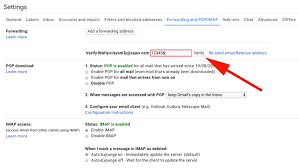
How to Adjust Your Email Address: A Step-by-step Guide
Are you tired of having an email address that no longer represents who you are? Or perhaps you’re looking to create a new email address altogether? Look no further! In this comprehensive guide, we’ll walk you through the process of adjusting your email address on popular services like Gmail, Outlook, and iCloud.
Why Adjust Your Email Address?
Before we dive into the nitty-gritty details, let’s quickly discuss why you might want to adjust your email address. Perhaps:
- You’ve grown out of a previous name or handle.
- You’re looking to create a new brand identity for yourself.
- You want to separate your personal and professional life.
- You simply want a fresh start!
Whatever your reason, we’ll show you how to make the necessary changes on various email services.
Adjusting Your Email Address on Gmail
Gmail offers several options to help you adjust your email address. Here’s what you can do:
Capsize Name Associated With Account
To change the name associated with your Gmail account:
- Open your browser and navigate to www.Gmail.Com.
- Log in to your account using your current email address and password.
- Click on the gear icon in the upper-right corner of the page, then select “See all settings.”
- Scroll down to the “Account” section and click on “Modify information.”
- Enter a new name or handle in the provided field.
- Save changes by clicking on the “Save” button.
Create an Alias
If you want to create an alias (an alternative email address) associated with your Gmail account:
- Go to www.Gmail.Com.
- Log in using your current email address and password.
- Click on the gear icon and select “See all settings.”
- Scroll down to the “Account” section and click on “Add another email address.”
- Enter a new email address (alias) you want to create, along with the corresponding name or handle.
Create a New Email Address
If you’d rather start fresh with a brand-new email address:
- Go to www.Gmail.Com.
- Click on “Create account” in the top-right corner of the page.
- Follow the sign-up process, creating a new Gmail account.
Adjusting Your Email Address on Outlook
Outlook offers similar options for adjusting your email address:
Capsize Name Associated With Account
To change the name associated with your Outlook account:
- Open www.Outlook.Com in your browser.
- Log in using your current email address and password.
- Click on your profile picture or icon in the top-right corner, then select “My profile.”
- Click on “Modify name” below your current name.
- Enter a new name or handle, along with any other relevant details.
- Save changes by clicking on the “Save” button.
Create an Alias
To create an alias associated with your Outlook account:
- Log in to www.Outlook.Com.
- Click on your profile picture or icon and select “My profile.”
- Scroll down to the “Account” section.
- Click on the “Add another email address” button.
- Enter a new email address (alias) you want to create, along with its corresponding name.
Create a New Email Address
If you prefer starting fresh with a brand-new email address:
- Go to www.Outlook.Com.
- Click on “Create account” in the top-right corner.
- Follow the sign-up process, creating a new Outlook account.
Adjusting Your Email Address on Icloud
ICloud also offers options for adjusting your email address:
Capsize Name Associated With Account
To change the name associated with your iCloud account:
- Go to www.Icloud.Com.
- Sign in using your Apple ID and password.
- Click on “Account settings” from the left-hand menu.
- Scroll down to the “Contact” section and click on “Edit.”
- Modify your name or handle as needed.
Create an Alias
To create an alias associated with your iCloud account:
- Log in to www.Icloud.Com.
- Click on your profile picture or icon, then select “Account settings.”
- Scroll down to the “Contact” section.
- Click on the “+” button next to “Aliases.”
- Enter a new email address (alias) you want to create.
Create a New Email Address
If you’d rather start fresh with a brand-new email address:
- Go to www.Icloud.Com.
- Click on the “Sign up” button.
- Follow the sign-up process, creating a new iCloud account.
Conclusion
Adjusting your email address is easier than you think! With these step-by-step guides for Gmail, Outlook, and iCloud, you can create a fresh start or simply update your existing email address to better reflect who you are today.
Frequently Asked Questions (FAQs)
- Can I Change my Email Address on Multiple Accounts at Once?
Unfortunately not. Each account has its own settings, so you’ll need to adjust each one separately. - How do I Delete an Alias I Created?
To delete an alias, simply go back to the “Add another email address” section and remove it from there. - Can I Create Multiple Aliases For a Single Account?
Yes! You can create as many aliases as you’d like associated with your existing email account. - How Long Does it Take For Changes to be Applied to my Account?
Changes typically take effect immediately, but in some cases might require up to 24 hours to propagate across all services. - Can I Change my Email Address if I’m Using a Business or School Email Account?
In most cases, yes! However, this may depend on your organization’s policies and procedures for managing email addresses. - Will Changing my Email Address Affect Any Existing Email Addresses Associated With me (e.G., Aliases, Contacts)?
Nope! Any email addresses you’ve created as aliases or associated with your account will remain unaffected. - Can I Use The Same Email Address Across Multiple Accounts?
Unfortunately not. Each account has its own unique email address and settings. - What if I Encounter Any Issues During The Process?
Don’t worry! You can always reach out to the support teams for Gmail, Outlook, or iCloud for assistance.
Happy Adjusting!


