
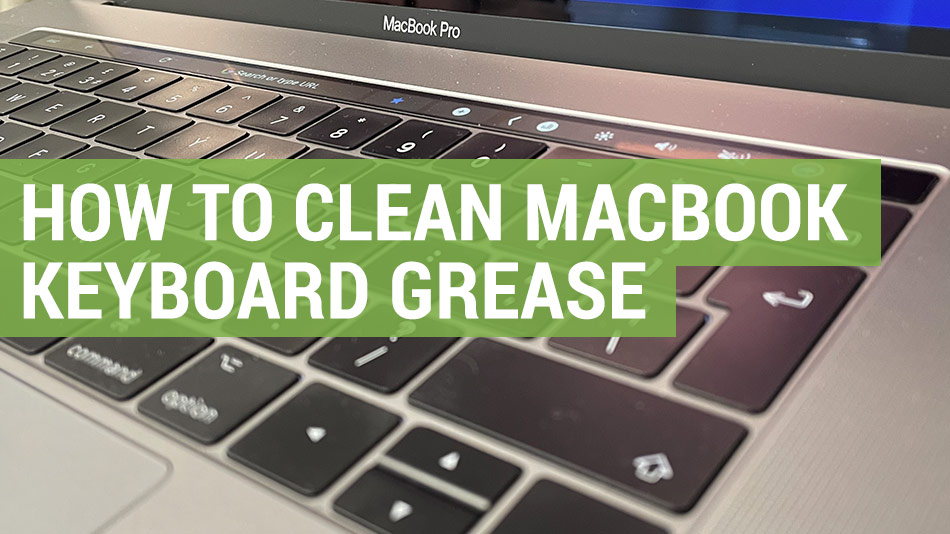
The Ultimate Guide to Cleaning Your Macbook
Are you tired of looking at your MacBook’s screen with a dusty, old appearance? Do you want to breathe new life into your laptop without breaking the bank or risking damage to its delicate components? Look no further! In this comprehensive guide, we’ll walk you through the steps to clean your MacBook like a pro.
Why Clean Your Macbook?
Cleaning your MacBook is not just about aesthetics; it’s also essential for maintaining its performance and longevity. Dust, dirt, and other debris can accumulate on your laptop’s exterior and interior components, leading to:
- Reduced airflow and increased heat buildup
- Decreased battery life and overall system performance
- Increased risk of hardware damage or failure
Gather Your Cleaning Essentials
Before you start cleaning, make sure you have the necessary tools:
- A microfiber cloth (preferably antistatic)
- A soft-bristled brush (optional)
- A can of compressed air (optional)
- A gentle detergent specifically designed for electronics
- A water spray bottle (for dampening your cloth)
- A dry microfiber cloth (for drying)
Step 1: Prepare Your Macbook
Before you begin cleaning, ensure your MacBook is turned off and unplugged from its power source. This will prevent any accidental startup or electrical shock.
Step 2: Clean The Exterior
Using your microfiber cloth, gently wipe down the exterior of your MacBook, paying attention to any crevices or vents where dust and dirt tend to accumulate. Avoid applying too much pressure, which can scratch the surface.
Step 3: Focus on The Screen
For the screen, use a gentle detergent specifically designed for electronics. Dampen your microfiber cloth with water, but make sure it’s not soaking wet. Gently wipe the screen in circular motions, working from the top down. Avoid applying too much pressure or using excessive force.
Step 4: Clean The Keyboard
Using your microfiber cloth, gently clean between the keys and along the edges of the keyboard. For more stubborn stains, dampen your cloth with water and gently scrub the area.
Step 5: Dry Your Macbook
Once you’ve finished cleaning, use a dry microfiber cloth to wipe down your MacBook’s exterior and interior components. This will help prevent any moisture from seeping into crevices or vents.
Additional Tips And Tricks
- To clean stubborn stains on your MacBook’s screen or keyboard, try using a soft-bristled brush or a can of compressed air.
- For more thorough cleaning, consider investing in a dedicated laptop cleaning kit that includes specialized tools and products.
- Regularly cleaning your MacBook will help maintain its performance and longevity.
Common Faqs
- How Often Should I Clean my Macbook?
Clean your MacBook every 2-3 months or as needed to maintain its performance and longevity. - What Type of Cloth is Best For Cleaning my Macbook?
A microfiber cloth (preferably antistatic) is the best choice for cleaning your MacBook’s exterior and interior components. - Can I Use Household Cleaners on my Macbook?
No, it’s not recommended to use household cleaners or detergents that contain harsh chemicals or abrasives, as they can damage your laptop’s delicate components. - How do I Remove Stubborn Stains From my Macbook’s Screen or Keyboard?
Try using a soft-bristled brush, compressed air, or a gentle detergent specifically designed for electronics to remove stubborn stains. - Can I Use a Wet Cloth to Clean my Macbook?
No, it’s not recommended to use a wet cloth to clean your MacBook, as moisture can seep into crevices or vents and cause damage.
Conclusion
Cleaning your MacBook is a relatively simple process that requires some basic tools and knowledge. By following these steps and tips, you’ll be able to maintain your laptop’s performance, longevity, and appearance. Remember to clean your MacBook regularly to prevent dust and dirt from accumulating and causing potential problems.


