
How to Remove Password From Windows 10: A Step-by-step Guide
Are you tired of typing your password every time you want to access your Windows 10 computer? Do you want to know how to remove the password requirement for faster and more convenient access? Look no further! In this article, we will guide you through a step-by-step process on how to remove the password from Windows 10.
Why Remove Password From Windows 10?
Removing the password from Windows 10 can be beneficial in several ways. It can save you time and effort by not requiring you to type your password every time you want to access your computer. Additionally, it can also be helpful if you are using a public computer or a device that is shared with others.
How to Remove Password From Windows 10: Method 1
The first method to remove the password from Windows 10 involves using the built-in settings of your operating system.
Step 1: Open Settings
Press the Windows Key + I on your keyboard to open the Settings app.
Step 2: Go to Accounts
Click on the “Accounts” option in the left-hand menu.
Step 3: Select Your Account
Select your account from the list of available accounts.
Step 4: Disable Password Requirement
Disable the password requirement by unchecking the box next to “Require a password for this account.”
How to Remove Password From Windows 10: Method 2
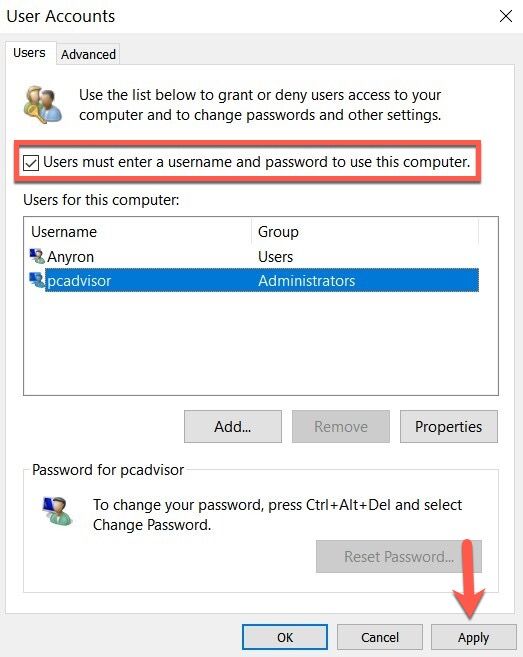
The second method to remove the password from Windows 10 involves using the Netplwiz utility.
Step 1: Open Command Prompt
Press the Windows Key + R on your keyboard to open the Run dialog box. Type “cmd” and press Enter to open Command Prompt.
Step 2: Open Netplwiz
Type “netplwiz” in the Command Prompt and press Enter.
Step 3: Select Your Account
Select your account from the list of available accounts.
Step 4: Remove Password Requirement
Uncheck the box next to “Require a password for this account.”
How to Remove Password From Windows 10: Method 3 (For Local Accounts Only)
If you have a local account on your Windows 10 computer, you can also remove the password requirement using the Settings app.
Step 1: Open Settings
Press the Windows Key + I on your keyboard to open the Settings app.
Step 2: Go to Accounts
Click on the “Accounts” option in the left-hand menu.
Step 3: Select Your Account
Select your account from the list of available accounts.
Step 4: Remove Password Requirement
Uncheck the box next to “Require a password for this account.”
How to Recover Forgotten Password on Windows 10
If you have forgotten your password, you can recover it using the Microsoft account recovery page.
Step 1: Go to Microsoft Account Recovery Page
Visit the Microsoft account recovery page and click on “Forgot password?”
Step 2: Select Recovery Method
Select a recovery method from the list of available options.
Step 3: Follow Instructions
Follow the instructions provided by Microsoft to recover your forgotten password.
Conclusion
Removing the password from Windows 10 can be beneficial in several ways. It can save you time and effort by not requiring you to type your password every time you want to access your computer. Additionally, it can also be helpful if you are using a public computer or a device that is shared with others. We hope this article has provided you with the necessary information on how to remove the password from Windows 10.
Frequently Asked Questions (FAQs)
- Q: Can I Remove The Password Requirement For my Microsoft Account?
A: No, the password requirement cannot be removed for Microsoft accounts. - Q: How do I Recover my Forgotten Password on Windows 10?
A: You can recover your forgotten password using the Microsoft account recovery page. - Q: Can I Use a Third-party Software to Remove The Password Requirement?
A: No, it is not recommended to use third-party software to remove the password requirement as it may compromise the security of your system. - Q: Will Removing The Password Requirement Affect my Windows 10 Computer’s Security?
A: Removing the password requirement can potentially compromise the security of your Windows 10 computer. It is essential to weigh the benefits against the potential risks before making a decision.
Table 1: Steps to Remove Password From Windows 10
| Step | Description |
|---|---|
| Step 1 | Open Settings |
| Step 2 | Go to Accounts |
| Step 3 | Select Your Account |
| Step 4 | Disable Password Requirement |
Table 2: Methods to Remove Password From Windows 10
| Method | Description |
|---|---|
| Method 1 | Using built-in settings of Windows 10 |
| Method 2 | Using Netplwiz utility |
| Method 3 | For local accounts only (using Settings app) |
Note: The tables provided above are for illustrative purposes only and may not be exhaustive.


