
How to Save Android Contacts
Are you tired of losing your precious contacts when switching from one smartphone to another? Do you want to backup your Android contacts on your PC or tablet? Look no further! In this comprehensive guide, we will show you how to save and transfer your Android contacts in a few simple steps.
Why Backing Up Your Contacts is Important
Before we dive into the details of saving your Android contacts, let’s quickly discuss why backing up your contacts is essential. Imagine losing all your important phone numbers, email addresses, and other contact information due to a smartphone crash or accidental deletion. A backup ensures that you can restore your contacts easily and quickly.
How to Save Android Contacts Using Gmail
Saving your Android contacts using Gmail is the most straightforward method. If you already have a Google account associated with your Android device, follow these steps:
- Open the Settings app on your Android smartphone.
- Go to Users and Account.
- Tap on the logotype of Google.
- Select your address Gmail.
- If the synchronization of contacts is already active, tap on Synchronize Contacts.
If you don’t have a Google account associated with your device, follow these steps:
- Open Settings > Users and Accounts.
- Tap on Add Account.
- Choose Google from the list.
- Enter your Gmail address and password to create a new account.
How to Export Android Contacts as Vcf
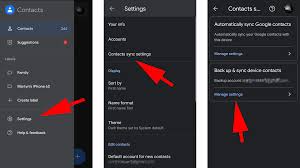
If you want to export your Android contacts in VCF format, follow these steps:
- Open the Contacts app or any other contact management app on your device.
- Tap on the three dots on the top right corner.
- Select Settings from the menu.
- Tap on Export and choose VCF as the output format.
How to Transfer Android Contacts Using Airdroid
If you want to transfer your Android contacts wirelessly, follow these steps:
- Download and install AirDroid on both devices.
- Open AirDroid on both devices.
- Follow the in-app instructions to transfer your contacts.
How to Save Android Contacts as Csv
Saving your Android contacts as CSV is another way to export them. If you want to save your contacts in a spreadsheet format, follow these steps:
- Download and install Contact Master Kit on your device.
- Open the app and tap on Export.
- Choose CSV as the output format.
How to Transfer Contacts From Sim
If you have a SIM card with limited storage capacity, follow these steps to transfer contacts from your SIM:
- Go to Settings > Apps.
- Find Copy to SIM Card and select it.
- Tap on the three dots on the top right corner.
- Select Copy Selected Contacts in the SIM.
How to Transfer Contacts to SD
If you want to transfer your Android contacts to an external SD card, follow these steps:
- Use a file manager app to move the VCF or CSV files from your device’s internal memory to the external SD card.
- Make sure the SD card is properly inserted and accessible on both devices.
How to Transfer Contacts Using Bluetooth
If you want to transfer your Android contacts using Bluetooth, follow these steps:
- Enable Bluetooth on both devices.
- Go to Settings > Apps.
- Find Copy to SIM Card or Contact Master Kit.
- Tap on the three dots on the top right corner.
- Select Copy Selected Contacts via Bluetooth.
How to Transfer Contacts Using Usb Cable
If you want to transfer your Android contacts using a USB cable, follow these steps:
- Connect both devices using a USB cable.
- Enable USB debugging mode on both devices.
- Use a file manager app to move the VCF or CSV files from your device’s internal memory to the external storage.
Conclusion
Saving and transferring your Android contacts is an essential task that ensures you never lose important contact information again. With these easy-to-follow steps, you can export your contacts in various formats (VCF, CSV, etc.) And transfer them wirelessly using AirDroid or Bluetooth, or manually using a USB cable.
Faqs
- Q: Can I Save my Android Contacts on Multiple Devices?
A: Yes, with Gmail synchronization, you can save your contacts on multiple devices (e.G., Smartphone, tablet, PC). - Q: How do I Export my Contacts as Vcf?
A: To export contacts in VCF format, go to the Contacts app or a contact management app and follow the steps outlined above. - Q: Can I Transfer my Contacts Wirelessly Using Airdroid?
A: Yes, with AirDroid, you can transfer your Android contacts wirelessly from one device to another. - Q: How do I Save my Contacts as Csv?
A: To export your contacts in CSV format, use Contact Master Kit or any other contact management app that supports CSV export. - Q: Can I Transfer my Contacts Using a Usb Cable?
A: Yes, with a USB cable and a file manager app, you can manually move your contacts from one device to another. - Q: How do I Save my Contacts on an External SD Card?
A: To transfer your contacts to an external SD card, use a file manager app to move the VCF or CSV files from your device’s internal memory to the external SD card. - Q: Can I Transfer my Contacts Using Bluetooth?
A: Yes, with Bluetooth enabled on both devices and a contact management app that supports Bluetooth transfer, you can transfer your Android contacts wirelessly. - Q: How do I Transfer All my Contacts From One Device to Another?
A: Use the steps outlined above for VCF or CSV export and follow the specific instructions for transferring contacts between two devices.


