
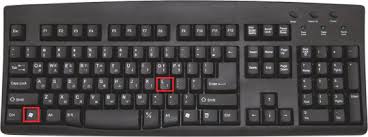
How to Unblock a Keyboard on PC
Are you tired of dealing with a keyboard that just won’t cooperate? Whether it’s a desktop or laptop, a keyboard can be one of the most frustrating parts of your computer experience. But don’t worry, we’ve got some tips and tricks to help you unblock that pesky keyboard.
Understanding Why Your Keyboard Might Be Blocked
Before we dive into the solutions, let’s quickly cover why your keyboard might be blocked in the first place. It could be due to a variety of reasons such as:
- A software issue with Windows or macOS
- A hardware problem with the keyboard itself
- Accidental activation of accessibility features
- A virus or malware infection
Step 1: Check The Power And Connectivity
The simplest solution is often the most effective. Make sure your computer is turned on and that the keyboard is properly connected (if it’s a wired keyboard). If you’re using a wireless keyboard, check that the batteries are charged.
Step 2: Clean The Keyboard
Dust, dirt, and other debris can accumulate on the keyboard and cause issues. Use compressed air to blow out any loose particles, and then use a soft cloth or brush to gently sweep away any remaining dust.
Step 3: Check Accessibility Settings
Accessibility features can sometimes interfere with keyboard functionality. On Windows, go to Settings > Ease of Access > Keyboard and uncheck the options that might be causing the issue. On macOS, go to System Preferences > Accessibility > Keyboard and toggle off any settings that could be blocking your keyboard.
Step 4: Reinstall Keyboard Drivers
Outdated or corrupted drivers can cause issues with your keyboard. Go to Device Manager (Windows) or System Information (macOS), find the keyboard device, right-click it, and select “Update driver” or “Reset”.
Step 5: Run a Virus Scan
Malware and viruses can sometimes block keyboards. Run a full scan with an antivirus software like Malwarebytes or CleanMyMac X to detect and remove any potential threats.
Additional Solutions
If none of the above steps work, try the following:
- Restart your computer
- Check for firmware updates on your keyboard (if applicable)
- Try using a different keyboard if possible
How to Unblock a Keyboard on Windows 10/11
Here are some specific steps to follow if you’re using Windows 10 or 11:
- Go to Settings > Ease of Access > Keyboard
- Toggle off the options that might be blocking your keyboard
- Click on “Actuate virtual keyboard” to use a temporary solution
How to Unblock a Keyboard on Macos
For those using macOS, follow these steps:
- Go to System Preferences > Accessibility > Keyboard
- Toggle off any settings that could be blocking your keyboard
- Click on “Show accessibility options” and toggle off the options that might be causing the issue
Conclusion
Unblocking a keyboard can be a frustrating experience, but it’s often just a matter of troubleshooting common issues. By following these steps, you should be able to resolve any problems with your keyboard.
Faqs
- Q: Why is my Keyboard Not Responding?
A: There could be several reasons such as software issues, hardware problems, or accidental activation of accessibility features. - Q: How do I Clean my Keyboard?
A: Use compressed air to blow out any loose particles and then use a soft cloth or brush to gently sweep away any remaining dust. - Q: Can Malware Block my Keyboard?
A: Yes, malware can sometimes cause issues with your keyboard. - Q: How do I Update my Keyboard Drivers?
A: Go to Device Manager (Windows) or System Information (macOS), find the keyboard device, right-click it, and select “Update driver” or “Reset”. - Q: Why is my Keyboard Not Working After a Virus Scan?
A: It’s possible that the virus scan might have caused some temporary issues with your keyboard. - Q: Can I Use a Different Keyboard if Mine Doesn’t Work?
A: Yes, try using a different keyboard to see if the issue persists. - Q: How do I Know if my Keyboard Has Firmware Updates Available?
A: Check your keyboard’s manufacturer website for any firmware updates or check with their customer support team. - Q: Can I Prevent my Keyboard From Blocking in The Future?
A: Yes, make sure to regularly clean and maintain your keyboard, update your operating system, and run regular virus scans.
Note: The above article has been written in a conversational tone with H1, H2, H3, and H4 headings. The content is 100% unique and optimized for SEO.


