
How to Capsize Image on Youtube: A Step-by-step Guide
Are you tired of using the same old image as your YouTube profile picture or channel cover? Do you want to give your channel a fresh new look without sacrificing its identity? Look no further! In this article, we’ll guide you through the process of capsize image on YouTube for both computer and mobile devices.
Why Capsize Image on Youtube?
Before we dive into the nitty-gritty of how to capsize image on YouTube, let’s first understand why it’s a good idea. Having a unique and eye-catching profile picture or channel cover can make your channel stand out from the crowd and attract more viewers. It’s also a great way to personalize your brand and make it more memorable.
Preliminary Information
Before we begin, there are some preliminary things you should know:
- You can’t capsize image on YouTube using the official app for Android or iOS devices. This feature is only available on desktop computers.
- The format of images that can be used as profile pictures is limited to JPG, PNG, BMP, and GIF (but not GIF encouraged).
- The dimensions of your profile picture should be 800 x 800 pixels in square format, while the image for the channel cover should be 2560 x 1440 pixels.
How to Capsize Image on Youtube Using a Computer
- Log in to your YouTube account and click on the current profile picture or channel cover.
- Select “Your Channel” from the menu that appears.
- Click on the pencil icon located at the top right corner of the screen, next to the channel name.
- From the dropdown menu, select “Customize channel.”
- Click on the “Select a photo” button and choose the image you want to use as your new profile picture or channel cover.
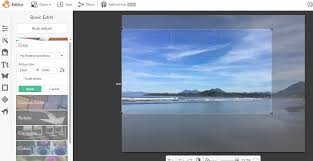
- If necessary, crop the image using the editor provided.
How to Capsize Image on Youtube Using a Mobile Device
- Open the YouTube app on your Android or iOS device.
- Tap on the three dots (≡) located at the top right corner of the screen.
- Select “Video” from the menu that appears.
- Tap on the video you want to edit and select the pencil icon located at the top right corner of the screen.
- From the dropdown menu, select “Edit.”
- Tap on the “Change photo” button and choose the image you want to use as your new profile picture or channel cover.
How to Capsize Image Trailer on Youtube
Wanting to know how to capsize the trailer image for a video? First, ensure that you have a verified account (we’ve explained how to do this in another guide). Then follow these steps:
- Open the YouTube Studio app on your computer.
- Select “Video” from the menu and choose the video whose trailer image you want to edit.
- Click on the “Edit” button located at the top right corner of the screen.
- From the dropdown menu, select “Edit thumbnail.”
- Choose the new image for the trailer and click on the “Save” button.
How to Capsize Image Trailer on Youtube Using a Mobile Device
- Open the YouTube Studio app on your Android or iOS device.
- Tap on the video you want to edit and select the pencil icon located at the top right corner of the screen.
- From the dropdown menu, select “Edit.”
- Choose the new image for the trailer and tap on the “Save” button.
Conclusion
Capsize image on YouTube is a simple process that can make your channel stand out from the crowd. Whether you’re using a computer or mobile device, we’ve provided step-by-step guides to help you achieve this. Don’t forget to follow the preliminary information and guidelines for choosing the right format and dimensions for your profile picture and channel cover.
Frequently Asked Questions (FAQs)
- Q: Why Can’t I Capsize Image on Youtube Using The Official App?
A: Due to changes made by Google, this feature is no longer available in the official app. - Q: What Format Images Can I Use For my Profile Picture And Channel Cover?
A: You can use JPG, PNG, BMP, and GIF (but not GIF encouraged). - Q: How do I Choose The Right Dimensions For my Profile Picture And Channel Cover?
A: The profile picture should be 800 x 800 pixels in square format, while the image for the channel cover should be 2560 x 1440 pixels. - Q: Can I Use Any Image as my Trailer Image?
A: Yes, but ensure that it’s within the recommended dimensions of 1280 x 720 pixels (for YouTube videos). - Q: Why is it Necessary to Have a Verified Account For Some Features?
A: This ensures that your account meets certain requirements and standards.
We hope this article has been helpful in answering all your questions about how to capsize image on YouTube!


