
How to Avoid Opening Applications at Startup on Windows
Are you tired of waiting for your computer to load up every time you turn it on? Do you find yourself waiting an eternity before being able to use your device? If so, you’re not alone! Many users experience this frustration, but don’t know how to resolve the issue. In this article, we’ll show you how to avoid opening applications at startup on Windows, making your computing experience faster and more efficient.
Understanding Why Applications Open at Startup
Before we dive into the solution, it’s essential to understand why applications open at startup in the first place. When you install a new program or application on your computer, it may be set to launch automatically when you turn on your device. This can include antivirus software, productivity tools, and other programs that you might not need to run right away.
Managing Applications With Windows Management
One of the most effective ways to manage which applications open at startup is by using the built-in “Windows Management” tool in Windows. To access this feature, follow these steps:
- Click on the Start button and select Settings.
- In the Settings window, click on the System icon.
- Scroll down to the Apps section and click on it.
- Look for the Startup tab and click on it.
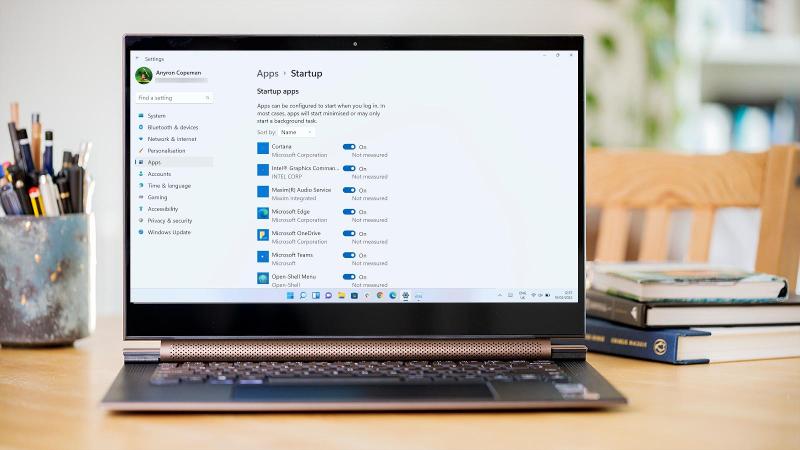
- You’ll see a list of applications that are set to launch at startup. To disable an application, toggle off the switch next to its name.
Managing Applications With Windows Settings
If you’re using Windows 11 or later versions, you can also manage which applications open at startup from within the Settings app. Here’s how:
- Click on the Start button and select Settings.
- In the Settings window, click on the Apps icon.
- Look for the Startup tab and click on it.
- You’ll see a list of applications that are set to launch at startup. To disable an application, toggle off the switch next to its name.
Removing Applications From The Startup Folder
Another way to avoid opening applications at startup is by removing them from the Startup folder. Here’s how:
- Click on the Start button and select Settings.
- In the Settings window, click on the System icon.
- Scroll down to the Apps section and click on it.
- Look for the Startup tab and click on it.
- You’ll see a list of applications that are set to launch at startup. To remove an application from the Startup folder, right-click on its name and select Delete.
Avoiding Windows Suspension
When you suspend your computer or put it into standby mode, all open applications will be closed automatically. To avoid this issue, make sure to disable any unnecessary applications from launching at startup. This way, when you turn on your device again, only the essential programs will launch, saving you time and frustration.
How Not to Open Applications at Startup in Windows 10
If you’re using Windows 10, the steps outlined above apply to manage which applications open at startup. However, there’s an additional step you can take to ensure that unnecessary applications don’t launch:
- Click on the Start button and select Settings.
- In the Settings window, click on the System icon.
- Scroll down to the Apps section and click on it.
- Look for the Startup tab and click on it.
- You’ll see a list of applications that are set to launch at startup. To disable an application, toggle off the switch next to its name.
How Not to Open Applications at Startup in Windows 7
If you’re using Windows 7, the steps outlined above don’t apply. However, you can use the Configuration utility to manage which applications open at startup:
- Press the Windows key + R on your keyboard.
- Type msconfig in the Run dialog box and press Enter.
- In the System Configuration window, click on the Startup tab.
- Look for the programs that are set to launch at startup. To disable a program, uncheck its box.
By following these simple steps, you can avoid opening unnecessary applications at startup on your Windows device. This will save you time and frustration, making your computing experience faster and more efficient.


