
The Ultimate Guide to Closing Pages on Iphone
Are you tired of having multiple pages open on your iPhone at the same time? Do you want to know how to close them easily without having to navigate through various menus? Look no further! In this article, we will guide you through the process of closing pages on your iPhone, whether it’s Safari, Chrome, or other apps.
Why Close Pages on Your Iphone?
Closing pages on your iPhone can help free up memory and improve performance. It’s also a good practice to close pages that are not in use to conserve battery life. In this article, we will show you how to close pages on your iPhone using different methods, including Face ID, Home button, and more.
Closing Pages With Face ID
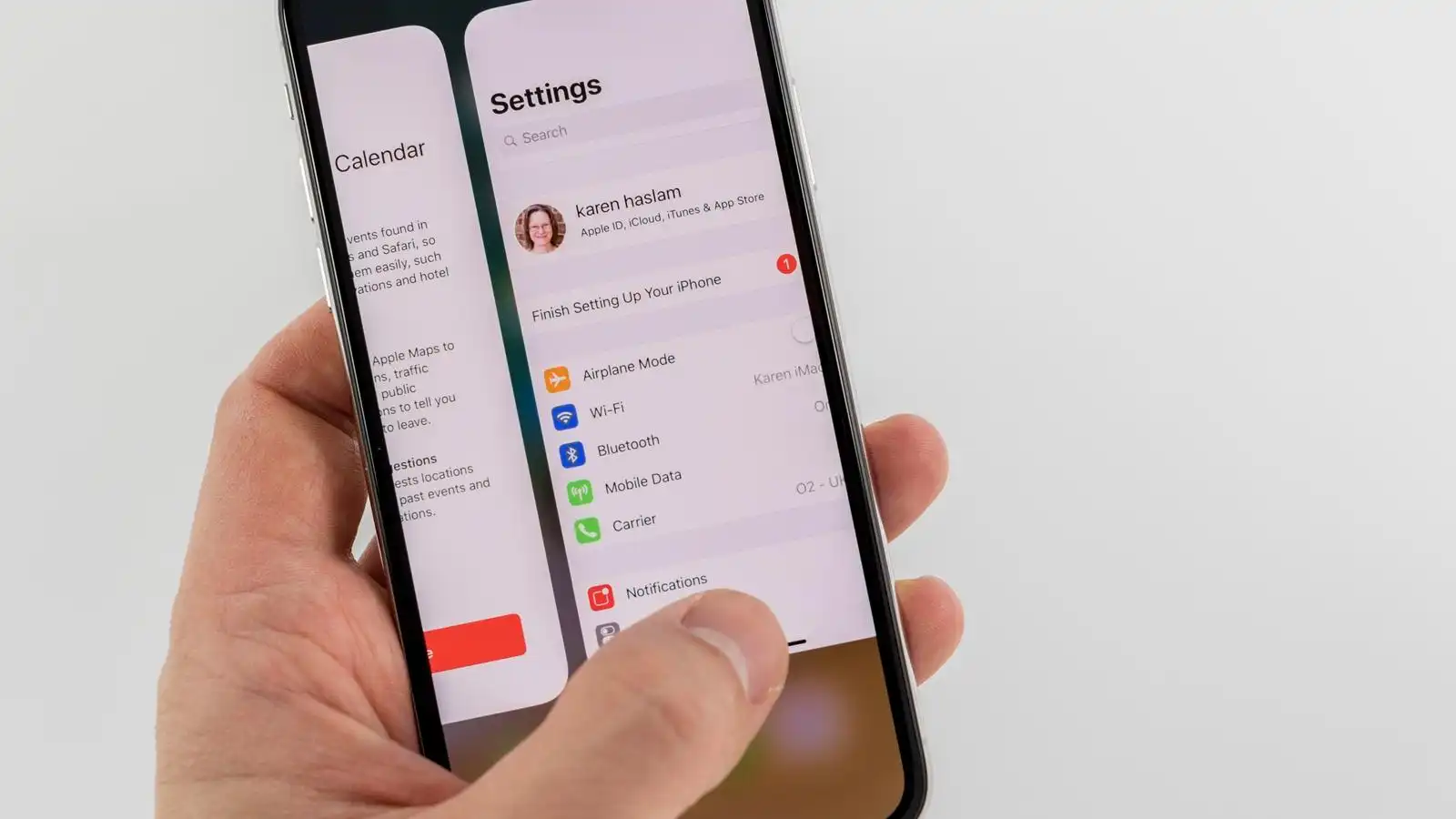
If you have an iPhone with Face ID, closing pages is as easy as swiping down from the top of the screen. Here’s how:
- Swipe down from the top of the screen to access the miniatures of all open apps.
- Lightly drag the finger of the app you want to close to the right side of the screen and release.
Closing Pages With Home Button
If you have an iPhone with a physical Home button, closing pages is also straightforward:
- Double-press the Home button to access the list of all open apps.
- Swipe up on the app you want to close to remove it from the list.
Closing All Open Apps at Once
To close all open apps at once using Face ID or Home button, follow these steps:
Face ID:
1. Hold the finger down on the top-right corner of the screen until the levetta di spegnimento (power off) icon appears.
2. Swipe left and release.
Home Button:
1. Press and hold the power button until the power off slider appears.
2. Slide the slider to turn off your iPhone.
Closing Pages in Safari
If you’re using Safari as your default browser, closing pages is easy:
- Open Safari and access the list of all open tabs by tapping on the two squares icon in the bottom-right corner.
- Swipe left or right on a tab to close it.
- To close all open tabs at once, tap on the “Close” button (represented by an X) next to each tab.
Closing Pages in Chrome
To close pages in Chrome:
- Open Chrome and access the list of all open tabs by tapping on the square icon in the bottom-right corner.
- Tap on a tab to close it.
- To close all open tabs at once, tap on the three-dot menu (represented by …) in the top-right corner, then select “Close” from the menu.
Closing Pages of Apps
To close pages of apps:
- Open the app and access its settings.
- Look for an option to close or exit the app.
- Follow the prompts to close the app.
Closing Pages on Iphone Home Screen
Starting with iOS 14, you can also close pages on your iPhone Home screen:
- Swipe up from the bottom of the screen to access the widgets and apps list.
- Tap on an empty area to start rearranging the icons.
- Tap on a page icon to remove it from the list.
Conclusion
Closing pages on your iPhone is a simple process that can help improve performance, conserve battery life, and free up memory. Whether you’re using Face ID or Home button, closing pages is easy and straightforward. We hope this guide has been helpful in showing you how to close pages on your iPhone.
Frequently Asked Questions
- Q: Why do I Need to Close Pages on my Iphone?
A: Closing pages can help free up memory, improve performance, and conserve battery life. - Q: How do I Close a Single Page on Safari or Chrome?
A: To close a single page in Safari or Chrome, swipe left or right on the tab you want to close. - Q: How do I Close All Open Apps at Once?
A: Hold down the power button until the power off slider appears, then slide the slider to turn off your iPhone. - Q: Can I Close Pages on my Iphone Home Screen?
A: Starting with iOS 14, you can also close pages on your iPhone Home screen by swiping up from the bottom of the screen and tapping on a page icon. - Q: How do I Close an App That is Not Responding or Crashing?
A: Hold down the power button until the power off slider appears, then slide the slider to turn off your iPhone. - Q: Can I Customize my Iphone’s Home Screen to Hide Certain Pages?
A: Yes, you can customize your iPhone’s Home screen by swiping up from the bottom of the screen and tapping on a page icon to remove it from the list.
I hope this article has been helpful in answering your questions about closing pages on your iPhone. If you have any further questions or need additional assistance, please don’t hesitate to ask!


