
How to Format a Hard Disk to Ntfs
Are you facing issues copying videos on your portable hard disk because Windows won’t let you due to file system limitations? Don’t worry, it’s not the hard disk that’s broken! The problem lies in the file system used by your hard disk. In this article, we’ll guide you through formatting your hard disk to NTFS, a more compatible and supportive file system.
Understanding File Systems
A file system is the way files are organized on a drive. Think of it like a library where books (files) are stored in shelves (folders). Your hard disk uses FAT32, which has limitations when it comes to file size support. NTFS, on the other hand, is a more advanced file system that can handle larger file sizes and offers better performance.
Formatting to Ntfs
To format your hard disk to NTFS, follow these steps:
Step 1: Connect Your Hard Disk
Connect your portable hard disk to your PC using a USB cable. Make sure it’s properly seated and recognized by your computer.
Step 2: Open File Explorer
Open File Explorer (also known as Windows Explorer) on your PC. This will show you all connected drives, including the one you want to format.
Step 3: Right-click on The Drive
Right-click on the hard disk drive in File Explorer and select “Format”.
Step 4: Choose Ntfs
In the Format window, select the file system as “NTFS” from the drop-down menu.
Step 5: Assign a Label
Assign a label to your formatted drive. This will be its new name on your PC.
Step 6: Confirm Formatting
Confirm that you want to format the drive by selecting “OK”.
Alternative Methods
If you’re not comfortable with formatting directly from File Explorer, you can use other methods:
- Use the Command Prompt (Windows key + R, then type “cmd” and press Enter)
- Use third-party software like MiniTool Partition Wizard
Formatting a Specific Partition
If you only want to format a specific partition on your hard disk and not the entire drive, follow these steps:
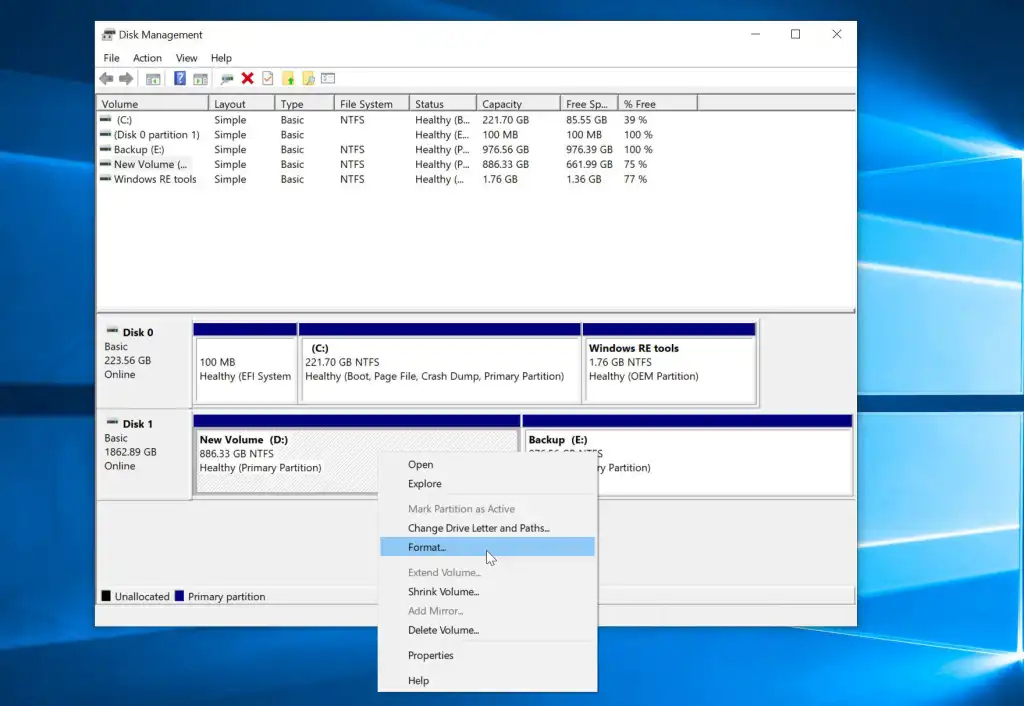
- Search for “Create and format partitions” in the Start menu.
- Right-click on the partition you want to format and select “Format”.
- Choose NTFS as the file system.
Using Minitool Partition Wizard
MiniTool Partition Wizard is a free software that allows you to format, resize, and manage partitions on your hard disk. Here’s how to use it:
- Download and install MiniTool Partition Wizard.
- Launch the software and select the partition you want to format.
- Choose NTFS as the file system.
Formatting on Macos
If you’re using a Mac, formatting to NTFS is a bit more complicated. You’ll need to install third-party software like Microsoft NTFS for Mac by Paragon:
- Download and install the software from the official website.
- Follow the instructions to format your drive to NTFS.
Other Solutions
For advanced users or those who want to partition their hard disk, consider using GParted, a Linux-based software that can be run on a CD, DVD, or USB drive:
- Download and burn the ISO image of GParted.
- Run GParted on your system and format your hard disk.
Conclusion
Formatting your hard disk to NTFS is a straightforward process that can help resolve issues with file size limitations. Whether you’re using Windows, macOS, or other operating systems, there are solutions available for you. Remember to always back up your important files before formatting your drive!
Frequently Asked Questions (FAQs)
- What is The Difference Between Fat32 And Ntfs?
FAT32 has limitations when it comes to file size support, while NTFS can handle larger file sizes and offers better performance.
- Can I Format my Entire Hard Disk to Ntfs?
Yes, you can format your entire hard disk to NTFS using Windows or macOS.
- How do I Know if my Hard Disk is Already Formatted in Ntfs?
Check the properties of your drive in File Explorer (Windows) or Disk Utility (macOS).
- Can I Format a Specific Partition on my Hard Disk?
Yes, you can format a specific partition on your hard disk using Windows or MiniTool Partition Wizard.
- What is Gparted And How Does it Help With Formatting?
GParted is a Linux-based software that allows you to format partitions on your hard disk, including those not recognized by Windows or macOS.
- Is There a Cost Associated With Formatting my Hard Disk to Ntfs?
Some solutions, like Microsoft NTFS for Mac by Paragon, require payment, but others are free or have free trial versions available.
- How do I Back up my Files Before Formatting my Hard Disk?
Use external storage devices, cloud services, or backup software to ensure your important files are safe and can be recovered after formatting.
- Can I Format my Hard Disk in Other File Systems Besides Ntfs?
Yes, you can format your hard disk in other file systems like HFS+, APFS, or Ext4, depending on the operating system and hardware being used.
- What is Minitool Partition Wizard And How Does it Help With Formatting?
MiniTool Partition Wizard is a free software that allows you to format, resize, and manage partitions on your hard disk using Windows.
- Is There an Alternative Method For Formatting my Hard Disk Without Losing Data?
Yes, consider using cloning software or creating a backup image of your drive before formatting to ensure all data is preserved.


