
Joining Multiple Pdf Files Free: A Comprehensive Guide
Are you tired of dealing with multiple PDF files that need to be combined into a single document? Look no further! In this article, we will explore the various ways to join PDF files free, both offline and online.
What is Joining Pdf Files?
Joining PDF files is the process of combining multiple PDF documents into one file. This can be useful for creating a single document from multiple sources, such as reports, presentations, or articles.
Offline Solutions
When it comes to joining PDF files offline, there are several software options available.
Pdfill Pdf Tools (Windows)
If you’re using a Windows computer, PDFill PDF Tools is an excellent option. This free software allows you to merge multiple PDF files into one file, as well as edit and convert PDFs. To download PDFill PDF Tools, visit the official website and click on the “Download Free Basic Version” button.
Once downloaded, follow these steps:
- Open the executable file and click “Yes” and then “Next” to install the software.
- Accept the terms of the license agreement.
- Click “Install” and then “Finish” to complete the installation process.
- Launch PDFill PDF Tools and select the “Merge PDF Files” option.
- Drag and drop the PDF files you want to merge into the designated area.
- Arrange the documents in the desired order and click “Save As” to save the merged file.
Adobe Acrobat Pro DC (Windows/MacOS)
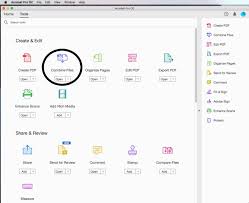
Adobe Acrobat Pro DC is a professional-grade software that allows you to join multiple PDF files, as well as edit and convert PDFs. To download Adobe Acrobat Pro DC, visit the official website and click on the “Get Started” button.
Once downloaded, follow these steps:
- Open the executable file (for Windows) or the dmg file (for MacOS).
- Follow the installation prompts to install the software.
- Launch Adobe Acrobat Pro DC and select the “Combine” option from the Tools menu.
- Add the PDF files you want to merge by clicking on the “Add” button.
- Arrange the documents in the desired order and click “Save As” to save the merged file.
Trailer (MacOS)
If you’re using a MacOS computer, Trailer is an excellent option for joining multiple PDF files. This built-in software allows you to open and edit PDFs, as well as merge them into one file.
To use Trailer, follow these steps:
- Open the first document you want to merge.
- Click on the “File” menu and select “Open” to add the second document.
- Continue adding documents by clicking on the “File” menu and selecting “Open”.
- Arrange the documents in the desired order and click on the “Print” menu to save the merged file.
Online Solutions
When it comes to joining PDF files online, there are several options available.
Pdf Candy
PDF Candy is an excellent online service that allows you to join multiple PDF files into one document. To use PDF Candy, follow these steps:
- Visit the official website and click on the “Add Files” button.
- Upload the PDF files you want to merge or drag and drop them onto the website.
- Arrange the documents in the desired order by clicking and dragging them.
- Click on the “Join” button to save the merged file.
Online2pdf
Online2PDF is another excellent online service that allows you to join multiple PDF files into one document. To use Online2PDF, follow these steps:
- Visit the official website and click on the “Add Files” button.
- Upload the PDF files you want to merge or drag and drop them onto the website.
- Arrange the documents in the desired order by clicking and dragging them.
- Click on the “Merge” button to save the merged file.
Mobile Apps
If you’re looking for mobile apps that can join PDF files, there are several options available.
Pdf Merge (Android/iOS)
PDF Merge is an excellent mobile app that allows you to join multiple PDF files into one document. To use PDF Merge, follow these steps:
- Download the app from the Google Play Store (for Android) or the App Store (for iOS).
- Launch the app and select the “Merge” option.
- Upload the PDF files you want to merge or drag and drop them onto the app.
- Arrange the documents in the desired order and click on the “Save” button to save the merged file.
Pdf Tools (Android)
PDF Tools is another excellent mobile app that allows you to join multiple PDF files into one document, as well as edit and convert PDFs. To use PDF Tools, follow these steps:
- Download the app from the Google Play Store.
- Launch the app and select the “Merge” option.
- Upload the PDF files you want to merge or drag and drop them onto the app.
- Arrange the documents in the desired order and click on the “Save” button to save the merged file.
Pdf Expert (iOS/iPadOS)
PDF Expert is an excellent mobile app that allows you to join multiple PDF files into one document, as well as edit and convert PDFs. To use PDF Expert, follow these steps:
- Download the app from the App Store.
- Launch the app and select the “Merge” option.
- Upload the PDF files you want to merge or drag and drop them onto the app.
- Arrange the documents in the desired order and click on the “Save” button to save the merged file.
Conclusion
Joining multiple PDF files can be a daunting task, but with the right software or online service, it’s easier than ever. Whether you’re using a Windows computer, MacOS, Android device, or iOS device, there are plenty of options available to help you combine your PDFs into one document. We hope this article has provided you with the information and guidance you need to join your PDF files efficiently.
Frequently Asked Questions
Q: What is joining PDF files?
A: Joining PDF files is the process of combining multiple PDF documents into one file.
Q: What software can I use to join PDF files offline?
A: There are several software options available, including PDFill PDF Tools (Windows) and Adobe Acrobat Pro DC (Windows/MacOS).
Q: Can I join PDF files online?
A: Yes, there are several online services available that allow you to join multiple PDF files into one document.
Q: Are there mobile apps that can join PDF files?
A: Yes, there are several mobile apps available that allow you to join multiple PDF files into one document.
Related Articles
- How to Edit PDF Files: A Comprehensive Guide
- Converting PDF Files: A Step-by-Step Guide
- Protecting PDF Files with Passwords: A Beginner’s Guide


