
How to Actuate The Chat Only Follower on Twitch
As a Twitch streamer, you want to ensure that your chat is a welcoming and safe space for all users. However, with so many viewers joining in, it can be difficult to manage the conversation and prevent unwanted comments or spamming. That’s where the “Chat Only Follower” feature comes in – a powerful tool that allows you to control who can participate in the chat and when.
What is The Chat Only Follower Feature?
The Chat Only Follower feature is a setting that allows you to restrict access to your chat to only those users who are following your channel. This means that anyone trying to join the chat will need to be one of your followers, ensuring that only genuine viewers can participate in the conversation.
Why Use The Chat Only Follower Feature?
There are several reasons why using the Chat Only Follower feature is a good idea:
- Reduce Spamming: By limiting access to your chat to only those who follow you, you can significantly reduce the amount of spamming and unwanted comments that flood in.
- Improve User Experience: A controlled chat environment ensures that users have a more positive experience, as they’re less likely to encounter harassment or unwanted messages.
- Increase Engagement: When users feel safe and included in your chat, they’re more likely to engage with you and other viewers, leading to a more dynamic and interactive community.
How to Actuate The Chat Only Follower Feature on Twitch
Actuating the Chat Only Follower feature on Twitch is relatively straightforward. Here’s how:
From Computer
- Log in to your Twitch account.
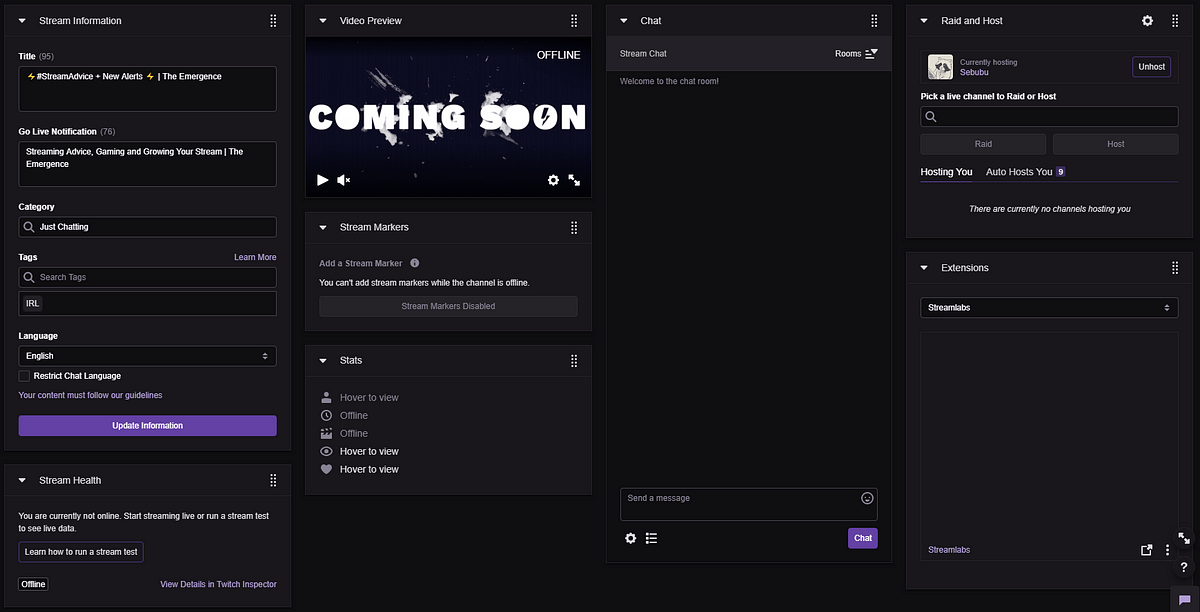
- Go to your channel settings (located under “Channel” in the navigation menu).
- Click on the “Chat” tab, then select “Only followers” from the dropdown menu.
You can also activate this feature directly within your chat by using a specific command: /*Followers *0m. This will allow all of your followers to participate in the chat, while blocking anyone else.
From Smartphone And Tablet
To actuate the Chat Only Follower feature on your mobile device:
- Open the Twitch app.
- Tap on your profile picture (located at the top right corner of the screen).
- Select “My channel” from the dropdown menu.
- Tap on the chat icon (represented by a speech bubble), then enter
/*followers *0minto the message input field.
Once you’ve completed these steps, only your followers will be able to participate in the chat, while everyone else will be blocked from joining.
How to Disable The Chat Only Follower Feature
If you ever need to disable the Chat Only Follower feature, follow these simple steps:
From Computer
- Go back to your channel settings (same location as before).
- Click on the “Chat” tab, then select “Only followers” from the dropdown menu and choose “Disable”.
Alternatively, you can deactivate this feature directly within your chat using the command /*followersoff.
From Smartphone And Tablet
To disable the Chat Only Follower feature on your mobile device:
- Open the Twitch app (same location as before).
- Tap on your profile picture.
- Select “My channel”, then tap on the chat icon.
Enter /*followersoff into the message input field, followed by tapping the airplane icon to deactivate the feature.
That’s it! With these steps, you should be able to easily enable or disable the Chat Only Follower feature on Twitch using either your computer, smartphone, or tablet.
Tips And Tricks
Here are a few additional tips to keep in mind when using the Chat Only Follower feature:
- You can adjust the timer for followers to comment in chat by clicking on the dropdown menu next to “Only followers” in your channel settings.
- By setting a minimum time limit, you can prevent users from joining and commenting immediately after following your channel.
- If someone is trying to spam or harass others in your chat, don’t hesitate to disable this feature temporarily until the situation has been resolved.
Benefits of Using The Chat Only Follower Feature
The benefits of using the Chat Only Follower feature are numerous:
- Improved User Experience: By controlling who can participate in the chat, you create a more positive and welcoming environment for all users.
- Reduced Spamming: This feature helps prevent unwanted comments and spamming from flooding into your chat.
- Increased Engagement: When viewers feel safe and included in your chat, they’re more likely to engage with each other and participate in the conversation.
Conclusion
The Chat Only Follower feature on Twitch is a powerful tool that allows you to control who can participate in your chat. By following these simple steps, you can enable or disable this feature as needed, depending on your specific needs. With its numerous benefits for user experience, reduced spamming, and increased engagement, using the Chat Only Follower feature is an excellent way to take care of your viewers’ comfort while maintaining a lively and dynamic chat environment.
How to Actuate The Chat Only Follower Feature
To actuate the Chat Only Follower feature on Twitch, follow these simple steps:
From Computer
- Log in to your Twitch account.
- Go to your channel settings (located under “Channel” in the navigation menu).
- Click on the “Chat” tab, then select “Only followers” from the dropdown menu.
Alternatively, you can activate this feature directly within your chat by using a specific command: /*Followers *0m. This will allow all of your followers to participate in the chat, while blocking anyone else.
From Smartphone And Tablet
To actuate the Chat Only Follower feature on your mobile device:
- Open the Twitch app.
- Tap on your profile picture (located at the top right corner of the screen).
- Select “My channel” from the dropdown menu.
- Tap on the chat icon, then enter
/*followers *0minto the message input field.
Once you’ve completed these steps, only your followers will be able to participate in the chat, while everyone else will be blocked from joining.
Tips And Tricks
Here are a few additional tips to keep in mind when using the Chat Only Follower feature:
- You can adjust the timer for followers to comment in chat by clicking on the dropdown menu next to “Only followers” in your channel settings.
- By setting a minimum time limit, you can prevent users from joining and commenting immediately after following your channel.
- If someone is trying to spam or harass others in your chat, don’t hesitate to disable this feature temporarily until the situation has been resolved.
Benefits of Using The Chat Only Follower Feature
The benefits of using the Chat Only Follower feature are numerous:
- Improved User Experience: By controlling who can participate in the chat, you create a more positive and welcoming environment for all users.
- Reduced Spamming: This feature helps prevent unwanted comments and spamming from flooding into your chat.
- Increased Engagement: When viewers feel safe and included in your chat, they’re more likely to engage with each other and participate in the conversation.
Conclusion
The Chat Only Follower feature on Twitch is a powerful tool that allows you to control who can participate in your chat. By following these simple steps, you can enable or disable this feature as needed, depending on your specific needs. With its numerous benefits for user experience, reduced spamming, and increased engagement, using the Chat Only Follower feature is an excellent way to take care of your viewers’ comfort while maintaining a lively and dynamic chat environment.
How to Disable The Chat Only Follower Feature
If you ever need to disable the Chat Only Follower feature, follow these simple steps:
From Computer
- Go back to your channel settings (same location as before).
- Click on the “Chat” tab, then select “Only followers” from the dropdown menu and choose “Disable”.
Alternatively, you can deactivate this feature directly within your chat using the command /*followersoff.
From Smartphone And Tablet
To disable the Chat Only Follower feature on your mobile device:
- Open the Twitch app (same location as before).
- Tap on your profile picture.
- Select “My channel”, then tap on the chat icon.
Enter /*followersoff into the message input field, followed by tapping the airplane icon to deactivate the feature.
That’s it! With these steps, you should be able to easily enable or disable the Chat Only Follower feature on Twitch using either your computer, smartphone, or tablet.


