
How to Transfer Android Apps to Iphone: A Step-by-step Guide
Are you tired of switching between different smartphones? Do you want to transfer your favorite Android apps to your new iPhone? Look no further! In this article, we’ll guide you through the process of transferring Android apps to iPhone using various methods.
What You Need to Know Before Transferring Apps
Before we dive into the steps, it’s essential to know that not all Android apps can be transferred directly to an iPhone. Some apps might have similar versions on iOS, while others may require a manual transfer or even a complete reinstall.
Method 1: Using The “Move to Ios” App
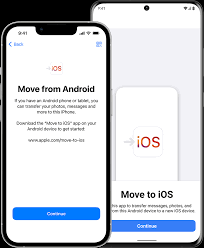
The easiest way to transfer Android apps to iPhone is by using the “Move to iOS” app. Here’s how:
- Download And Install The App: On your Android device, download and install the “Move to iOS” app from the Google Play Store.
- Open The App: Launch the app on your Android device and follow the instructions to set up a transfer code.
- Enter The Code on Your Iphone: On your new iPhone, go to Settings > General > Transfer or Reset iPhone > Move Data from Android. Enter the 10-digit code displayed on your Android device to initiate the transfer process.
- Wait For The Transfer to Complete: The app will scan your Android device for compatible apps and transfer them to your iPhone. This might take a few minutes, depending on the number of apps you have.
Method 2: Manual App Transfer
If you prefer a manual approach or can’t use the “Move to iOS” app for some reason, here’s how to transfer individual Android apps to iPhone:
- Identify Compatible Apps: Check if your favorite Android apps have similar versions on iOS.
- Download And Install The Ios Version: Download and install the iOS version of each compatible app from the App Store.
- Sync Your Google Account: On your new iPhone, go to Settings > Accounts & Passwords > Add New Account > Google. Sync your Google account to access your data and apps.
Transferring Data And Files
Besides transferring apps, you might want to transfer other data and files from your Android device to your new iPhone. Here’s how:
- Transfer Photos: Use the “Google Photos” app on both devices to sync your photo library.
- Transfer Music And Videos: Transfer music and videos by copying them to a computer and then syncing them with iTunes or using a cloud storage service like Google Drive or Dropbox.
- Transfer Documents: Copy documents from your Android device’s folder to the corresponding folders on your iPhone.
Transferring Whatsapp Chat History
If you want to transfer your WhatsApp chat history from your Android device to your new iPhone, here’s what you need to do:
- Backup Your Whatsapp Data: On your Android device, open WhatsApp and go to Settings > Chats > Backup chats.
- Restore Whatsapp on Your Iphone: On your new iPhone, install WhatsApp and follow the prompts to restore your chat history from the backup.
Conclusion
Transferring Android apps to iPhone can be a seamless process using the right methods and tools. By following these steps, you’ll be able to transfer your favorite apps, data, and files to your new iPhone without much hassle. Remember to always check for compatible versions of each app on iOS before transferring them.
Faqs
- Can I Transfer All my Android Apps to Iphone?
Not all Android apps can be transferred directly to an iPhone. Some might require manual installation or have similar versions on iOS. - How do I Transfer Whatsapp Chat History?
To transfer WhatsApp chat history, backup your data on your Android device and then restore it on your new iPhone. - Can I Use a Third-party App to Transfer Apps?
Yes, you can use third-party apps like Wondershare Dr.Fone – Transfer WhatsApp to transfer WhatsApp data between devices. - How Long Does The Transfer Process Take?
The transfer process depends on the number of apps and data being transferred. It might take a few minutes to several hours, depending on your internet connection and device speed. - Can I Transfer my Google Account to Iphone?
Yes, you can sync your Google account on your new iPhone to access your data, including your contacts, calendar, and photos.
Additional Tips
- Make sure to check for compatible versions of each app on iOS before transferring them.
- Transfer data and files from your Android device to a computer before syncing them with iTunes or using cloud storage services like Google Drive or Dropbox.
- If you’re unable to transfer an app, try reinstalling it on both devices or checking the app’s settings for any issues.


