
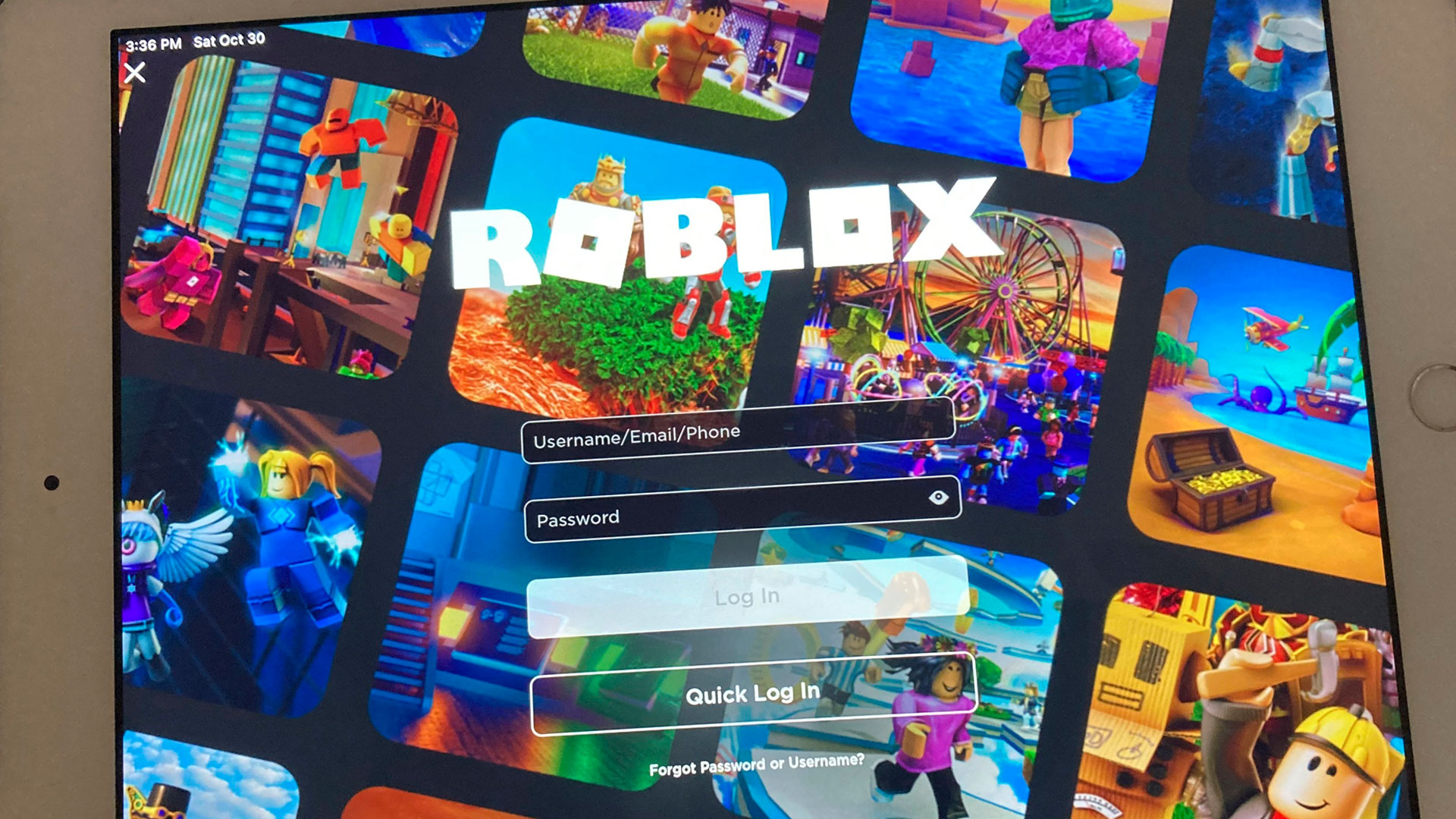
Why Roblox Doesn’t Work Today
Are you a fan of Roblox, but have been experiencing issues getting it to work on your device? You’re not alone! Many users have reported problems with the app, and in this article, we’ll explore some possible reasons why Roblox might not be functioning properly.
Checking The Server Status
One of the first things you can check is the status of the Roblox server. To do this:
- Go to the official Roblox website
- Click on “Status” at the top right corner of the page
- If everything looks green and normal, it’s likely not a server-side issue
However, if you see any red or yellow indicators, it could be a problem with the servers. Try waiting for a few minutes to see if things get back to normal.
Verifying Minimum Requirements
If the server status is fine, let’s check if your device meets the minimum requirements for Roblox:
- Go to the official Roblox website
- Click on “System Requirements” at the bottom of the page
- Check if your device meets all the listed requirements
If you’re using a PC, make sure it’s running Windows 10 or macOS High Sierra (or later). If you’re using a smartphone or tablet, ensure it has iOS 9 or Android 5.0 (Or later).
Checking Parental Controls
Sometimes, issues with Roblox can be caused by restrictions set up by parental controls:
- Go to the Settings app on your device
- Look for the “Parental Control” section
- Check if there are any restrictions set on Roblox
If you’re finding it hard to resolve the problem yourself, don’t worry! We’ve got some additional tips and resources below.
What to Do Next
If none of the above steps have resolved your issue, try the following:
- Check Your Internet Connection: Make sure you have a stable internet connection.
- Clear Cache And Data: Clearing cache and data can sometimes resolve issues with apps.
- Update Roblox: Ensure that you’re running the latest version of Roblox.
- Contact Roblox Support: Reach out to Roblox support for further assistance.
Faqs
Here are some additional FAQs:
Q: Why is Roblox not working on my device?
A: There could be several reasons, including server issues, minimum requirements not met, or parental control restrictions.
Q: How do I check the server status of Roblox?
A: Go to the official Roblox website and click on “Status” at the top right corner of the page.
Q: What are the minimum system requirements for Roblox?
A: For PC, it’s Windows 10 or macOS High Sierra (or later). For smartphones and tablets, it’s iOS 9 or Android 5.0 (Or later).
Q: Can parental controls affect Roblox functionality?
A: Yes, sometimes restrictions set up by parental controls can cause issues with Roblox.
Conclusion
In conclusion, if you’re experiencing problems with Roblox not working on your device, try checking the server status, verifying minimum requirements, and ensuring that parental control restrictions are not causing any issues. If none of these steps resolve your problem, don’t hesitate to reach out to Roblox support for further assistance.


