
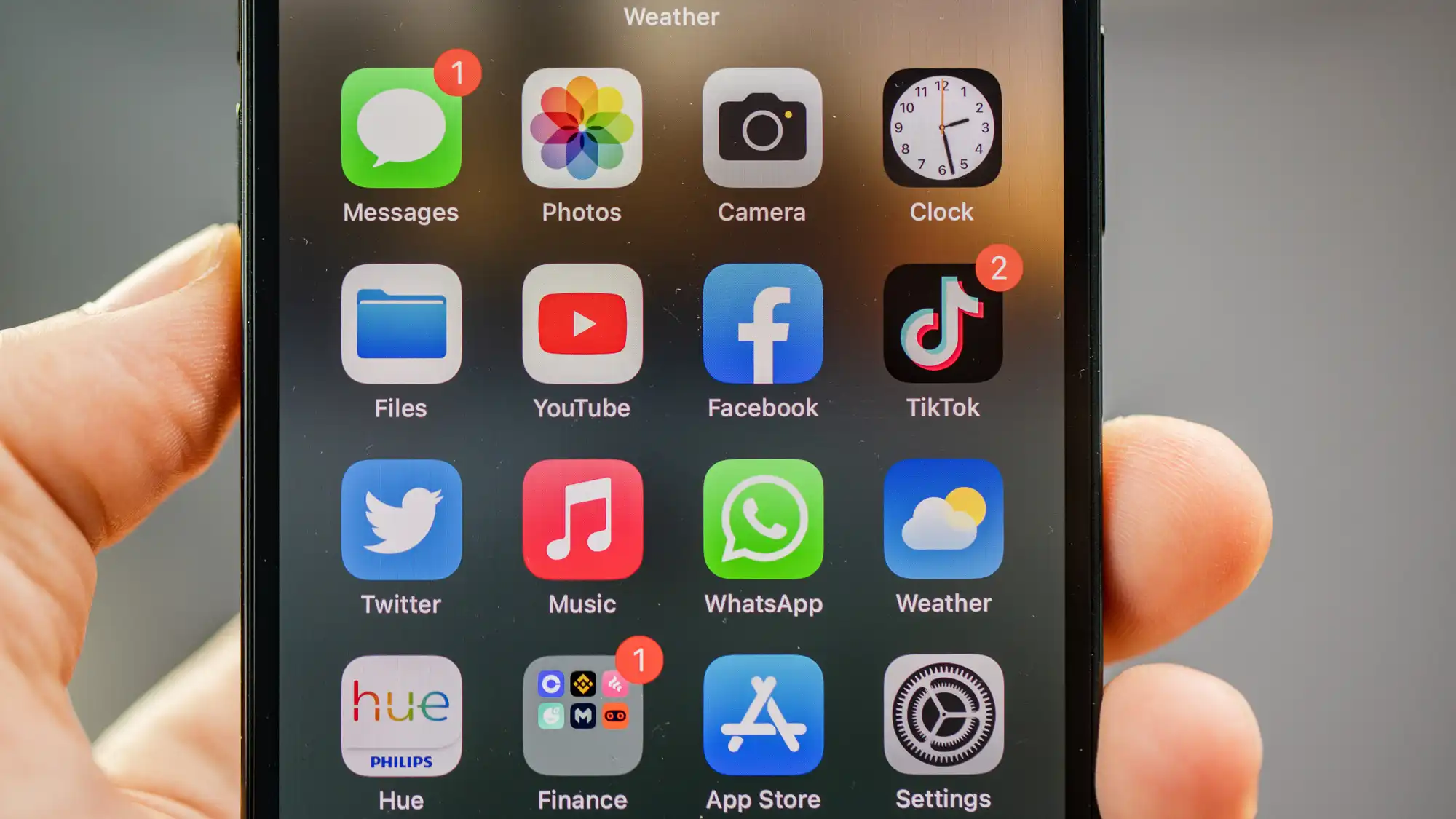
How to Create Folders on Iphone: A Step-by-step Guide
Are you tired of having a cluttered Home screen on your iPhone, with too many icons and apps competing for space? Do you want to organize your photos, documents, and other files in a more efficient way? Look no further! In this article, we will show you how to create folders on your iPhone and make the most out of your device.
Why Create Folders on Iphone?
Creating folders on your iPhone is a great way to keep your Home screen organized and clutter-free. By grouping similar apps, photos, or documents together in folders, you can:
- Easily find what you’re looking for
- Reduce visual clutter on your Home screen
- Improve productivity and efficiency
How to Create Folders on Iphone
Creating folders on iPhone is a straightforward process that requires just a few taps. Here’s how to do it:
- Tap And Hold: Tap and hold an empty spot on your Home screen until the icons start shaking.
- Create a Folder: Tap “Create Folder” at the top of the screen.
- Name The Folder: Name the new folder whatever you like (e.G., Photos, Documents, etc.).
- Add Apps or Files: Drag and drop apps or files into the folder to add them.
How to Add Apps to Folders
To add an app to a folder, follow these steps:
- Tap and hold the app icon.
- Drag it into the folder you created.
- Release your finger when the app is inside the folder.
How to Delete or Move Folders
If you need to delete or move folders, here’s how to do it:
- To delete a folder, tap and hold on it until the icons start shaking. Tap the “Delete” button at the top of the screen.
- To move a folder, drag and drop it into its new location.
How to Create Folders With The Rows App
If you’re looking for an alternative way to create folders on your iPhone, you can try using the Rows app. This app allows you to create folders on iCloud Drive, other cloud services, or even on your device itself.
To get started, tap and hold on an empty spot on your Home screen until the icons start shaking. Then, follow these steps:
- Tap “Create Folder” at the top of the screen.
- Name the new folder whatever you like (e.G., Photos, Documents, etc.).
How to Create Private Folders on Iphone
If you want to keep certain files or photos private, you can create a folder with a password-protected entry. Here’s how to do it:
- Download and install the Deprive Photo Vault app.
- Open the app and tap “Create New Folder.”
- Name the new folder whatever you like (e.G., Private Photos).
- Set up a password or use Face ID/Touch ID for secure access.
How to Create Folders For Email on Iphone
If you want to organize your email messages into folders, here’s how to do it:
- Open the Mail app.
- Tap “Modify” at the top of the screen.
- Tap “New Box” and name the new folder whatever you like (e.G., Work Emails).
- Tap “Position Box” and select the email account in which to create the new folder.
How to Transfer Files Between Folders
To transfer files between folders, follow these steps:
- Open the app containing the file (e.G., Photos, Documents, etc.).
- Select the file you want to move.
- Tap “Share” and select the destination folder.
Conclusion
Creating folders on your iPhone is a simple yet effective way to keep your device organized and clutter-free. Whether you’re looking to manage your photos, documents, or email messages, we hope this guide has shown you how to create folders and make the most out of your iPhone.
Frequently Asked Questions (FAQs)
- Q: How do I Delete a Folder on my Iphone?
A: To delete a folder, tap and hold on it until the icons start shaking. Tap the “Delete” button at the top of the screen. - Q: Can I Create Folders on Icloud Drive or Other Cloud Services?
A: Yes, you can create folders on iCloud Drive or other cloud services using the Rows app. - Q: How do I Add Files to a Folder on my Iphone?
A: To add files to a folder, tap and hold on the file icon. Drag it into the folder you created. - Q: Can I Use Face Id/touch ID to Secure Access to Folders?
A: Yes, you can set up Face ID or Touch ID for secure access to folders using apps like Deprive Photo Vault. - Q: How do I Transfer Files Between Folders on my Iphone?
A: To transfer files between folders, select the file you want to move and tap “Share.” Select the destination folder from the list of available options. - Q: Can I Create Multiple Levels of Subfolders on my Iphone?
A: Yes, you can create multiple levels of subfolders by creating a new folder within an existing one. - Q: How do I Delete or Move Folders Using The Rows App?
A: To delete or move folders using the Rows app, tap and hold on the folder icon until the icons start shaking. Tap the “Delete” button at the top of the screen to delete a folder, or drag and drop it into its new location to move it. - Q: Can I Use The Deprive Photo Vault App to Secure Access to Folders Containing Sensitive Information?
A: Yes, you can use the Deprive Photo Vault app to secure access to folders containing sensitive information using passwords or Face ID/Touch ID for authentication.


