
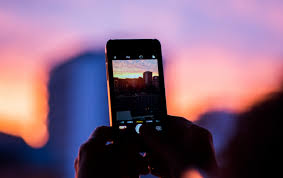
How to Take Stunning Selfies With Your Iphone
Are you tired of taking mediocre selfies with your iPhone? Do you want to capture perfect moments, every time? Look no further! In this article, we’ll show you how to take stunning selfies with your iPhone, using various techniques and tips.
The Basics: Understanding Your Iphone’s Camera
Before we dive into the advanced stuff, let’s make sure you understand the basics of your iPhone’s camera. The iPhone has two cameras – one on the front (selfie camera) and one on the back. Each camera has its own settings and features, which we’ll explore later.
The Importance of Good Lighting
Good lighting is essential for taking great selfies. Natural light is always the best option, so try to take your selfies near a window or outside during the golden hour (soft, warm light). Avoid harsh artificial light sources like fluorescent lights, as they can create unflattering shadows and highlights.
Mastering Your Iphone’s Camera Settings
To take stunning selfies with your iPhone, you need to master its camera settings. Here are some tips:
- Use The Hdr Feature: High Dynamic Range (HDR) helps to capture more detail in both bright and dark areas of the image.
- Adjust The Exposure: Tap on the sun/cloud icon to adjust the exposure compensation. This will help to balance the light levels in your selfie.
- Use The Flash Wisely: The flash can be useful in low-light conditions, but be careful not to overdo it, as it can create unflattering shadows.
- Experiment With Portrait Mode: Portrait mode uses depth control to create a shallow depth of field, making your subject stand out from the background.
Using The Timer Feature
The timer feature is a game-changer when it comes to taking selfies. It allows you to set a delay between taking the photo and actually capturing the image. This gives you time to get into position, smile, or even make a funny face!
To use the timer feature:
- Open the Camera app.
- Tap on the clock icon.
- Choose your desired timer setting (e.G., 3 Seconds, 10 seconds).
- Get into position and wait for the camera to take the photo.
Using an Apple Watch With Your Iphone
If you have an Apple Watch, you can use it to control your iPhone’s camera remotely! This is a great feature if you want to take selfies at arm’s length or from a different angle.
To use this feature:
- Open the Camera app on your iPhone.
- Make sure your iPhone and Apple Watch are connected via Bluetooth.
- On your Apple Watch, tap on the Camera app.
- Use the Digital Crown to zoom in or out of the image.
- Tap on the shutter button to take the photo.
Using a Remote Shutter Release
If you want to get fancy, you can use a remote shutter release to take selfies at arm’s length. This is a great option if you have a selfie stick or other camera accessories.
To use a remote shutter release:
- Open the Camera app on your iPhone.
- Connect your remote shutter release to your iPhone via Bluetooth.
- Use the remote control to trigger the camera to take the photo.
Tips For Taking Beautiful Selfies
Now that you know how to use your iPhone’s camera settings and features, here are some additional tips for taking beautiful selfies:
- Clean The Lens: A dirty or smudged lens can ruin an otherwise great selfie.
- Use a Tripod or Stabilizer: This will help you take sharper photos and reduce camera shake.
- Experiment With Angles: Don’t be afraid to try out different angles and perspectives.
- Practice, Practice, Practice!: The more you practice taking selfies, the better you’ll get.
Conclusion
Taking stunning selfies with your iPhone is easier than you think! With these tips and techniques, you can capture perfect moments, every time. Remember to always use good lighting, master your camera settings, and experiment with different angles and perspectives. Happy snapping!


