
Burning With Mac: Everything You Need to Know
If you’ve just become the owner of a Mac and are wondering how to burn CDs, DVDs and Blue-rays, don’t worry! in this article, I will explain in a detailed and simple way how to perform these operations with ease.
Preliminary Operations
Before getting started, it’s important to make sure you have a burner available. Unlike older Macs, new ones don’t have a built-in burner. However, you can easily purchase an external one and connect it to your computer.
Burn CD
If you want to create a CD containing various types of data (for example documents, photos, videos), you can use the operating system’s default utility. To do this, insert a blank CD into the burner connected to your Mac and click on the “finder” button in the menu bar.
Burn Audio With Mac
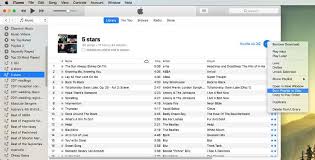
If you want to burn music to CD, you can use the operating system’s music application. Make sure you have inserted a blank CD into the burner and open the “new playlist” dialog. Drag the tracks you want to add to the playlist onto the CD.
Burn Iso With Mac
If you have an image file in ISO format, you can use the finder to burn it onto a CD. Insert a blank CD into the burner and click on the right on the icon of the iso file you are interested in. Select the “burn disc image [iso name]” option.
Burn Blu-ray With Mac
To burn blu-ray with your mac, you can use burn, a free and open-source software. Download burn from the official website and follow the instructions to download and install the application. Once you’re done, insert a blank blu-ray disc into the burner and open the “burn” dialog.
Burn Dvd With Mac
To burn DVDs with your Mac, you can use the same procedure described for CDs, simply replacing the CD with a DVD. If you want to use tools specifically designed to burn DVDs on Mac, you can hire them from a third party.
Alternatives to Burn
If you are unsuccessful using burn or prefer another option, there are alternatives such as true burner and express burn. These software offer similar functionality to burn and can be used to burn CDs, DVDs and Blu-rays.
Conclusions
Burning with Mac is a quick and easy procedure, which can be performed easily even by those who have no experience in the matter. I hope this article has helped you understand how to do these tasks successfully.
Faqs
- How Can I Burn a CD on Mac?
Answer: You can use the operating system’s default utility or burn, which is free and open-source software.
- How Can I Burn a Dvd on Mac?
Answer: You can use the same procedure described for CDs, simply replacing the CD with a DVD.
- What Are The Alternatives to Burn?
Answer: There are alternatives such as True Burner and Express Burn, which offer similar functionality to Burn and can be used to burn CDs, DVDs and Blu-rays.
- How Can I Buy an External Burner For Mac?
Answer: You can buy it directly or consult my article “shopping guide to the best external burners for mac”.
- Can I Use Burn on All Types of Discs?
Answer: Yes, you can use Burn to burn CDs, DVDs and Blu-rays.
- Are There Any Constraints or Restrictions in Using Burn?
Answer: Yes, there are some constraints and restrictions related to using burn, such as the need for an apple account to use it on mac.
- How Can I Burn an Iso File on Mac?
Answer: You can use the finder to burn an iso file to a cd or dvd.
- What Are The Most Appropriate Options For Burning Blu-ray on Mac?
Answer: The best option is to use burn, but if you can’t do that, you can also use true burner or express burn.


