
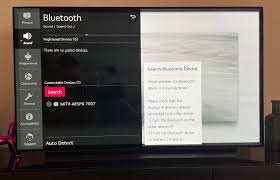
Actuating Bluetooth on LG Tv: A Comprehensive Guide
Are you looking to enhance your viewing experience by connecting wireless earphones, keyboards, or controllers to your LG TV? Look no further! In this article, we will guide you through the process of actuating Bluetooth on your LG TV, step-by-step.
Understanding The Basics
Before we dive into the instructions, it’s essential to understand the basics. Actuating Bluetooth on your LG TV allows you to connect wireless devices such as earphones, keyboards, and controllers to your television. This feature is particularly useful for enhancing your viewing experience while others are sleeping or for gaming purposes.
Step 1: Accessing The Settings Menu
To actuate Bluetooth on your LG TV, follow these steps:
- Press the “Home” button on your remote control.
- Select the “Settings” icon from the menu.
- Choose the “All Settings” option.
- Scroll down to the “Audio” section.
Step 2: Enabling Bluetooth
Once you’re in the Audio section, look for the “Sound Out” option. This is where you’ll find the Bluetooth settings. Select this option and follow these steps:
- Press the “OK” button on your remote control.
- Choose the “Bluetooth” option from the menu.
- Select the “LG Sound Sync/Bluetooth” option.
Step 3: Searching For Available Devices
After selecting the LG Sound Sync/Bluetooth option, you’ll be taken to a screen where you can search for available devices. This is where you’ll find your wireless earphones, keyboards, or controllers. Follow these steps:
- Press the “OK” button on your remote control.
- Choose the “Search” option from the menu.
- Select the device you want to connect.
Step 4: Associating Devices
Once you’ve selected the device, follow these steps:
- Press the “OK” button on your remote control.
- Choose the “Connect” option from the menu.
- Confirm that you want to associate the devices.
Actuating Bluetooth For Keyboard And Controller
If you’re looking to connect a keyboard or controller to your LG TV, follow the same steps as above. However, keep in mind that the availability of these features may vary depending on your TV model.
Tips And Variations
- If you’re using a recent LG TV model with webOS 6.0 Or later, you might find the Bluetooth options in the Audio section more easily accessible.
- For older models, you can try searching for the “Bluetooth” option in the Settings menu.
- Always refer to your TV’s user manual or online documentation for specific instructions and guidelines.
Conclusion
Actuating Bluetooth on your LG TV is a straightforward process that enhances your viewing experience. By following these steps, you’ll be able to connect wireless earphones, keyboards, or controllers to your television. Remember to check your TV model’s compatibility and refer to the user manual or online documentation for specific instructions.
Frequently Asked Questions (FAQs)
- How do I Enable Bluetooth on my LG Tv?
Actuate the Settings menu, select “Audio,” then choose the “Sound Out” option. - What Devices Can I Connect Using Bluetooth on my LG Tv?
Wireless earphones, keyboards, controllers, and other compatible devices. - Why is Bluetooth Not Working on my LG Tv?
Check your TV model’s compatibility, ensure that you’re in the correct menu section, or refer to the user manual for troubleshooting tips. - Can I Connect Multiple Devices Using Bluetooth on my LG Tv?
Yes, but keep in mind that some devices may require separate connections or settings. - How do I Disconnect a Device Connected Via Bluetooth on my LG Tv?
Follow the same steps as connecting a device, but select “Disconnect” instead of “Connect.” - What Are The Benefits of Using Bluetooth on my LG Tv?
Enhanced viewing experience, wireless connectivity, and convenience for gaming or multimedia purposes. - Are There Any Specific Requirements For Bluetooth-enabled Devices?
Check your device’s compatibility with your LG TV model, ensure that it’s properly paired, and follow any necessary settings or configurations.
References


