
How to Create a Skype Account: A Step-by-step Guide
Are you looking to create a Skype account and stay connected with friends, family, or colleagues? Look no further! In this article, we will guide you through the process of creating a Skype account on your computer, smartphone, or tablet.
What is Skype?
Skype is a popular communication platform that allows users to make voice and video calls, send messages, and share files. With over 300 million active users worldwide, Skype has become an essential tool for staying in touch with loved ones and colleagues.
Creating a Skype Account on Computer
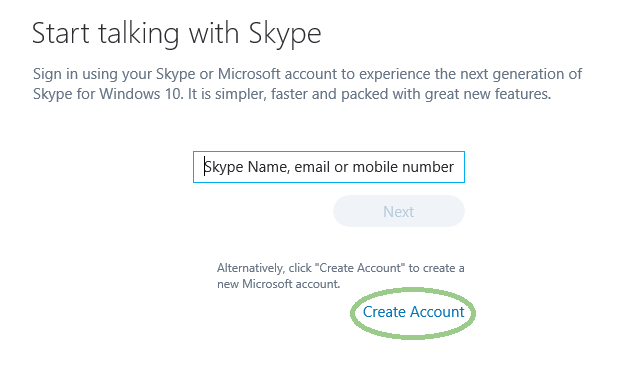
To create a Skype account on your computer, follow these steps:
Step 1: Download And Install Skype
Download the Skype desktop application from the official website. Once installed, launch the app and click on “Sign up” to create a new account.
Step 2: Choose Your Account Type
Select whether you want to create an account using your phone number or email address.
Option A: Create an Account With Phone Number
- Enter your phone number in the designated field.
- Click on “Next” and follow the prompts to verify your phone number.
- Create a password and fill out the required information, such as name and country of residence.
- Confirm your identity by entering the code sent to you via SMS.
Option B: Create an Account With Email Address
- Enter your email address in the designated field.
- Click on “Next” and follow the prompts to verify your email address.
- Create a password and fill out the required information, such as name and country of residence.
- Confirm your identity by entering the code sent to you via email.
Step 3: Complete Your Profile
Fill out the remaining details, including your date of birth and profile picture. Click on “Next” to complete your profile.
Creating a Skype Account on Smartphone or Tablet
To create a Skype account on your smartphone or tablet, follow these steps:
Step 1: Download And Install Skype App
Download the Skype app from the App Store (for iOS devices) or Google Play Store (for Android devices). Once installed, launch the app.
Step 2: Choose Your Account Type
Select whether you want to create an account using your phone number, email address, or create a new one.
Option A: Create an Account With Phone Number
- Enter your phone number in the designated field.
- Tap on “Next” and follow the prompts to verify your phone number.
- Create a password and fill out the required information, such as name and country of residence.
- Confirm your identity by entering the code sent to you via SMS.
Option B: Create an Account With Email Address
- Enter your email address in the designated field.
- Tap on “Next” and follow the prompts to verify your email address.
- Create a password and fill out the required information, such as name and country of residence.
- Confirm your identity by entering the code sent to you via email.
Option C: Create a New Account
- Choose to create a new account using an existing phone number or email address.
- Follow the prompts to verify your chosen method.
- Complete your profile, including your date of birth and profile picture.
Step 3: Complete Your Profile
Fill out the remaining details and confirm your identity. Tap on “Next” to complete your profile.
Deleting a Skype Account
If you want to delete your Skype account, follow these steps:
Option A: Delete Account From Computer
Launch the Skype desktop application and click on your name in the top left corner. Select “Settings” > “Account and profile” > “Close your account”.
Option B: Delete Account From Smartphone or Tablet
Open the Skype app and tap on your photo in the top right corner. Select “Settings” > “Account and profile” > “Close your account”. Follow the prompts to complete the deletion process.
Frequently Asked Questions (FAQs)
- How do I Create a Skype Account?
To create a Skype account, follow the steps outlined above for computer or smartphone/tablet users.
- What Information do I Need to Provide to Create a Skype Account?
You will need to provide your phone number, email address, name, and country of residence to create a Skype account.
- How do I Verify my Identity When Creating a Skype Account?
To verify your identity, you will need to enter a code sent to you via SMS or email.
- Can I Delete my Skype Account?
Yes, you can delete your Skype account by following the steps outlined above for computer or smartphone/tablet users.
- What Happens When I Delete my Skype Account?
When you delete your Skype account, all associated data and contacts will be removed from the platform.
- How do I Recover a Deleted Skype Account?
You cannot recover a deleted Skype account. However, if you accidentally delete your account, contact Skype support for assistance.
- Can I Create a Skype Account Using my Existing Microsoft Account?
Yes, you can create a Skype account using your existing Microsoft account credentials.
- How do I Update my Profile Information on Skype?
To update your profile information on Skype, click on “Settings” > “Account and profile” in the desktop application or tap on “Settings” > “Account and profile” in the smartphone/tablet app.
By following these steps, you can create a Skype account and stay connected with friends, family, or colleagues worldwide.


