
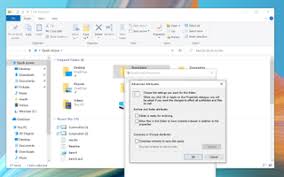
How to Encrypt a File: A Step-by-step Guide
Are you tired of worrying about someone accessing your confidential files? Do you want to protect your important documents from unauthorized eyes? Look no further! In this article, we will show you how to encrypt a file using various software and apps.
Why Encrypt Your Files?
Encrypting your files is essential in today’s digital age. With the rise of cyber threats and data breaches, it’s more crucial than ever to protect your sensitive information. By encrypting your files, you can ensure that only authorized individuals can access them.
Choosing The Right Software
There are several software options available for file encryption. In this article, we will focus on the following:
- Libreoffice (Windows/Mac/Linux)
- Adobe Acrobat Pro (Windows/Mac)
- Microsoft Excel
- Microsoft Word
- Veracrypt
Encrypting a File With Libreoffice
To encrypt a file using LibreOffice, follow these steps:
- Open the file you want to encrypt using LibreOffice.
- Go to the menu bar and select “File” > “Export.”
- In the export options, select “PDF” as the format.
- Click on the “Security” tab and select “Encrypt with password.”
- Enter a password of your choice and confirm it by re-entering it in the second field.
- Choose whether to encrypt for viewing or editing.
- Save the encrypted file to a secure location.
Encrypting a File With Adobe Acrobat Pro
To encrypt a file using Adobe Acrobat Pro, follow these steps:
- Open the file you want to encrypt using Adobe Acrobat Pro.
- Go to the menu bar and select “File” > “Open.”
- Select the file you want to encrypt and click on “Open.”
- In the security options, select “Encrypt with password.”
- Enter a password of your choice and confirm it by re-entering it in the second field.
- Choose whether to encrypt for viewing or editing.
- Save the encrypted file to a secure location.
Encrypting a File With Microsoft Excel
To encrypt a file using Microsoft Excel, follow these steps:
- Open the file you want to encrypt using Microsoft Excel.
- Go to the menu bar and select “File” > “Protect Workbook.”
- In the protect workbook options, select “Password Protect Workbook.”
- Enter a password of your choice and confirm it by re-entering it in the second field.
- Choose whether to encrypt for viewing or editing.
- Save the encrypted file to a secure location.
Encrypting a File With Microsoft Word
To encrypt a file using Microsoft Word, follow these steps:
- Open the file you want to encrypt using Microsoft Word.
- Go to the menu bar and select “File” > “Protect Document.”
- In the protect document options, select “Password Protect Document.”
- Enter a password of your choice and confirm it by re-entering it in the second field.
- Choose whether to encrypt for viewing or editing.
- Save the encrypted file to a secure location.
Encrypting a File With Veracrypt
To encrypt a file using VeraCrypt, follow these steps:
- Download and install VeraCrypt on your computer.
- Launch VeraCrypt and select “Create Volume.”
- Choose the encryption method you prefer (AES, Blowfish, etc.).
- Select the location where you want to store the encrypted volume.
- Enter a password of your choice and confirm it by re-entering it in the second field.
- Save the encrypted file to a secure location.
Encrypting Files on Mobile Devices
You can also encrypt files on mobile devices using various apps, such as:
- Files by Google (Android): This app allows you to create a folder of safety where you can store your encrypted files.
- Photos (iOS/iPadOS): This app allows you to protect photos and videos by moving them to the Concealed section, which can only be accessed with biometric authentication or a PIN.
- Private Photo Vault (Android/ Ios/ipados): This app creates a virtual container where you can store your encrypted files.
Conclusion
Encrypting your files is an essential step in protecting your sensitive information from unauthorized access. By following the steps outlined in this article, you can ensure that only authorized individuals can access your confidential files using various software and apps.
Frequently Asked Questions
Q: What is encryption?
A: Encryption is a process of converting data into unreadable code to protect it from unauthorized access.
Q: Why do I need to encrypt my files?
A: You should encrypt your files to protect sensitive information from cyber threats, data breaches, and unauthorized access.
Q: Which software options are available for file encryption?
A: The software options available for file encryption include LibreOffice, Adobe Acrobat Pro, Microsoft Excel, Microsoft Word, and VeraCrypt.
Recommended Apps
- Files by Google (Android)
- Photos (iOS/iPadOS)
- Private Photo Vault (Android/ iOS/iPadOS)
Note: This article is for informational purposes only. It’s essential to research and understand the specific encryption software or app you choose to use.


