
How to Reset Your Ps4: A Step-by-step Guide
Are you tired of dealing with problems on your PlayStation 4? Do you want to erase all the data and settings on your console before selling or gifting it to someone else? Look no further! In this article, we will guide you through the process of resetting your PS4 in various modes.
Understanding Why You Need to Reset Your Ps4
Before we dive into the steps, let’s understand why you might need to reset your PS4. If your console is experiencing issues such as slow performance, critical problems, or if you want to erase all the data on your console before selling it, resetting it may be the solution.
What You Can Do With a Reset
A reset can help in several ways:
- Recover Settings: Restore your PS4 settings to their default factory settings.
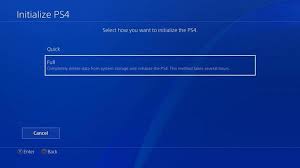
- Initialise System: Delete all user data and settings from your console.
- Fix Problems: Resolve issues like slow performance, critical problems, or malfunctioning controllers.
How to Reset Your Ps4 Manually
To reset your PS4 manually:
- Go to the Settings menu on your console.
- Select “Initialisation” and then choose “Ripristina settings predefinite” (Restore Default Settings).
- Follow the instructions displayed on your screen to complete the process.
What Happens During a Reset
During a reset:
- Your PS4 will restore its default factory settings.
- All user data, including games and profiles, will be deleted.
- The system will restart automatically after completing the reset process.
How to Reset Your Ps4 Without a Controller
If you don’t have a controller or it’s not working properly:
- Use your TV remote to navigate through the menu options.
- Select “Settings” and then choose “Initialisation”.
- Follow the instructions displayed on your screen to complete the reset process.
How to Reset Your Ps4 in Provisional Modality
In case of problems with your console, you can activate the provisional modality:
- Turn off your PS4 by pressing the power button.
- Hold the power button for three seconds to turn it back on.
- Connect your controller using a USB cable and press the PS button.
- Select “Ripristina settings predefinite” (Restore Default Settings), “Inizializza PS4” (Initialise System), or “Inizializza PS4 (Reinstall software system)”.
How to Reset Your Ps4 When It’s Blocked
If your PS4 is blocked and won’t turn off, try the following:
- Restart your console by pressing the power button.
- If that doesn’t work, try resetting it using the provisional modality.
- If you’re still experiencing issues, contact a professional for assistance.
How to Reset Your Ps4 Controller
If your controller is malfunctioning or not working properly:
- Locate the small reset button on the underside of your controller.
- Use an object like a pin or needle to press and hold the reset button.
- Release the button after three seconds.
How to Reset Your Ps4 Account
To reset your PSN account:
- Go to Settings > Management account.
- Select “Active as PS4 leading” and then choose “Disattiva”.
- Follow the instructions displayed on your screen to complete the process.
- To re-access your account, go to Settings > Management account and select “Access”.
Conclusion
Resetting your PS4 can be a lifesaver when dealing with problems or preparing it for sale or gifting. By following these steps, you can restore your console to its default factory settings, fix issues, or delete all user data.
Faqs
- Q: What happens during a reset?
A: During a reset, your PS4 will restore its default factory settings, delete all user data, and restart automatically. - Q: Can I reset my PS4 without a controller?
A: Yes, you can use your TV remote to navigate through the menu options and complete the reset process. - Q: How do I reset my PS4 when it’s blocked?
A: Try restarting your console or resetting it using the provisional modality. If that doesn’t work, contact a professional for assistance. - Q: Can I reset my PS4 controller?
A: Yes, you can press and hold the small reset button on the underside of your controller to reset it. - Q: How do I reset my PSN account?
A: Go to Settings > Management account, select “Active as PS4 leading” and then choose “Disattiva”. - Q: What happens if I forget my password for my PSN account?
A: Follow the instructions in our guide on how to recover your account.


