
Mastering Microsoft Excel: A Comprehensive Guide to Calculations
Are you looking to unlock the full potential of Microsoft Excel? Do you want to learn how to perform complex calculations with ease? Look no further! In this article, we will delve into the world of Excel and show you how to master its most powerful features.
What is Microsoft Excel?
Microsoft Excel is a spreadsheet software that allows users to organize, analyze, and visualize data. It’s an essential tool for anyone who works with numbers, whether it’s in finance, accounting, or business. With Excel, you can create tables, charts, and graphs to help you understand your data better.
Why Use Microsoft Excel?
There are many reasons why people use Microsoft Excel:
- To perform calculations quickly and accurately
- To analyze large datasets with ease
- To create visual representations of data (charts, graphs, etc.)
- To collaborate with others on projects
Getting Started With Calculations in Excel
Before we dive into the nitty-gritty of calculations, let’s cover some basics:
- Make sure you have Excel installed on your computer or device.
- Familiarize yourself with the Excel interface (toolbar, menus, etc.).
- Practice creating simple tables and entering data.
Basic Arithmetic Operations
Excel allows you to perform basic arithmetic operations like addition, subtraction, multiplication, and division.
- Use the equals sign (=) to indicate a calculation.
- Select the cells containing the numbers you want to calculate with.
- Type the desired operation (+, -, *, /).
- Press Enter to execute the calculation.
Using Formulas in Excel
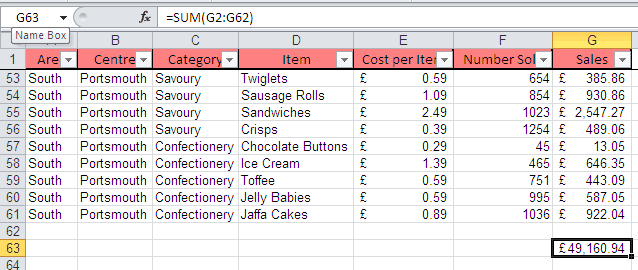
Formulas are pre-built calculations that can be applied to multiple cells at once. They’re essential for complex calculations and data analysis.
- Use the Insert Function button (or press F3) to access the Formula Builder.
- Select a function from the list (e.G., SUM, AVERAGE, COUNT).
- Configure the formula as needed (input cell ranges, etc.).
- Press Enter to apply the formula to the selected cells.
Complex Calculations in Excel
Now that we’ve covered basic arithmetic operations and formulas, let’s explore more advanced calculations:
- Use nested functions (IF, AND, OR) to create conditional statements.
- Combine multiple formulas using logical operators (AND, OR).
- Apply data validation rules to ensure accurate input.
Real-world Examples
Let’s put these concepts into practice with some real-world examples:
- Automating Salary Calculations: Create a spreadsheet that calculates employee salaries based on hours worked and hourly wage.
- Analyzing Customer Data: Use Excel to analyze customer purchase history, calculate average order values, and identify top-selling products.
- Creating Budget Reports: Develop a budget report that tracks income and expenses over time, highlighting areas where spending can be reduced.
Tips For Mastering Microsoft Excel
To become an Excel master, remember these tips:
- Practice regularly to build muscle memory and improve skills.
- Experiment with different features and functions to find what works best for you.
- Use online resources ( tutorials, videos, etc.) To supplement your learning.
- Join online communities or forums to connect with other Excel users.
Conclusion
Mastering Microsoft Excel takes time and practice, but the rewards are well worth it. With this comprehensive guide, you’ve taken the first step towards unlocking the full potential of Excel. Remember to stay curious, keep practicing, and always explore new features and functions. Happy calculating!


