
Connecting Your Xbox to Internet: A Step-by-step Guide
Are you excited about your new Xbox but struggling to connect it to the internet? You’re not alone! In this article, we’ll guide you through the process of connecting your Xbox to the internet using a cable Ethernet and WiFi.
Understanding Your Options
Before we dive into the instructions, let’s quickly review the two options for connecting your Xbox to the internet:
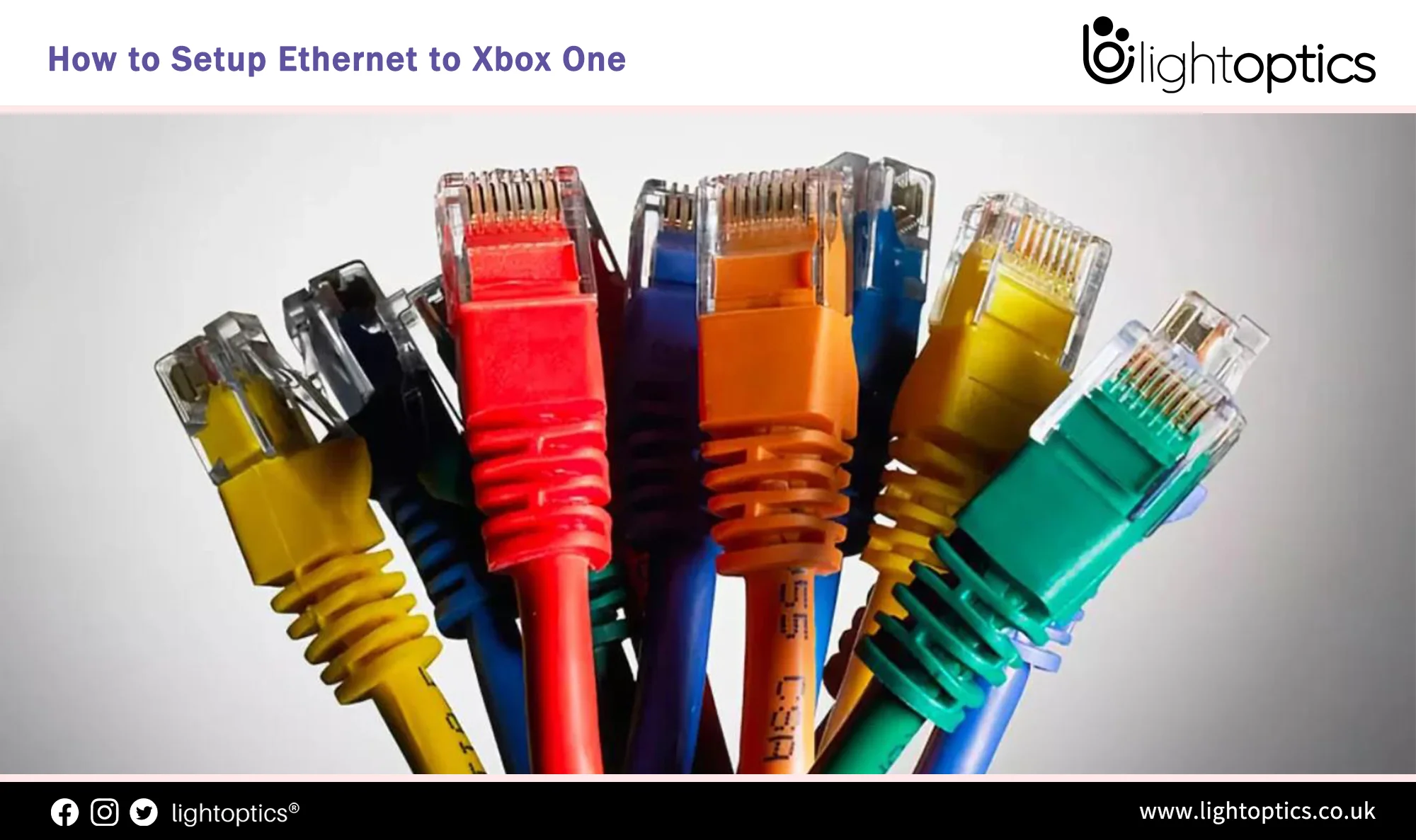
- Cable Ethernet: This method involves connecting your Xbox directly to your modem using an Ethernet cable.
- Wifi: This option allows you to connect your Xbox to the internet wirelessly using your home network.
Connecting Your Xbox to Internet With Cable Ethernet
To connect your Xbox to the internet using a cable Ethernet, follow these steps:
- Obtain an Ethernet Cable: You’ll need a LAN (Local Area Network) cable to connect your Xbox to your modem.
- Connect The Cable: Plug one end of the Ethernet cable into the back of your modem and the other end into the Xbox’s Ethernet port.
- Power On Your Xbox: Turn on your Xbox and follow the on-screen instructions to configure the network settings.
- Check Your Connection: Go to Settings > System > Network Settings on your Xbox to verify that you’re connected to the internet.
Connecting Your Xbox to Internet Using Wifi
To connect your Xbox to the internet wirelessly, follow these steps:
- Enable Wifi on Your Xbox: Go to Settings > System > Network Settings on your Xbox and select “Configure Network” under Wi-Fi.
- Select Your Home Network: Choose your home network from the list of available networks.
- Enter Your Password: Enter the password for your home network.
- Save Changes: Save your changes and exit the settings menu.
Troubleshooting Common Issues
If you’re experiencing issues with your internet connection, try these troubleshooting tips:
- Restart Your Router: Sometimes, a simple reboot can resolve connectivity issues.
- Check Your Network Settings: Ensure that your Xbox is set to the correct network mode (e.G., 2.4GHz or 5GHz).
- Reset Your Xbox: If all else fails, try resetting your Xbox to its factory settings.
Connecting Your Xbox One, X, S, And 360
If you own a different Xbox model (One, X, S, or 360), the process is similar:
- Xbox One, X, And S: Use the same steps as above.
- Xbox 360: Follow the instructions in our guide on connecting your Xbox 360 to the internet.
Resolving Network Errors
If you’re experiencing network errors, try these tips:
- Check Your Firewall Settings: Ensure that your modem’s firewall is set to allow traffic from specific ports (e.G., UDP port 3074).
- Update Your Router Firmware: Keep your router firmware up-to-date to ensure you have the latest security patches.
- Reset Your Xbox: If all else fails, try resetting your Xbox to its factory settings.
Conclusion
Connecting your Xbox to the internet is a straightforward process that can be completed using either a cable Ethernet or WiFi connection. By following these steps and troubleshooting common issues, you should be able to enjoy seamless online gaming with your Xbox.
Frequently Asked Questions (FAQs)
- Q: How do I Check if my Xbox is Connected to The Internet?
A: Go to Settings > System > Network Settings on your Xbox to verify that you’re connected. - Q: What Should I do if my Xbox Won’t Connect to The Internet?
A: Try restarting your router, checking your network settings, or resetting your Xbox. - Q: Can I Use my Smartphone as a Hotspot For my Xbox?
A: Yes, but be aware that using a smartphone hotspot may incur additional costs.
Recommendations
If you’re struggling to connect your Xbox to the internet, we recommend trying our guide on troubleshooting common issues. Additionally, if you have any further questions or concerns, feel free to ask in the comments below!


