
How to Redeem a Ps4 Code: A Step-by-step Guide
Are you looking to redeem a promotional code or voucher on your PlayStation 4? Look no further! In this article, we will guide you through the process of redeeming a PS4 code, whether you’re using your console, computer, or smartphone.
What You Need to Know Before Starting
Before you begin, make sure you have:
- A connection to the internet
- A PlayStation Network (PSN) account
- The promotional code or voucher you want to redeem
Step 1: Prepare Your Ps4 For Redemption
To start, ensure your PS4 is connected to the internet. If it’s not, follow these steps:
Connect Your Ps4 to The Internet
- Access the settings menu on your PS4 by going to the initial menu.
- Select “Network” and then “Configure Connection.”
- Choose either Wi-Fi or Ethernet as your connection method.
- Follow the on-screen instructions to complete the setup process.
Step 2: Create a Psn Account (If You Don’t Already Have One)
If you don’t have a PSN account, create one by:
- Going to the PlayStation website (www.Playstation.Com).
- Clicking on the “Create New Account” button.
- Following the on-screen instructions to complete the registration process.
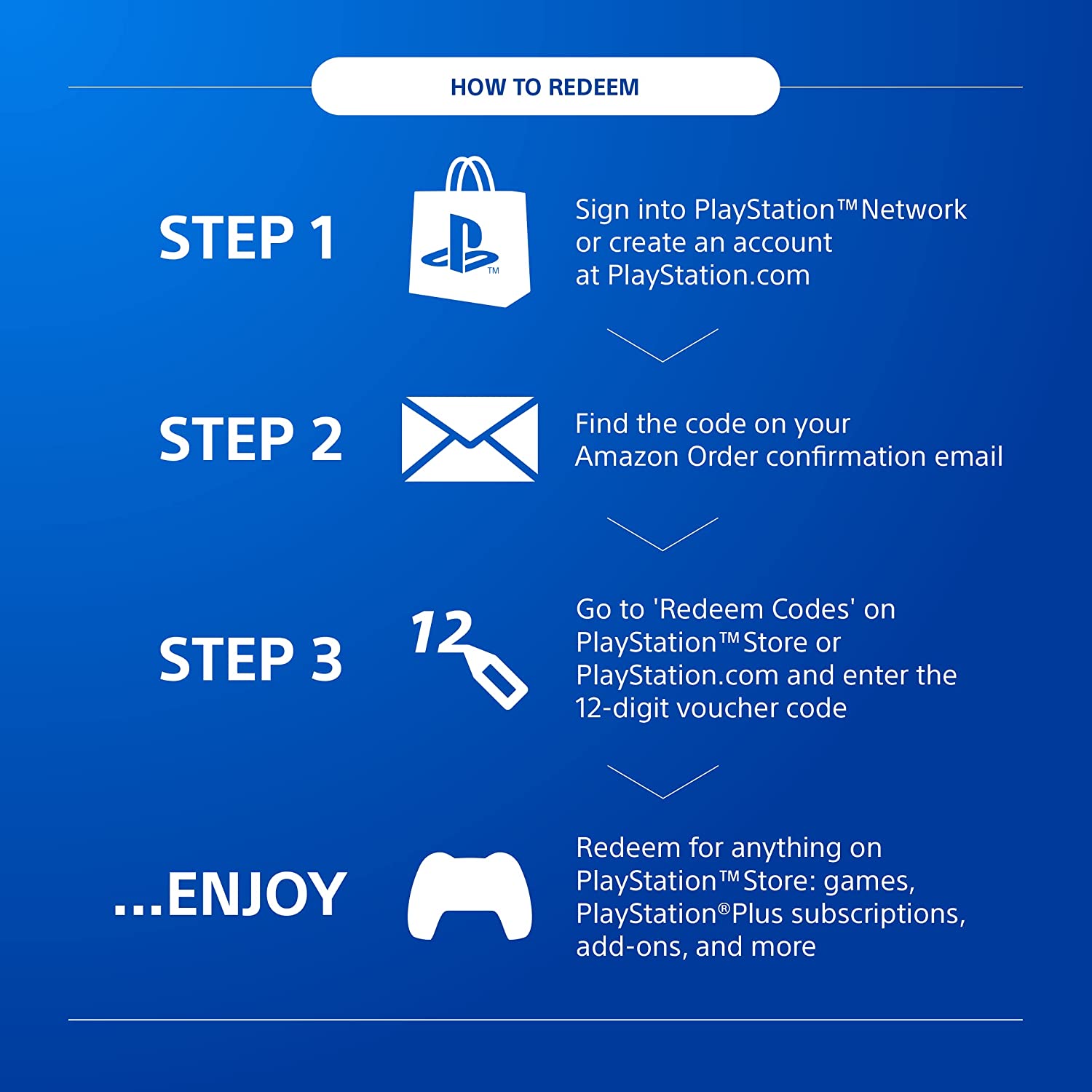
Step 3: Redeem Your Code on Ps4
Now that you have a PSN account and your PS4 is connected to the internet, follow these steps:
Redeem a Code Directly on Ps4
- Open the PlayStation Store.
- Scroll through the menu and select “Riscatta Codes.”
- Enter your promotional code or voucher in the designated field.
- Click “Continue” and then “Confirm” to complete the redemption process.
Alternatively, you can also redeem your code by:
Accessing The Settings Menu
- Go to the settings menu on your PS4.
- Select “Management Account” and then “Access to PlayStation Network.”
- Choose “Riscatta Codes” from the menu.
- Enter your promotional code or voucher in the designated field.
- Click “Continue” and then “Confirm” to complete the redemption process.
Step 4: Redeem Your Code on PC
If you don’t have access to your PS4, you can also redeem your code on PC using the PlayStation website:
- Go to www.Playstation.Com.
- Click on the “Execute Access” button.
- Log in with your PSN account credentials.
- Select “PS Store” from the menu.
- Choose “Riscatta Codes” and enter your promotional code or voucher.
- Follow the on-screen instructions to complete the redemption process.
Step 5: Redeem Your Code Using The Playstation App
You can also redeem your code using the PlayStation app on your smartphone:
- Download and install the PlayStation app from the App Store (for iOS devices) or Google Play Store (for Android devices).
- Launch the app and log in with your PSN account credentials.
- Select “Riscatta Codes” from the menu.
- Enter your promotional code or voucher in the designated field.
- Follow the on-screen instructions to complete the redemption process.
Troubleshooting:
If you encounter any issues during the redemption process, check that:
- Your PSN account is active and up-to-date.
- The promotional code or voucher is valid for your region.
- You have already redeemed the code in the past (check your transaction history).
Conclusion
Redeeming a PS4 code is a straightforward process. By following these steps, you should be able to successfully redeem your code using your console, computer, or smartphone.
Frequently Asked Questions:
Q: What do I need to have before starting?
A: A connection to the internet and a PSN account.
Q: How do I connect my PS4 to the internet?
A: Go to Settings > Network > Configure Connection.
Q: Can I redeem my code on PC?
A: Yes, you can use the PlayStation website (www.Playstation.Com) to redeem your code.
Q: What if I encounter issues during redemption?
A: Check that your PSN account is active and up-to-date, the promotional code or voucher is valid for your region, and that you have not already redeemed the code in the past.


