
Transferring Photos From Iphone to Pc: A Step-by-step Guide
Are you tired of losing precious photos taken with your iPhone? Do you want to transfer them to your computer without the hassle of cables and sync issues? Look no further! In this article, we’ll show you how to transfer photos from your iPhone to PC using various methods.
Why Transfer Photos From Iphone to Pc?
Transferring photos from your iPhone to PC has several benefits. Firstly, it allows you to free up space on your iPhone’s storage. Secondly, it enables you to access and view your photos on a larger screen. Lastly, it provides an additional layer of security by backing up your photos in case something happens to your iPhone.
Method 1: Transferring Photos Using Usb Cable
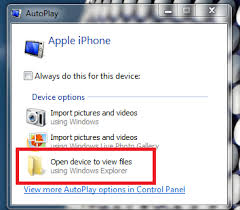
The most traditional method of transferring photos from iPhone to PC is by connecting the two devices using a USB cable. Here’s how:
- Connect your iPhone to your PC using a Lightning-to-USB cable.
- Open iTunes on your PC and select your iPhone from the list of devices.
- Click on “Photos” and then select the type of files you want to transfer (e.G., JPEG, PNG, etc.).
- Choose the folder where you want to save the transferred photos.
Method 2: Transferring Photos Using Icloud
Another way to transfer photos from your iPhone to PC is by using iCloud. Here’s how:
- Make sure you have an active internet connection on both devices.
- Open the “Settings” app on your iPhone and select “iCloud”.
- Scroll down and select “Photos” and then toggle the switch next to “iCloud Photos” to ON.
- On your PC, open a web browser and go to iCloud.Com. Sign in with your Apple ID and password.
- Click on “Photos” and select the photos you want to transfer.
- Right-click on the selected photos and choose “Download” to save them to your PC.
Method 3: Transferring Photos Using Airdrop
If you’re using a Mac, you can use AirDrop to transfer photos from your iPhone to your computer. Here’s how:
- Make sure both devices are connected to the same Wi-Fi network.
- Open the “Photos” app on your iPhone and select the photos you want to transfer.
- Tap the share icon (represented by three dots) and select “AirDrop”.
- On your Mac, open the AirDrop window and select the device you want to receive the photos from.
- Confirm that you want to accept the transferred files.
Method 4: Transferring Photos Using Google Photos
If you have a Google account, you can use Google Photos to transfer photos from your iPhone to PC. Here’s how:
- Open the “Google Photos” app on your iPhone and select the photos you want to transfer.
- Tap the share icon (represented by three dots) and select “Save to Google Photos”.
- On your PC, open a web browser and go to photos.Google.Com. Sign in with your Google account.
- Select the photos you want to transfer and click on “Download” to save them to your PC.
Method 5: Transferring Photos Using Snapdrop
Another way to transfer photos from iPhone to PC is by using Snapdrop. Here’s how:
- Open a web browser on both devices and go to snapdrop.Net.
- Click on the share button (represented by three dots) and select “Share file”.
- On your iPhone, tap the share icon (represented by three dots) and select “Snapdrop” from the list of sharing options.
- Select the photos you want to transfer and confirm that you want to send them to your PC.
Tips And Tricks
Here are some additional tips and tricks to keep in mind when transferring photos from iPhone to PC:
- Make sure both devices have enough storage space to accommodate the transferred files.
- Use a fast internet connection for faster transfer speeds.
- Transfer photos in bulk rather than individually for efficiency.
- Consider using cloud services like iCloud or Google Photos to store your photos, which allows you to access them from any device.
Conclusion
Transferring photos from iPhone to PC is easier than ever with the various methods outlined above. Whether you’re looking to free up space on your iPhone’s storage, access your photos on a larger screen, or simply want to have an additional backup of your precious memories, there’s a method that suits your needs.
Frequently Asked Questions (FAQs)
- Q: How do I Transfer Photos From Iphone to PC Without Icloud?
A: You can use a USB cable to connect your iPhone to your PC and transfer photos manually. - Q: Can I Transfer Photos From Iphone to Ipad?
A: Yes, you can transfer photos from iPhone to iPad using AirDrop or by connecting them via Wi-Fi. - Q: How do I Transfer Photos From Google Photos to Pc?
A: You can download the Google Photos app on your PC and sign in with your Google account to access and download your transferred photos. - Q: What is Snapdrop, And How Does it Work?
A: Snapdrop is a web-based service that allows you to transfer files wirelessly between devices using a shareable link. - Q: How do I Back up my Iphone’s Photos Automatically?
A: You can set your iPhone to backup its photos automatically to iCloud or Google Photos, depending on the method you prefer. - Q: Can I Use Multiple Methods to Transfer Photos From Iphone to Pc?
A: Yes, you can use different methods to transfer photos from iPhone to PC, such as USB cable, iCloud, AirDrop, Google Photos, and Snapdrop. - Q: How do I Access my Transferred Photos on my Pc?
A: You can access your transferred photos on your PC by opening the relevant app or folder where you saved them (e.G., ITunes, Google Photos, etc.).


