
How to Qualify Your Camera on Omegle
Are you tired of not being able to show your face on Omegle? Do you want to make new friends online but can’t seem to get your camera to work? Well, you’re in luck! In this article, we’ll guide you through the process of qualifying your camera on Omegle.
Understanding The Problem
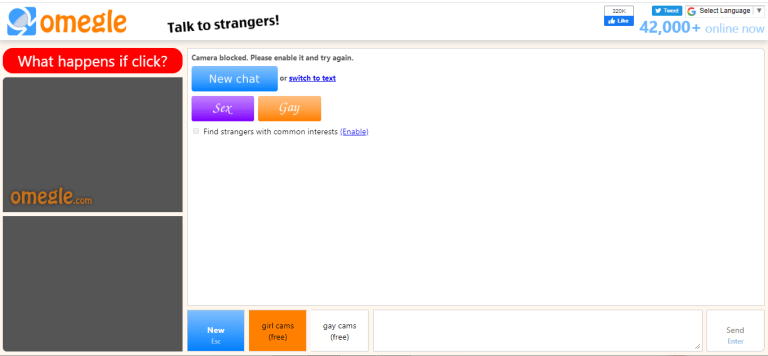
If you’ve tried to video chat on Omegle before, you might have encountered a problem where your camera won’t turn on. This can be frustrating, especially if you’re excited to meet new people online. But don’t worry, we’ve got the solution for you!
Qualifying Your Camera on Omegle: A Step-by-step Guide
Qualifying Your Camera on Omegle: Android
If you’re using an Android device, qualifying your camera on Omegle is relatively easy.
- Open Omegle: First, open the Omegle app on your Android device.
- Tap on Video: Tap on the “Video” button to initiate a video chat.
- Confirm Your Age And Terms: Confirm that you’re at least 18 years old and agree to the terms of service by tapping on the “Confirm & Continuous” button.
- Enable Camera Access: You’ll see a prompt asking if Omegle can access your camera. Tap on the “Consent” button to enable camera access.
Qualifying Your Camera on Omegle: Iphone
Qualifying your camera on Omegle is also easy on an iPhone or iPad.
- Open Safari: Open Safari, the default browser on your iOS device.
- Visit Omegle: Visit the official Omegle website by typing in the URL.
- Tap on Video: Tap on the “Video” button to initiate a video chat.
- Confirm Your Age And Terms: Confirm that you’re at least 18 years old and agree to the terms of service by tapping on the “Confirm & Continuous” button.
- Enable Camera Access: You’ll see a prompt asking if Omegle can access your camera. Tap on the “Consent” button to enable camera access.
Qualifying Your Camera on Omegle: Computer
Qualifying your camera on Omegle is also easy on a computer.
- Visit Omegle: Visit the official Omegle website by typing in the URL.
- Click on Video: Click on the “Video” button to initiate a video chat.
- Confirm Your Age And Terms: Confirm that you’re at least 18 years old and agree to the terms of service by clicking on the “Confirm & Continuous” button.
- Enable Camera Access: You’ll see a prompt asking if Omegle can access your camera. Click on the “Consent” button to enable camera access.
Troubleshooting Tips
If you’re still having trouble qualifying your camera on Omegle, here are some troubleshooting tips:
- Make sure you’ve enabled camera access in your browser settings.
- Check that your device’s camera is working properly by using other video chat apps.
- Try restarting your device and then trying again.
Conclusion
Qualifying your camera on Omegle is a simple process that can be done on any device. By following the step-by-step guide above, you should be able to get your camera up and running in no time. Remember to troubleshoot any issues by checking your browser settings and ensuring your device’s camera is working properly.
Frequently Asked Questions
- Q: Why Won’t my Camera Turn on on Omegle?
A: This can be due to various reasons such as not enabling camera access, having a problem with your device’s camera, or issues with the Omegle app. - Q: How do I Enable Camera Access on Omegle?
A: You can enable camera access by following the step-by-step guide above. - Q: Can I Use Omegle Without Enabling Camera Access?
A: No, you cannot use Omegle for video chat without enabling camera access.


