
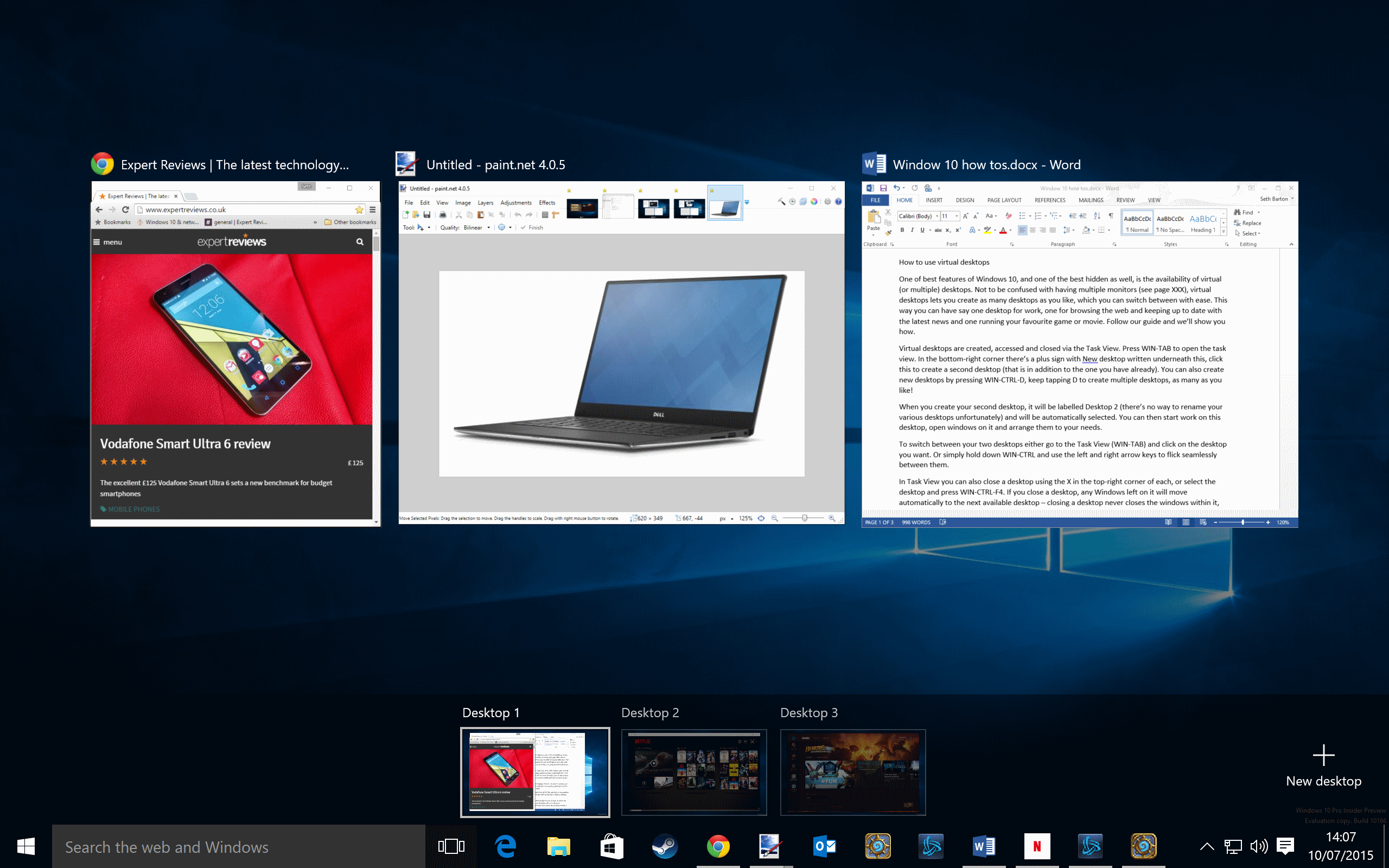
How to Create Virtual Desktops on Windows: A Step-by-step Guide
Are you tired of cluttered desktops and overwhelmed by the number of open windows? Do you wish there was a way to keep your PC organized and improve productivity? Look no further! In this article, we will explore how to create virtual desktops on Windows.
What Are Virtual Desktops?
Virtual desktops are not another type of additional desk in Windows, but rather a feature that allows you to open multiple sets of windows without cluttering the main desktop. This can be especially useful for those who work or study with multiple applications and programs simultaneously.
Using Visualisation Activity on Windows 11/10
One way to create virtual desktops is by using the built-in feature called “Visualisation Activity” on Windows 11 and 10. To access this feature, follow these steps:
- Click on the icon of Visualisation activity (a set of two/three rectangles) in the system tray.
- If the icon is not visible, right-click on an empty area of the taskbar and select “Settings.”
- Under “System,” click on “Display” and toggle the switch for “Visualisation Activity.”
Creating a New Virtual Desktop
To create a new virtual desktop:
- Click on the Visualisation activity icon.
- Select the “+” button to create a new desktop.
You can repeat this process to create multiple virtual desktops. To switch between them, simply click on the Visualisation activity icon and select the desired desktop.
Alternative Solutions: Virtuawin And Sysinternals Desktops
If you don’t have the latest version of Windows or prefer an alternative solution, there are other programs that can help you create virtual desktops:
- Virtuawin: A free software available for download from the official website. This program allows you to create multiple virtual desktops with their own set of windows and applications.
- Sysinternals Desktops: Another free program that enables you to manage up to four virtual desktops, each with its own set of open programs.
Using Virtuawin
To use VirtuaWin:
- Download the software from the official website.
- Install and run the program.
- Click on the “+” button to create a new virtual desktop.
- Use the keyboard shortcuts (Ctrl+Alt+S/L/R) or click on the VirtuaWin icon in the system tray to switch between desktops.
Using Sysinternals Desktops
To use Sysinternals Desktops:
- Download and install the program from Microsoft’s website.
- Configure the program by selecting the desired command key (e.G., Ctrl) and assigning it to a specific virtual desktop.
- Use the keyboard shortcuts or click on the Sysinternals Desktops icon in the system tray to switch between desktops.
Tips And Tricks
Here are some additional tips and tricks for using virtual desktops:
- To delete a virtual desktop, right-click on its icon in the taskbar and select “Close.”
- To move windows between virtual desktops, click on the window’s title bar and drag it to the desired desktop.
- You can also use keyboard shortcuts or gestures to switch between virtual desktops.
Conclusion
Creating virtual desktops on Windows is a simple yet effective way to improve productivity and keep your PC organized. By using built-in features like Visualisation Activity, third-party software like VirtuaWin, or programs like Sysinternals Desktops, you can easily create multiple virtual desktops with their own set of windows and applications.
Frequently Asked Questions
- Q: What is The Purpose of Virtual Desktops?
A: Virtual desktops allow you to open multiple sets of windows without cluttering the main desktop, improving productivity and organization. - Q: Which Windows Version Supports Virtual Desktops?
A: Windows 11 and 10 have a built-in feature called “Visualisation Activity” that allows for virtual desktop creation. - Q: Can I Use Other Programs to Create Virtual Desktops?
A: Yes, there are alternative software solutions like VirtuaWin and Sysinternals Desktops available for download from the official websites. - Q: How do I Switch Between Virtual Desktops?
A: You can use keyboard shortcuts (e.G., Ctrl+Alt+S/L/R), click on the program’s icon in the system tray, or use gestures to switch between virtual desktops.
Recommended Tools And Resources
- Microsoft Windows 11/10
- VirtuaWin software
- Sysinternals Desktops program


