
How to Download Wetransfer: A Step-by-step Guide
Are you wondering how to download WeTransfer on your computer or mobile device? Look no further! In this article, we will guide you through the process of downloading WeTransfer on Windows, macOS, Android, and iOS/iPadOS.
What is Wetransfer?
WeTransfer is a popular file-sharing service that allows users to send large files up to 2 GB for free. For more intensive use, users can subscribe to a paid plan with prices starting at €12/month per person.
Downloading Wetransfer on PC
To download WeTransfer on your Windows computer, you need to have a browser based on Chromium installed (e.G., Chrome or Edge). Unfortunately, the official client is not available for Windows, but the extension is. Here’s how to do it:
- Go to the Chrome Web Store and search for “WeTransfer” in the search bar.
- Click on the result that says “Save to Collect” and click on the “Add to browser” button.
- Confirm the installation by clicking on the “Add extension” button.
- If prompted, restart your browser.
Downloading Wetransfer on Mac
WeTransfer is available as an application for macOS, which can be downloaded freely from the Mac App Store. Here’s how to do it:
- Go to the Mac App Store and search for “WeTransfer” in the search bar.
- Click on the result that says “WeTransfer” and click on the “Get” button.
- Wait for the installation to complete, and then click on the “Open” button.
Downloading Wetransfer on Android
To download WeTransfer on your Android device, you need to have a smartphone or tablet running Android 6.0 Or later. Here’s how to do it:
- Go to the Google Play Store and search for “WeTransfer” in the search bar.
- Click on the result that says “Collect by WeTransfer” and click on the “Install” button.
- Wait for the installation to complete, and then tap on the icon of WeTransfer.
Downloading Wetransfer Free on Iphone
To download WeTransfer on your iPhone or iPad, you need to have a device running iOS 14.0 Or later. Here’s how to do it:
- Go to the App Store and search for “WeTransfer” in the search bar.
- Click on the result that says “Collect by WeTransfer” and click on the “Get” button.
- Wait for the installation to complete, and then tap on the icon of WeTransfer.
Downloading Rows With Wetransfer
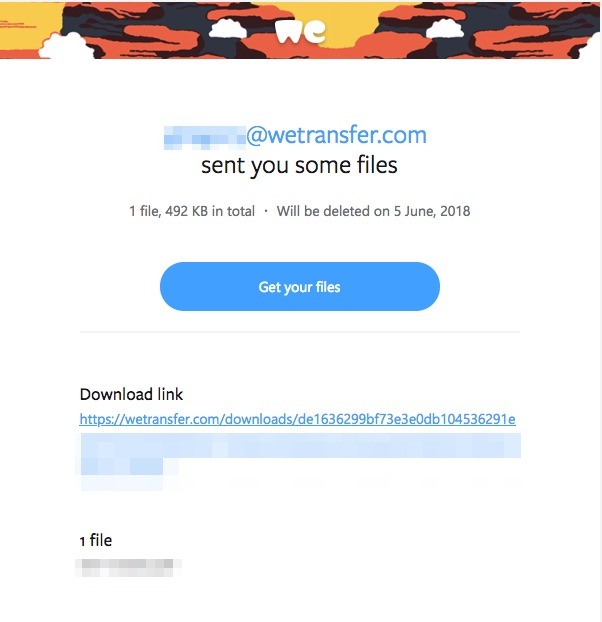
Now that you know how to download WeTransfer, let’s talk about downloading files using this service. You can use the browser or mobile app to upload and share files up to 2 GB for free. Here’s how to do it:
- Click on the link provided by the sender to open the file in your browser.
- Click on the “Download” button to download the file.
Downloading Rows With Wetransfer on PC
To download a file using WeTransfer on your Windows computer, follow these steps:
- Open the browser and click on the link provided by the sender.
- Click on the “Download” button to download the file.
Downloading Rows With Wetransfer on Mac
To download a file using WeTransfer on your Mac, follow these steps:
- Open the browser and click on the link provided by the sender.
- Click on the “Download” button to download the file.
Downloading Rows With Wetransfer on Android
To download a file using WeTransfer on your Android device, follow these steps:
- Tap on the icon of WeTransfer to open the app.
- Select the option to collect the file and tap on the “Save” button.
- Choose an option to save the file locally.
Downloading Rows With Wetransfer on Iphone
To download a file using WeTransfer on your iPhone or iPad, follow these steps:
- Tap on the icon of WeTransfer to open the app.
- Select the option to collect the file and tap on the “Save” button.
- Choose an option to save the file locally.
Can I Download a Expired Wetransfer?
Yes, you can download a WeTransfer that has expired. If you have received a link to a WeTransfer that is about to expire, you can extend it by 30 days or more using your paid plan. For free accounts, you can extend the deadline by 3 or 7 days.
In conclusion, downloading WeTransfer is a straightforward process that can be completed on various devices and operating systems. With this guide, you should now know how to download WeTransfer on Windows, macOS, Android, and iOS/iPadOS. Happy sharing!


