
How to Update Safari: A Comprehensive Guide
Are you using an outdated version of Safari on your Mac or PC? Do you want to know how to update Safari to the latest version? Look no further! In this article, we will guide you through the process of updating Safari on your Mac and PC, as well as on your iPhone and iPad.
Why Update Safari?
Updating Safari is essential for several reasons. Firstly, it ensures that you have the latest security patches and bug fixes, which can protect your device from malware and other online threats. Secondly, updating Safari can improve its performance and speed up browsing experience. Finally, updating Safari can also provide new features and improvements to enhance your overall user experience.
How to Update Safari on Mac
If you are using a Mac, updating Safari is relatively straightforward. Here’s how:
Step 1: Check For Updates
To update Safari on your Mac, click on the Apple menu and select “System Preferences”. Then, click on “Software Update” and follow the prompts to check for updates.
Step 2: Install Updates
If an update is available, click on the “Update Now” button to install it. You may be prompted to enter your administrator password to complete the installation process.
Step 3: Verify The Update
Once the update is installed, restart your Mac and verify that Safari has been updated to the latest version.
How to Update Safari on PC
Unfortunately, updating Safari on a PC is not possible as there are no updates available for the Windows operating system. However, you can still keep your browser up-to-date by using other browsers like Google Chrome or Mozilla Firefox.
How to Update Safari on Iphone And Ipad
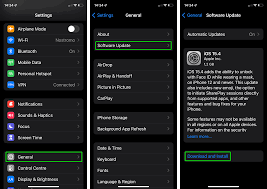
If you are using an iPhone or iPad, updating Safari is also relatively straightforward. Here’s how:
Step 1: Check For Updates
To update Safari on your iPhone or iPad, go to the Settings app and select “General”. Then, tap on “Software Update” and follow the prompts to check for updates.
Step 2: Install Updates
If an update is available, tap on the “Download and Install” button to install it. You may be prompted to enter your device’s passcode or password to complete the installation process.
Tips And Tricks
Here are some additional tips and tricks to help you keep Safari up-to-date:
Tip 1: Enable Automatic Updates
To enable automatic updates, go to the Settings app on your Mac or PC and select “Software Update”. Then, check the box next to “Automatically update my software”.
Tip 2: Keep Your Device Up-to-date
Make sure that your device is running the latest version of macOS, iOS, or iPadOS. This will ensure that you have access to the latest security patches and features.
Conclusion
Updating Safari is an essential process that can protect your device from malware and other online threats. By following these simple steps, you can update Safari on your Mac, PC, iPhone, and iPad. Remember to always keep your device up-to-date by enabling automatic updates and checking for software updates regularly.
Frequently Asked Questions (FAQs)
Here are some frequently asked questions about updating Safari:
- Q: Why Should I Update Safari?
A: Updating Safari ensures that you have the latest security patches, bug fixes, and features to enhance your browsing experience. - Q: How do I Update Safari on my Mac?
A: To update Safari on your Mac, click on the Apple menu and select “Software Update”. - Q: Can I Update Safari on a Pc?
A: Unfortunately, no updates are available for Safari on Windows operating system. - Q: How do I Update Safari on my Iphone or Ipad?
A: To update Safari on your iPhone or iPad, go to the Settings app and select “Software Update”. - Q: What Happens if I Don’t Update Safari?
A: If you don’t update Safari, you may be exposed to malware and other online threats. - Q: Can I Enable Automatic Updates For Safari?
A: Yes, you can enable automatic updates by going to the Settings app on your Mac or PC and selecting “Software Update”. - Q: How Often Should I Check For Software Updates?
A: It’s recommended that you check for software updates regularly, at least once a week. - Q: What if I Encounter Any Issues During The Update Process?
A: If you encounter any issues during the update process, restart your device and try again.
Additional Resources
If you need more information or assistance with updating Safari, here are some additional resources:
- Apple Support
- Apple Knowledge Base
- Online Forums


