
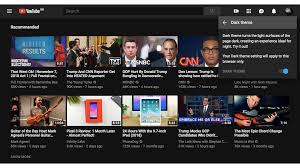
How to Add Youtube on Desktop: A Step-by-step Guide
Are you tired of constantly opening your browser to watch your favorite videos on YouTube? Do you wish you could access the platform directly from your desktop? Well, you’re in luck! In this article, we’ll show you how to add YouTube on desktop using various methods.
What is Pwa And How Can It Help You?
Before we dive into the details, let’s talk about PWA (Progressive Web App). A PWA is a type of web application that provides an app-like experience to users. Unlike traditional websites, PWAs can be installed on your device, allowing you to access them directly from your home screen.
In this case, YouTube has a PWA that you can install on your desktop or mobile device. This will give you the ability to access the platform directly without having to open your browser.
Method 1: Installing Youtube Pwa on Desktop
To install the YouTube PWA on your desktop, follow these steps:
- Open Google Chrome or Microsoft Edge and navigate to the YouTube website.
- Click on the three dots in the top right corner of the browser window.
- Select “Install” from the menu that appears.
- Once installed, you’ll see a YouTube icon on your desktop.
Method 2: Creating a Link to Youtube on Desktop
Alternatively, you can create a link to YouTube on your desktop using Google Chrome or Microsoft Edge. Here’s how:
- Open Google Chrome or Microsoft Edge and navigate to the YouTube website.
- Click on the three dots in the top right corner of the browser window.
- Select “More tools” from the menu that appears.
- Click on “Create shortcut.”
- Name the shortcut and click “OK.”
Method 3: Creating a Link to Youtube on Windows Desktop
If you’re using Windows, you can create a link to YouTube directly on your desktop. Here’s how:
- Right-click on an empty space on your desktop.
- Select “New” from the menu that appears.
- Click on “Link.”
- Type in the URL of the YouTube website and click “OK.”
Method 4: Accessing Youtube on Mobile Devices
If you’re using a mobile device, you can access YouTube directly through the app. Here’s how:
- Open the App Store or Google Play Store on your device.
- Search for the YouTube app and download it.
- Once installed, you’ll see a YouTube icon on your home screen.
Tips And Tricks
- To access the YouTube PWA on your desktop, simply click on the icon that appears on your desktop.
- You can also pin the YouTube PWA to your taskbar or dock for easy access.
- If you’re using multiple browsers, make sure to install the YouTube PWA in each one separately.
Conclusion
Adding YouTube on desktop is a straightforward process that can be completed using various methods. By installing the YouTube PWA or creating a link to the website, you’ll have direct access to your favorite videos and content. Whether you’re using a desktop computer or a mobile device, there’s an easy way to get started.
Frequently Asked Questions
- What is Pwa?
A PWA (Progressive Web App) is a type of web application that provides an app-like experience to users. - How Can I Install Youtube Pwa on my Desktop?
To install the YouTube PWA, open Google Chrome or Microsoft Edge and navigate to the YouTube website. Click on the three dots in the top right corner of the browser window and select “Install.” - Can I Create a Link to Youtube on my Desktop?
Yes, you can create a link to YouTube directly on your desktop using Google Chrome or Microsoft Edge. - How do I Access Youtube on Mobile Devices?
You can access YouTube directly through the app by opening the App Store or Google Play Store and downloading the YouTube app. - Can I Pin Youtube Pwa to my Taskbar or Dock?
Yes, you can pin the YouTube PWA to your taskbar or dock for easy access. - What Are The Benefits of Using Youtube Pwa on Desktop?
Using the YouTube PWA on desktop provides an app-like experience and allows for direct access to the platform without having to open a browser. - Can I Use Multiple Browsers With The Youtube Pwa?
Yes, you can install the YouTube PWA in each browser separately if you’re using multiple browsers. - How do I Update The Youtube Pwa on my Desktop?
To update the YouTube PWA, simply click on the icon that appears on your desktop and follow the prompts to update the app.


