
How to Back Up a Mac: A Step-by-step Guide
Are you looking for ways to back up your Mac data? Do you want to ensure that all your important files are safe in case of a hard disk failure or other system issues? Look no further! In this article, we will explore the best methods to back up your Mac, including using Time Machine, Carbon Copy Cloner, Get Backup Pro, and more.
Why Back Up Your Mac?
Before we dive into the nitty-gritty of backing up your Mac, let’s talk about why it’s so important. Losing data can be a nightmare, especially if you have crucial files or documents that are not backed up. A backup ensures that all your data is safe and can be recovered in case something goes wrong with your system.
Method 1: Time Machine
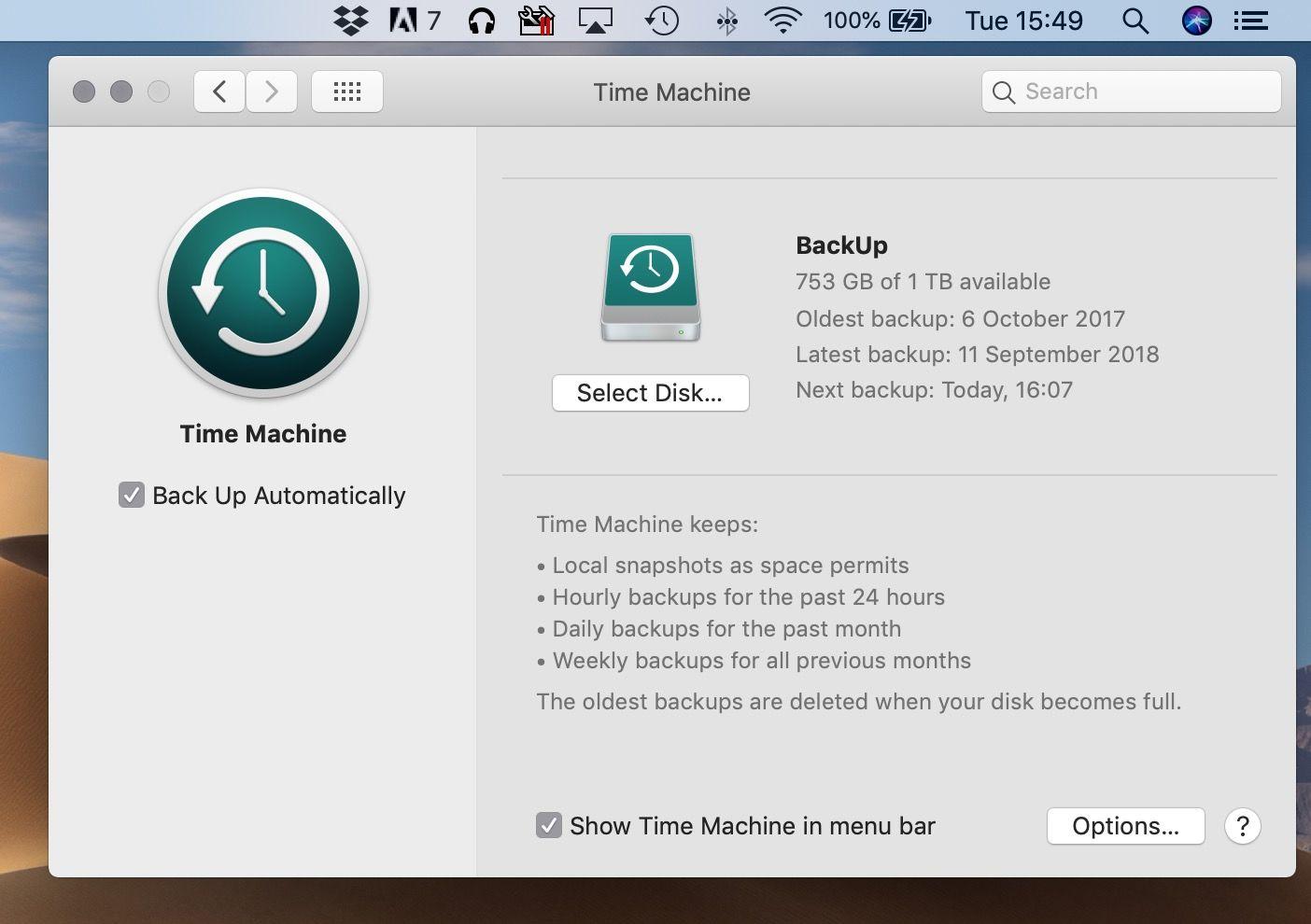
One of the most popular methods to back up your Mac is using Time Machine. This built-in feature allows you to automatically copy your files to an external drive, making it easy to restore your system if anything happens.
Here’s how to use Time Machine:
- Connect an external hard drive or SSD to your Mac.
- Open System Preferences and click on “Time Machine.”
- Select the external drive as the backup destination.
- Set up the schedule for backing up your data (e.G., Daily, weekly).
- Make sure to protect your backups with a password.
Method 2: Carbon Copy Cloner
Carbon Copy Cloner is another popular tool that allows you to clone or copy your Mac’s hard disk to an external drive. This method creates a complete backup of your system, making it easy to restore in case something goes wrong.
Here’s how to use Carbon Copy Cloner:
- Download and install Carbon Copy Cloner from their official website.
- Launch the app and select “Clone” as the operation type.
- Choose the external drive as the destination for the clone.
- Set up the schedule for cloning your data (e.G., Daily, weekly).
Method 3: Get Backup Pro
Get Backup Pro is a user-friendly backup software that allows you to back up specific files or an entire disk. This method is great for backing up individual folders or files rather than the entire system.
Here’s how to use Get Backup Pro:
- Download and install Get Backup Pro from their official website.
- Launch the app and select “Backup” as the operation type.
- Choose the external drive as the destination for the backup.
- Select the specific files or folders you want to back up.
Method 4: Icloud
ICloud is a great option if you’re looking to back up your Mac’s data online. This method allows you to store your files in Apple’s cloud storage, making it easy to access them from anywhere.
Here’s how to use iCloud:
- Open System Preferences and click on “iCloud.”
- Select the type of data you want to back up (e.G., Photos, contacts, calendar).
- Choose the external drive as the destination for the backup.
- Set up the schedule for backing up your data (e.G., Daily, weekly).
Method 5: Arq
Arq is a reliable backup software that allows you to create backups of specific files or an entire disk. This method is great for backing up individual folders or files rather than the entire system.
Here’s how to use Arq:
- Download and install Arq from their official website.
- Launch the app and select “Backup” as the operation type.
- Choose the external drive as the destination for the backup.
- Select the specific files or folders you want to back up.
Method 6: Chronosync
ChronoSync is a powerful backup software that allows you to create backups of specific files, entire disks, and even sync your data between multiple Macs. This method is great for those who need to manage multiple backups and sync data across devices.
Here’s how to use ChronoSync:
- Download and install ChronoSync from their official website.
- Launch the app and select “Backup” as the operation type.
- Choose the external drive as the destination for the backup.
- Select the specific files or folders you want to back up.
Method 7: Cloud Backup
Cloud backup is a great option if you’re looking to store your Mac’s data online. This method allows you to upload your files to cloud storage services like Google Drive, Dropbox, or Microsoft OneDrive.
Here’s how to use cloud backup:
- Choose a cloud storage service (e.G., Google Drive, Dropbox).
- Create an account and set up the cloud storage service.
- Upload your files to the cloud storage service.
Best Practices For Backing Up Your Mac
Now that you know the different methods to back up your Mac, here are some best practices to keep in mind:
- Use a Combination of Methods: Consider using multiple backup methods (e.G., Time Machine and cloud backup) to ensure your data is safe.
- Choose The Right External Drive: Select an external hard drive or SSD that’s large enough to hold all your important files.
- Protect Your Backups With a Password: Make sure to encrypt your backups with a strong password to keep them secure.
- Regularly Check And Update Your Backups: Regularly verify that your backups are complete and up-to-date.
Conclusion
Backing up your Mac data is crucial for ensuring the security of your files. With these methods, you can create multiple backups of your system, including using Time Machine, Carbon Copy Cloner, Get Backup Pro, iCloud, Arq, ChronoSync, and cloud backup services like Google Drive or Dropbox.
By following these steps and best practices, you’ll be able to protect your valuable data in case something unexpected happens. Don’t wait until it’s too late – start backing up your Mac today!


