
How to Play Android Games on Pc: A Step-by-step Guide
Are you tired of playing games on your small smartphone or tablet screen? Do you want to experience the thrill of gaming on a larger, more immersive display? Look no further! In this article, we’ll show you how to play Android games on your PC using various methods.
Why Play Android Games on Pc?
Playing Android games on PC offers several benefits. Firstly, you can enjoy your favorite games on a larger screen, making for a more immersive experience. Secondly, playing games on PC allows you to multitask and have multiple windows open simultaneously, which is not possible on mobile devices. Finally, many Android games are now available on PC, giving you access to a vast library of titles.
Method 1: Google Play Games on PC
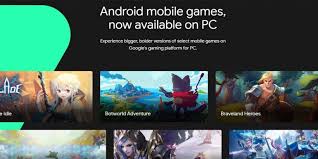
Google has made it easy to play Android games on PC by introducing the Google Play Games service. This official solution allows you to play a selection of games directly on your Windows PC. To get started:
- Visit The Google Play Games Website: Head over to the Google Play Games website and click on the “Get Started” button.
- Download And Install The Client: Download and install the Google Play Games client on your PC.
- Sign in With Your Google Account: Sign in with your Google account to access your games.
- Select a Game to Play: Choose a game from the available selection and click on the “Play” button.
- Enjoy Playing Your Favorite Android Game on Pc!
Method 2: Amazon Appstore
Amazon has also joined the party by integrating its Appstore into Windows 11. This official functionality allows you to install some Android games directly on your PC. To get started:
- Open The Microsoft Store: Open the Microsoft Store app on your PC.
- Search For “Amazon Appstore”: Search for “Amazon Appstore” in the search bar.
- Install The Amazon Appstore: Click on the “Get” button to install the Amazon Appstore.
- Sign in With Your Amazon Account: Sign in with your Amazon account to access your games.
- Select a Game to Play: Choose a game from the available selection and click on the “Play” button.
Method 3: Emulators
If you want more freedom to choose from a wider range of Android games, consider using an emulator. A popular choice is BlueStacks, which allows you to run Android apps on your PC.
- Download And Install Bluestacks: Download and install BlueStacks on your PC.
- Sign in With Your Google Account: Sign in with your Google account to access your games.
- Select a Game to Play: Choose a game from the available selection and click on the “Play” button.
Tips And Tricks
- Make sure you have a stable internet connection to download and install games.
- Some Android games may not be optimized for PC, so be patient with potential glitches or lag.
- Consider investing in a gaming keyboard and mouse for an enhanced gaming experience.
Conclusion
Playing Android games on PC is easier than ever, thanks to the various methods outlined above. Whether you prefer the official Google Play Games solution, Amazon Appstore, or emulators like BlueStacks, there’s something for everyone. So why not give it a try and discover a new world of gaming possibilities?
Frequently Asked Questions (FAQs)
- Q: Do I Need to Purchase Games Separately?
A: No, many Android games are available for free or as part of the Google Play Games service. - Q: Can I Play Android Games on my Mac?
A: Yes, emulators like BlueStacks can be used on Mac, but compatibility may vary depending on the game and emulator version. - Q: What’s The Difference Between Google Play Games And Amazon Appstore?
A: Google Play Games offers a wider selection of games and is more feature-rich, while Amazon Appstore has a smaller library but is still a great option for some Android titles. - Q: Are There Any System Requirements to Play Android Games on Pc?
A: Yes, you’ll need a relatively modern computer with a decent processor, RAM, and graphics card to run Android games smoothly. - Q: Can I Transfer my Game Progress From Mobile to Pc?
A: Some games may allow for cross-platform progression, but this is not always the case, so check the specific game’s settings or FAQ section.
Additional Resources
- Visit our website for more articles on gaming and tech-related topics.
- Join our community forum to discuss your favorite Android games and share tips with fellow gamers.


