
Understanding Access Points: A Guide For Non-experts
As we increasingly rely on the internet for our daily lives, it’s essential to understand how to configure and use access points (APs) effectively. In this article, we’ll delve into the world of APs, explaining what they are, their different types, and how to set them up.
What is an Access Point?
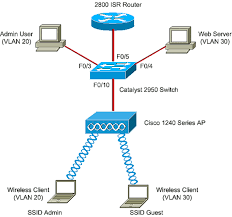
An access point is a device that allows multiple devices to connect to a network using Wi-Fi technology. It’s essentially a bridge between your router and the devices you want to connect, enabling them to access the internet or share files with each other.
Types of Access Points
There are several types of APs available in the market, including:
- Cabled Access Point: A device that connects to your router via Ethernet cable and allows multiple devices to connect to the network using Wi-Fi.
- Range Extender/repeater: An AP that extends the range of your existing wireless network by rebroadcasting the signal.
- Powerline Access Point (PoE): A device that uses powerline technology to extend the reach of your internet connection and provide Wi-Fi access.
How to Configure an Access Point
Configuring an AP is relatively straightforward. Here’s a step-by-step guide:
- Choose The Right Type: Determine which type of AP you need based on your requirements.
- Physical Installation: Install the AP according to the manufacturer’s instructions, taking care to connect it to your router or powerline network.
- Initial Configuration: Turn on the AP and follow the on-screen instructions to complete the initial configuration process.
- Connecting Devices: Connect devices to the AP using Wi-Fi technology.
Configuring Specific Access Points
Here are some specific guides for configuring popular brands of access points:
- Netgear Access Point: Configure a Netgear AP by connecting it to your router’s Wi-Fi network and accessing the web interface at
www.Mywifiext.Net. Follow the on-screen instructions to set up the AP. - Tp-link Access Point: To configure a TP-Link AP, connect it to your router’s Ethernet port and access the web interface at
192.168.0.254. Choose the desired configuration mode (Access Point or Range Extender) and follow the on-screen instructions.
Tips For Troubleshooting Common Issues
Here are some tips for troubleshooting common issues related to access points:
- Weak Wi-fi Signal: Try moving the AP closer to the devices you want to connect, or consider using a range extender.
- Difficulty Connecting Devices: Check that the devices are in range of the AP and that they’re configured correctly.
- AP Not Recognizing Router: Ensure that the AP is properly connected to your router and that the configuration settings are correct.
Conclusion
Access points are an essential part of modern networking, enabling us to share files, stream videos, and access the internet from multiple devices. By understanding the different types of APs available and how to configure them, you can ensure a stable and reliable connection for all your devices.
Frequently Asked Questions (FAQs)
- Q: What is an Access Point?
A: An access point is a device that allows multiple devices to connect to a network using Wi-Fi technology. - Q: How do I Choose The Right Type of Ap?
A: Determine your requirements and choose the AP type that best fits them (cabled, range extender, or powerline). - Q: How do I Configure an Access Point?
A: Follow the on-screen instructions for initial configuration, connect devices to the AP using Wi-Fi technology. - Q: What is a Cabled Access Point?
A: A device that connects to your router via Ethernet cable and allows multiple devices to connect to the network using Wi-Fi. - Q: Can I Use an AP to Extend my Wi-fi Range?
A: Yes, you can use a range extender/repeater AP to extend your existing wireless network. - Q: How do I Troubleshoot Common Issues Related to Access Points?
A: Check that devices are in range of the AP and configured correctly, ensure proper connection between AP and router.
Recommended Products
- UGREEN Cable Ethernet Cat 8 Nylon, 40Gbps 2000MHz High Speed Cable
- Reulin 1M Cat 7A – Ultra Subtle – Gigabit Cable of Net Ethernet


