
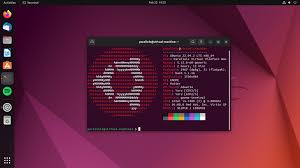
Ubuntu: The Ultimate Guide to Downloading And Installing
Are you tired of dealing with Windows’ continuous “bizze” and viruses? Have you considered switching to a more secure and user-friendly operating system, but found Mac prices too steep? Look no further than Ubuntu!
What is Ubuntu?
Ubuntu is one of the most popular Linux distributions, known for its ease of use, security, and affordability. It’s free, open-source, and immune to viruses that plague Windows. Plus, it comes with a wide range of applications, including Firefox and LibreOffice.
Why Choose Ubuntu?
- Security: Ubuntu is completely virus-free, making it a much safer choice than Windows.
- Ease of Use: Ubuntu is designed to be user-friendly, even for those new to Linux.
- Free: Ubuntu is free to download and use, making it an attractive option for those on a budget.
- Customizable: Ubuntu can be tailored to suit your specific needs, with thousands of apps available.
How to Download Ubuntu
To get started, you’ll need to download the ISO file from the official Ubuntu website. You can do this in several ways:
- Iso: This is the standard method, which involves downloading the ISO file and creating a bootable USB or CD.
- Virtualbox: This allows you to run Ubuntu within Windows without affecting your original operating system.
- Windows Subsystem For Linux (WSL): This feature allows you to run Linux commands directly from Windows.
Step-by-step Guide
Here’s a step-by-step guide to downloading and installing Ubuntu:
- Download The Iso File: Go to the official Ubuntu website and download the latest version of the operating system.
- Create a Bootable Usb or CD: Use software like Rufus to create a bootable USB drive or DVD from the ISO file.
- Run Ubuntu in Live Mode: Insert the USB or CD into your computer, restart it, and select the option to run Ubuntu in Live mode.
- Test And Familiarize Yourself With Ubuntu: Take some time to explore the operating system, try out different apps, and get a feel for how it works.
Install Ubuntu
If you’re happy with the way Ubuntu is working, you can proceed to install it on your computer:
- Format Your Hard Drive: Make sure your hard drive is formatted before installing Ubuntu.
- Run The Installation Process: Follow the prompts to install Ubuntu on your computer.
- Customize Your Settings: Take some time to set up your user account, password, and other preferences.
Troubleshooting
If you encounter any issues during the download or installation process, don’t panic! Here are a few troubleshooting tips:
- Check For Updates: Make sure your ISO file is up-to-date before attempting to install.
- Try a Different Method: If one method isn’t working, try another (e.G., From CD instead of USB).
- Seek Help Online: Visit the Ubuntu forums or seek advice from experienced users.
Conclusion
Ubuntu offers a secure, user-friendly, and customizable operating system that’s perfect for anyone looking to switch from Windows or experience Linux without committing to a full installation. With this guide, you should be able to download and install Ubuntu with ease. Happy computing!
Faqs
- Q: What is The Difference Between Ubuntu Lts And Non-lts Versions?
A: LTS (Long-Term Support) versions are more stable and receive updates for five years, while non-LTS versions have shorter support cycles. - Q: Can I Run Multiple Operating Systems on One Computer?
A: Yes, with virtualization software like VirtualBox or WSL, you can run multiple operating systems simultaneously. - Q: How do I Update Ubuntu to The Latest Version?
A: Simply visit the official Ubuntu website and download the new ISO file, then follow the usual installation process. - Q: What Apps Are Available For Ubuntu?
A: Thousands of apps are available for Ubuntu, including Firefox, LibreOffice, VLC, Chrome, Audacity, and GIMP. - Q: Can I Use my Windows Computer to Run Linux Programs?
A: Yes, with WSL, you can run Linux commands directly from your Windows operating system. - Q: How do I Troubleshoot Common Issues When Installing Ubuntu?
A: Check for updates, try a different method, and seek help online if necessary. - Q: Is Ubuntu Suitable For Beginners?
A: Yes, Ubuntu is designed to be user-friendly and accessible even for those new to Linux. - Q: Can I Run Ubuntu on my Old Computer?
A: Possibly – check your computer’s specifications to ensure it meets the minimum requirements for Ubuntu.
Recommended Reading
- Ubuntu Official Website: Visit the official Ubuntu website for the latest information, tutorials, and resources.
- Ubuntu Community Forum: Join the Ubuntu community forum for help with troubleshooting and general questions.
- Virtualbox Documentation: Familiarize yourself with VirtualBox documentation to learn more about virtualization software.
Next Steps
Now that you’ve read this guide, take some time to explore Ubuntu further. Practice using different apps, tweaking settings, and getting a feel for the operating system. If you have any questions or need help along the way, don’t hesitate to ask!


