
Removing Casual Procreation on Spotify: A Step-by-step Guide
Are you tired of Spotify’s casual procreation feature ruining your listening experience? Look no further! In this article, we’ll guide you through the process of removing casual procreation on Spotify, whether you’re using a smartphone or computer.
What is Casual Procreation on Spotify?
Before we dive into the solution, let’s understand what casual procreation is. When you listen to music on Spotify, the platform automatically shuffles your songs in a random order. While this feature might be fun for some users, others prefer to listen to their favorite albums or playlists in the correct sequence.
Why Can’t I Remove Casual Procreation on My Smartphone?
If you’re using a smartphone with the Spotify app, unfortunately, removing casual procreation is not possible without upgrading to Premium. However, don’t worry; we’ll show you how to do it using other devices.
How to Remove Casual Procreation on Your Computer (Windows or Mac)
To remove casual procreation on your computer, follow these steps:
- Open Spotify: Launch the Spotify app on your computer.
- Access The Album or Playlist: Find the album or playlist you want to listen to and click on it.
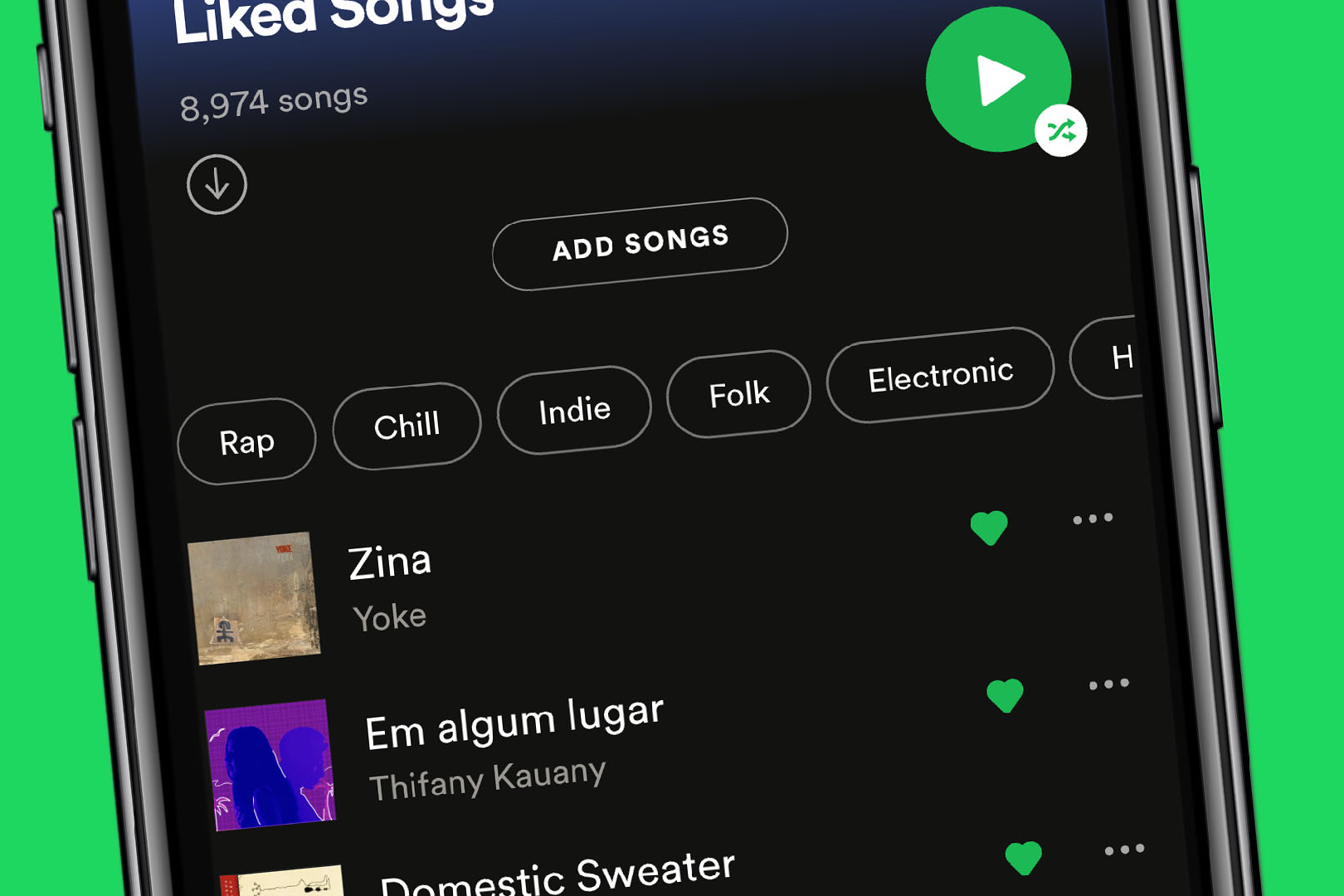
- Click on The Two Arrows Icon: In the top-right corner of the window, you’ll see an icon of two arrows. Click on this icon to disable casual procreation.
How to Remove Casual Procreation on Your Iphone
Removing casual procreation on your iPhone is similar to doing so on a computer:
- Open Spotify: Launch the Spotify app on your iPhone.
- Access The Album or Playlist: Find the album or playlist you want to listen to and tap on it.
- Tap on The Two Arrows Icon: In the bottom-right corner of the screen, you’ll see an icon of two arrows. Tap on this icon to disable casual procreation.
How to Remove Casual Procreation on Your Android Device
If you’re using an Android device, follow these steps:
- Open Spotify: Launch the Spotify app on your device.
- Access The Album or Playlist: Find the album or playlist you want to listen to and tap on it.
- Tap on The Two Arrows Icon: In the bottom-right corner of the screen, you’ll see an icon of two arrows. Tap on this icon to disable casual procreation.
How to Remove Casual Procreation on Your Smart TV
To remove casual procreation on your Smart TV:
- Initiate The Procreation: Start playing a song or album on Spotify.
- Access The Command Menu: In the bottom-right corner of the screen, you’ll see an icon of two arrows. Click on this icon to disable casual procreation.
Tips And Tricks
- If you’ve already initiated the procreation, you can quickly toggle off casual procreation by tapping on the title of the song in the current playback list.
- To personalize your playlist, tap on the three-dot menu and select “Shuffle” to enable or disable the feature.
Conclusion
Removing casual procreation on Spotify is a simple process that can enhance your listening experience. By following these step-by-step guides, you can enjoy your favorite albums and playlists in the correct sequence, whether you’re using a smartphone, computer, or Smart TV.
Frequently Asked Questions (FAQs)
- Q: Can I Remove Casual Procreation on my Free Spotify Account?
A: Unfortunately, no. To remove casual procreation, you need to upgrade to Premium. - Q: How do I Disable Casual Procreation on my Iphone?
A: Tap on the two arrows icon in the bottom-right corner of the screen while playing a song or album. - Q: Can I Personalize my Playlist on Spotify?
A: Yes, you can! To personalize your playlist, tap on the three-dot menu and select “Shuffle” to enable or disable the feature. - Q: How do I Remove Casual Procreation on my Smart Tv?
A: Initiate the procreation, access the command menu, and click on the two arrows icon to disable casual procreation. - Q: Can I Use Spotify’s “Smart Shuffle” Feature?
A: Yes, you can! If you have a Premium account, you can enable or disable the Smart Shuffle feature in your playlist settings. - Q: How do I Prevent Spotify From Automatically Playing Another Song After One Ends?
A: Go to Settings > Procreation and toggle off the “Automatic Play” option. - Q: Can I Remove Casual Procreation on my Computer (Windows or Mac)?
A: Yes, you can! Follow the steps outlined above to disable casual procreation on your computer. - Q: How do I Reactivate Casual Procreation on Spotify?
A: To reactivate casual procreation, simply click on the two arrows icon while playing a song or album.
We hope this article has been helpful in removing casual procreation from your Spotify experience!


