
The Ultimate Guide to Transferring Data From Samsung to Iphone
Are you considering switching from a Samsung phone to an iPhone, but worried about losing your precious data? Look no further! In this comprehensive guide, we’ll walk you through the step-by-step process of transferring all your important data from your Samsung device to your new iPhone.
Why Transfer Data From Samsung to Iphone?
Transferring data from Samsung to iPhone can be a daunting task, but it’s an essential step in ensuring that you don’t lose any crucial information. By transferring your contacts, photos, music, and documents, you’ll be able to access them seamlessly on your new device.
What You Need to Know Before Transferring Data
Before we dive into the nitty-gritty details of data transfer, here are a few things to keep in mind:
- Make sure both devices are connected to Wi-Fi.
- Ensure that your iPhone has sufficient storage space for all the transferred data.
- If you have a lot of data to transfer, it’s recommended to use a computer as an intermediary.
Transferring Data From Samsung to Iphone Using an App
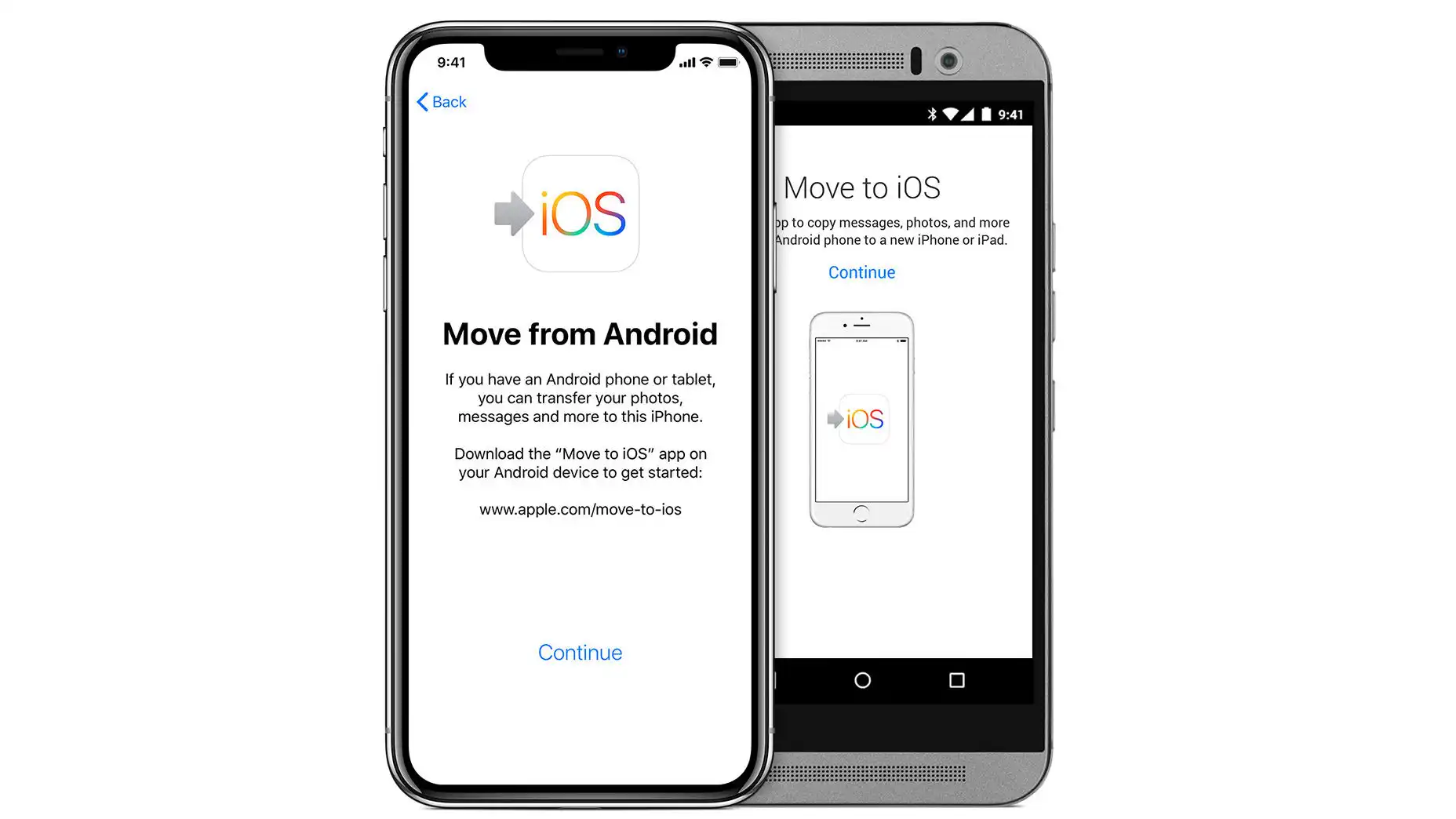
The easiest way to transfer data from Samsung to iPhone is by using Apple’s built-in “Move to iOS” app. This app allows you to transfer your contacts, photos, videos, music, and more directly from your Samsung device to your new iPhone.
Here are the steps to follow:
- Install Move to Ios on Your Samsung Device:
- Download and install the Move to iOS app from the Google Play Store.
- Launch the app and follow the instructions to connect your Samsung device to your new iPhone.
- Transfer Data Using Move to Ios:
- Select the data you want to transfer (contacts, photos, videos, music, etc.).
- Follow the on-screen instructions to complete the transfer process.
Transferring Specific Types of Data
If you have specific types of data that you want to transfer, here are some additional steps:
- Transferring Contacts:
- Use Google’s built-in contact syncing feature to sync your contacts between devices.
- On your Samsung device, go to Settings > Accounts and backup > Google account and tap on the name of your Google account.
- Turn on “Synchronize account” and select all the categories you want to sync (contacts, calendar, etc.).
- Transferring Photos:
- Use Google Photos to transfer your photos from Samsung to iPhone.
- On your Samsung device, download and install the Google Photos app.
- Open the app and follow the instructions to upload your photos to the cloud.
Using a Computer as an Intermediary
If you have a lot of data to transfer or prefer using a computer as an intermediary, here’s how to do it:
- Connect Your Samsung Device to Your Computer:
- Use a USB cable to connect your Samsung device to your computer.
- Install the Android File Transfer app on your computer and follow the instructions to access your Samsung device’s files.
- Transfer Data From Samsung to Computer:
- Select the data you want to transfer (contacts, photos, videos, music, etc.) Using the Android File Transfer app.
- Connect Your Iphone to Your Computer:
- Use a USB cable to connect your iPhone to your computer.
- Install iTunes on your computer and follow the instructions to access your iPhone’s files.
- Transfer Data From Computer to Iphone:
- Select the data you want to transfer (contacts, photos, videos, music, etc.) Using iTunes.
Conclusion
Transferring data from Samsung to iPhone may seem daunting at first, but with this comprehensive guide, you’ll be able to complete the process with ease. Remember to follow the steps carefully and ensure that both devices are connected to Wi-Fi for a seamless transfer experience.
Frequently Asked Questions (FAQs)
- What Happens if I Have a Lot of Data to Transfer?
- If you have a lot of data to transfer, it’s recommended to use a computer as an intermediary.
- Can I Transfer Whatsapp Conversations From Samsung to Iphone?
- Unfortunately, WhatsApp conversations cannot be transferred directly from Samsung to iPhone.
- How do I Transfer Documents From Samsung to Iphone?
- You can transfer documents by using Google Drive or Dropbox to upload your files to the cloud and then access them on your iPhone.
Additional Tips And Resources
For more detailed information on transferring data from Samsung to iPhone, you can check out the following resources:
- Apple’s official website: Www.Apple.Com
- Samsung’s official website: Www.Samsung.Com
By following this guide and using the recommended apps and services, you’ll be able to transfer your data from Samsung to iPhone with ease. Happy transferring!


