
The Ultimate Guide to Displacing Inner Memory to Sd: A Comprehensive Solution For Android Devices
Are you tired of receiving annoying notifications about limited internal memory on your Android device? Do you struggle with managing the available space on your smartphone or tablet? Look no further! In this article, we will explore a simple and effective solution to displace inner memory to an external SD card. Say goodbye to storage woes!
Understanding The Problem
As we all know, smartphones and tablets have limited internal memory. This can lead to annoying notifications, slower performance, and even crashes. To combat this issue, the best solution is to expand your device’s storage capacity using a microSD card.
What You Need to Know
Before diving into the process, it’s essential to understand that not all Android devices support SD card expansion. If you own an iPhone or iPad, please consult our separate guide on how to expand your memory.
To proceed with displacing inner memory to an SD card, you’ll need:
- A microSD card of good quality (preferably certified for Android devices)
- Your device’s manual (for specific instructions)
Step 1: Acquire a Microsd Card
The first step is to acquire a high-quality microSD card, preferably one that has been officially certified for use with your Android device.
If you need help choosing the right microSD card, please refer to our comprehensive guide on shopping for the perfect microSD card.
Step 2: Insert And Configure The Microsd Card
To insert and configure the microSD card, follow these steps:
- Turn off your device.
- If you have a removable SIM tray, remove it.
- Identify the microSD card slot (usually labeled as “microSD” or “SD”).
- Use a paper clip to eject the SD card tray.
- Insert the microSD card into the appropriate slot.
Step 3: Format And Mount The Microsd Card
After inserting the microSD card, you’ll need to format it in FAT32 to ensure compatibility with your Android device.
You can follow our step-by-step guide on formatting a microSD card in FAT32.
Once formatted, mount the microSD card by following these steps:
- Go to Settings > Storage.
- Tap on “Format SD card” (if prompted).
- Wait for the process to complete.
- Mount the SD card by tapping on the “Mount” button.
Step 4: Displace Inner Memory to SD
Now that your microSD card is formatted and mounted, it’s time to displace inner memory to SD.
To do this, follow these steps:
- Launch a file manager app (e.G., Files of Google or File Manager).
- Select the files you want to transfer (photos, videos, documents, etc.).
- Tap on the “Move” button.
- Choose the microSD card as the destination.
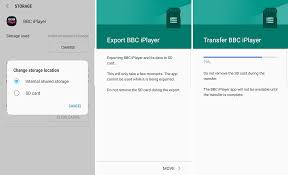
Step 5: Displace Apps From Inner Memory to SD
Some apps can be moved to an external SD card for added storage capacity.
To do this, follow these steps:
- Open the Settings app.
- Go to “Apps” or “Application Manager”.
- Select the app you want to move.
- Tap on the “Move” button.
- Choose the microSD card as the destination.
Brand-specific Guides
While the above steps are universal, some devices may require specific procedures. Here are brand-specific guides:
- Displacing Apps From Inner Memory to SD on Huawei Devices: Follow these steps:
- Open the Settings app.
- Go to “Apps” or “Application Manager”.
- Select the app you want to move.
- Tap on the “Move” button.
- Choose the microSD card as the destination.
- Displacing Apps From Inner Memory to SD on Samsung Devices: Follow these steps:
- Open the Settings app.
- Go to “Applications”.
- Select the app you want to move.
- Tap on the “Move” button.
- Choose the microSD card as the destination.
- Displacing Apps From Inner Memory to SD on Xiaomi Devices: Unfortunately, it’s not possible to displace apps from inner memory to an external SD card on Xiaomi devices.
Conclusion
Displacing inner memory to an external SD card is a simple and effective solution for Android devices. By following these steps, you can free up internal storage space and enjoy a smoother user experience.
Remember, always format your microSD card in FAT32 before using it with your device.
Happy displacing!
Frequently Asked Questions (FAQs)
Q: What happens if I run out of internal memory?
A: You’ll receive notifications about limited internal memory. To combat this issue, displace inner memory to an external SD card.
Q: Which file manager app should I use?
A: Choose a reputable file manager app like Files of Google or File Manager.
Q: Can I move apps from the microSD card back to internal storage?
A: Yes, you can move apps back to internal storage at any time.
Q: Will this process delete my files on the microSD card?
A: No, your files will remain safe on the microSD card.


