
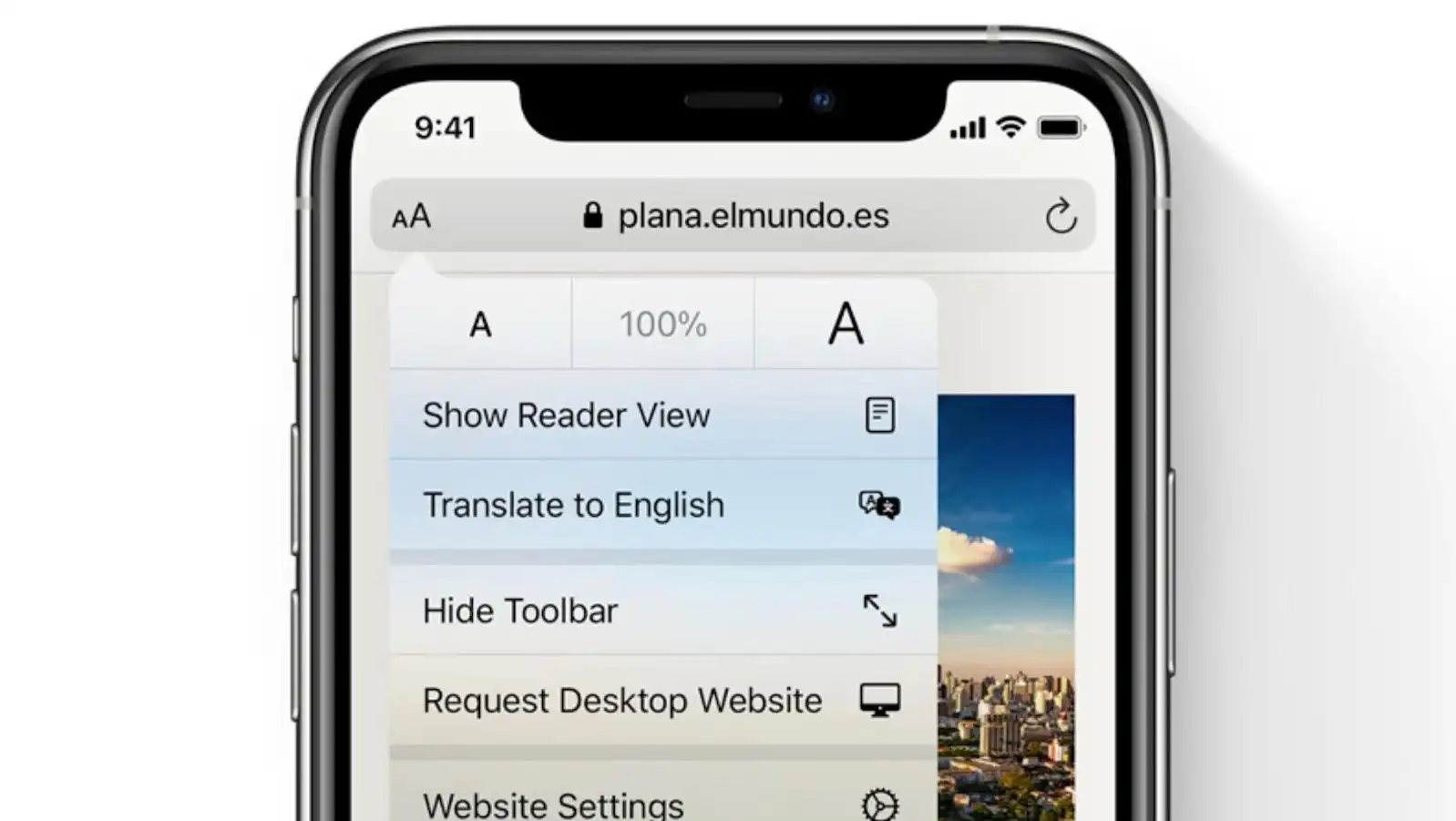
Are you tired of navigating through web pages that are not in your native language? Do you struggle to understand complex arguments or technical terms on websites? Look no further! In this article, we will guide you through the process of translating a web page using various methods.
Why Translate a Web Page?
Translating a web page can be useful for several reasons:
- To better understand complex information
- To communicate with people who speak different languages
- To access websites that are not available in your native language
Methods to Translate a Web Page
There are several ways to translate a web page, and we will cover each method in detail.
Method 1: Using Google Chrome
Google Chrome offers an integrated translation feature that allows you to translate web pages directly from the browser.
- To access this feature, click on the three vertical dots in the upper right corner of the browser window.
- Select “Translate” from the menu.
- Choose your native language and the language of the website you want to translate.
- Click on the “Translate” button.
Method 2: Using Microsoft Edge
Microsoft Edge also offers a built-in translation feature that allows you to translate web pages directly from the browser.
- To access this feature, click on the three horizontal dots in the upper right corner of the browser window.
- Select “More tools” and then “Translate page”.
- Choose your native language and the language of the website you want to translate.
- Click on the “Translate” button.
Method 3: Using Safari
Safari offers an integrated translation feature that allows you to translate web pages directly from the browser.
- To access this feature, click on the three horizontal dots in the upper right corner of the browser window.
- Select “Settings” and then “Translation”.
- Choose your native language and the language of the website you want to translate.
- Click on the “Translate” button.
Method 4: Using Google Translate
Google Translate is a standalone service that allows you to translate web pages directly from the browser or from the Google Translate website.
- To access this feature, go to translate.Google.Com and enter the URL of the website you want to translate.
- Choose your native language and the language of the website you want to translate.
- Click on the “Translate” button.
Method 5: Using Other Browser Extensions
There are many other browser extensions available that offer translation services. Some popular options include:
- Chrome Translate
- Microsoft Translator
- Google Translator
Conclusion
Translating a web page can be a useful tool for anyone who wants to access information in different languages. Whether you use the built-in translation features of your browser or rely on standalone services like Google Translate, there are many options available to help you navigate through web pages that may not be in your native language.
Faqs
- What is the best way to translate a web page?
- Which browsers offer integrated translation features?
- How do I use Google Translate to translate a web page?
- Can I use other browser extensions to translate web pages?
- What are some popular alternatives to Google Translate?
- How can I translate a web page on my mobile device?
- Are there any free translation services available?
- Can I save translated web pages for later use?


