
How to Download Gifs From Pinterest: A Step-by-step Guide
Are you a fan of the social network Pinterest and want to use its vast image search engine to find and download GIFs to share with friends in chat, forums, or other platforms? Look no further! In this article, we’ll guide you through the process of downloading GIFs from Pinterest using your computer, smartphone, or tablet.
Preliminary Operations
Before diving into the steps to download GIFs, it’s essential to understand some preliminary operations. To visualize and download contents on Pinterest, you need to register a service account. You can easily register an account on Pinterest using their official website on your computer or through their mobile app on Android (available on alternative stores) and iOS/iPadOS.
Downloading Gifs From Pinterest on Computer
- Accessing Pinterest: Begin by accessing the Pinterest website on your computer and logging in to your account, if you haven’t already done so.
- Searching For Gifs: Type “GIF” in the search bar located at the top right corner of the page and click the forward button or press Enter to view all images encouraged on Pinterest.
- Refining Your Search: You can refine your search by combining keywords (e.G., “GIF Cats”) or selecting related queries and filters available on the left side of the page.
- Downloading a Gif: Click on an image that interests you, then click the three dots at the top right corner and select “Download Image” from the dropdown menu. The GIF will be saved in your download folder.
Downloading Gifs From Pinterest on Smartphone or Tablet
- Accessing The App: Launch the Pinterest app on your smartphone or tablet (available for Android and iOS/iPadOS).
- Logging In: Access your account by clicking the “Log In” button, then enter your email and password.
- Searching For Gifs: Tap the magnifying glass icon to search for GIFs on Pinterest, type “GIF,” and tap the forward arrow or press Enter to view all images encouraged.
- Downloading a Gif: Tap on an image you like, then tap the three dots at the top right corner of the screen and select “Download Image” from the menu. The app will ask for permission to access your device’s photo gallery.
Tips And Variations
- If you find a GIF online (e.G., Through Google), you can’t directly click on it to download; instead, follow the steps above.
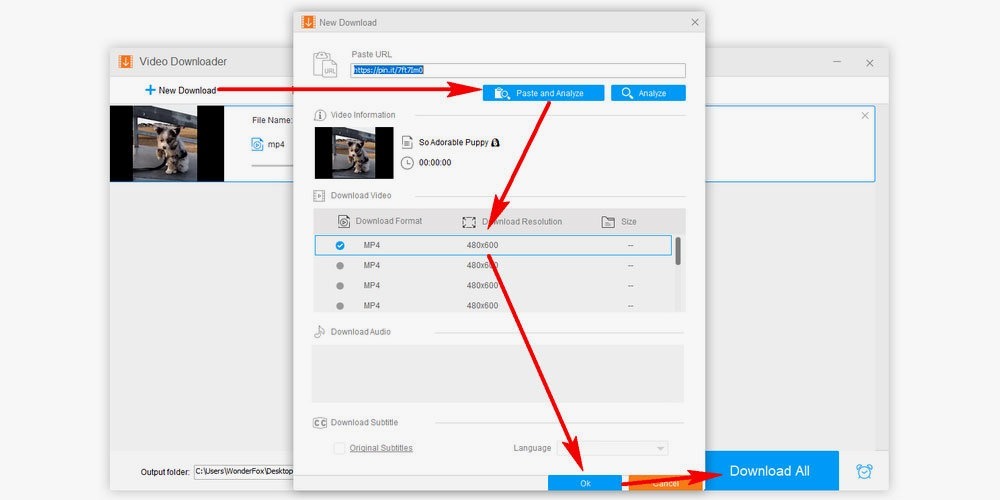
- Unfortunately, Pinterest doesn’t offer simultaneous download of multiple GIFs. However, you can use third-party tools like JDownloader or other multimedia downloader solutions mentioned in our guide.
Conclusion
Downloading GIFs from Pinterest is a straightforward process that can be completed using your computer, smartphone, or tablet. Whether you’re looking to spice up conversations with friends or share entertaining content on social media, this guide has provided you with the necessary steps to get started.


