
How to Cancel Amazon Prime: A Step-by-step Guide
Are you tired of paying for Amazon Prime but not using it? This guide will walk you through the process of canceling your subscription on both computer and smartphone devices.
Why Would You Want to Cancel Amazon Prime?
You might want to cancel if:
- You don’t use the service frequently enough.
- You’ve experienced technical issues or dissatisfaction.
- You’re no longer interested in taking advantage of Prime benefits.
How to Cancel Amazon Prime on Computer:
- Log in to your Amazon account using your email address or mobile number and password.
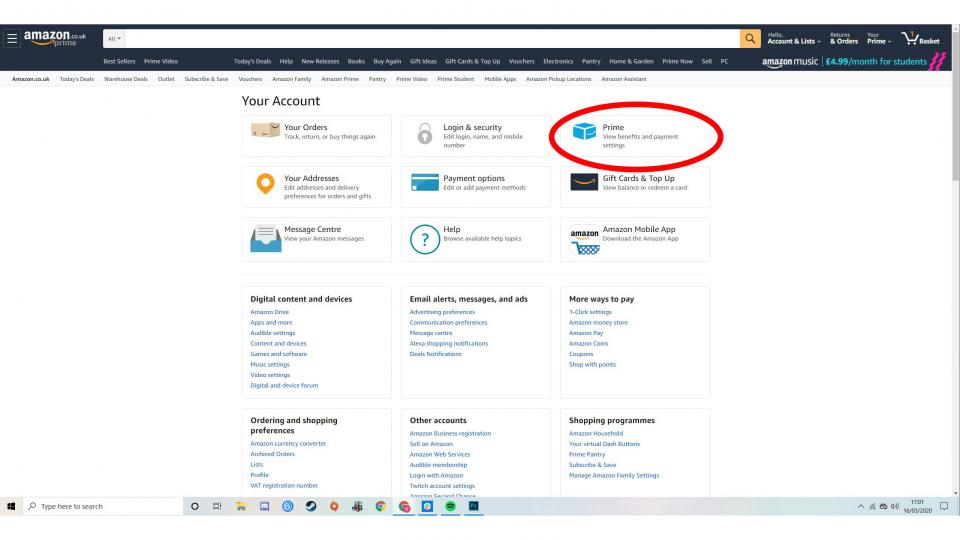
- Click on “Accounts & Lists” at the top of the page and select “Your Account.”
- From there, click on “Manage membership” under the “Membership” section.
- Scroll down to the bottom of the page and click on “Cancel membership.”
How to Cancel Amazon Prime on Smartphone:
- Open the Amazon app on your smartphone or tablet.
- Tap on the menu icon (three horizontal lines) at the top left corner of the screen and select “Your Account.”
- Scroll down to the bottom of the page and tap on “Cancel membership.”
What Happens After Canceling Amazon Prime?
After canceling, you will no longer be charged for the service. However, any Prime benefits or promotions associated with your purchase will still apply until their scheduled end date.
If you want to reactivate your subscription in the future, you can do so by logging back into your account and following the same steps as before.
How to Cancel Amazon Prime on Vodafone:
- Call Vodafone’s customer service number (190) and ask an operator to cancel your Amazon Prime subscription.
- Alternatively, log in to your Vodafone account online or through their app and select the “Digital Services” option.
How to Cancel Specific Amazon Prime Services:
- To cancel Amazon Prime Video, simply cancel your Amazon Prime membership as described earlier.
- To cancel Amazon Prime Music, follow the steps for canceling overall Amazon Prime.
- To cancel Amazon Prime Gaming, also follow the same steps as before.


