
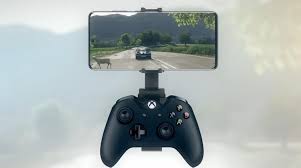
How to Connect Your Xbox One Controller to Your Phone: A Step-by-step Guide
Are you a gamer who loves playing games on your phone? Do you also enjoy playing games on your Xbox One console? If yes, then you’ll be happy to know that you can connect your Xbox One controller to your phone and play games seamlessly. In this article, we will guide you through the process of connecting your Xbox One controller to your Android or iOS device.
Why Connect Your Xbox One Controller to Your Phone?
Connecting your Xbox One controller to your phone allows you to play games on a larger screen with better controls. Many popular mobile games such as Fortnite, PUBG, and Asphalt 9: Legends support external controllers, making the gaming experience more immersive and enjoyable.
Requirements
Before we begin, make sure that:
- Your Xbox One controller is compatible with your phone’s operating system (Android or iOS).
- Your phone’s operating system is up-to-date.
- You have a stable internet connection.
Connecting Your Xbox One Controller to Android Device
If you’re using an Android device, follow these steps to connect your Xbox One controller:
Method 1: Using Bluetooth
- Turn on your Xbox One controller and hold down the pairing button (located at the top of the controller) until it starts flashing.
- Open the Settings app on your Android device and go to Device connection > Bluetooth.
- Make sure that Bluetooth is turned on and visible devices are being listed.
- Select the “Xbox Wireless Controller” from the list of available devices.
- Wait for a few seconds until the controller is paired with your device.
Method 2: Using Usb Cable
- Purchase an OTG (On-The-Go) adapter to connect your Xbox One controller to your Android device using a USB cable.
- Connect the adapter to your phone’s microUSB port and then attach the Xbox One controller to the other end of the adapter.
- Install an app called “Mi Sense” or any other compatible app that can detect and pair the controller with your device.
Connecting Your Xbox One Controller to Ios Device
If you’re using an iOS device, follow these steps to connect your Xbox One controller:
Method 1: Using Bluetooth (iOS 13 And Later)
- Turn on your Xbox One controller and hold down the pairing button (located at the top of the controller) until it starts flashing.
- Open the Settings app on your iOS device and go to Bluetooth.
- Select the “Xbox Wireless Controller” from the list of available devices.
- Wait for a few seconds until the controller is paired with your device.
Troubleshooting
If you’re experiencing any issues while connecting your Xbox One controller to your phone, try:
- Restarting your device and the controller.
- Checking if there’s an update available for your operating system or the Mi Sense app.
- Using a different adapter or cable if using the USB method.
Conclusion
Connecting your Xbox One controller to your phone is a straightforward process that can enhance your gaming experience. By following these steps, you’ll be able to play games on your larger screen with better controls. Remember to troubleshoot any issues that may arise and enjoy playing games with your Xbox One controller connected to your device!
Frequently Asked Questions
- Q: Can I Connect my Xbox One Controller to my Phone Using a Wireless Adapter?
A: No, the Xbox One controller does not support wireless adapters. - Q: How do I Update The Mi Sense App on my Android Device?
A: You can update the Mi Sense app by going to the Google Play Store and selecting “Update” from the menu. - Q: Can I Use my Xbox One Controller With Ios Devices if They’re Running an Older Version of Ios?
A: Unfortunately, no. The Xbox One controller is only compatible with iOS 13 or later versions. - Q: Why Won’t my Xbox One Controller Connect to my Phone’s Bluetooth?
A: Try restarting your device and the controller or checking for any software updates. - Q: Can I Use my Xbox One Controller With Other Mobile Games Besides Fortnite, Pubg, And Asphalt 9: Legends?
A: Yes! Many other popular mobile games support external controllers like yours.
Hope this helps you connect your Xbox One controller to your phone successfully!


