
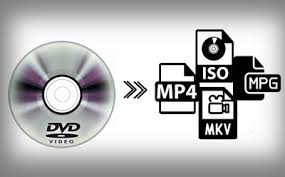
How to Copy a Dvd: A Step-by-step Guide
Are you tired of storing your favorite DVDs in a vault, afraid that they might get damaged or lost? Do you want to enjoy them without having to constantly worry about their safety? Look no further! In this article, we will guide you through the process of copying a DVD, so you can create perfect copies and keep your original disks safe.
Why Copy a Dvd?
Before we dive into the step-by-step guide, let’s quickly discuss why copying a DVD is a good idea. By creating copies of your DVDs, you can:
- Protect your original disks from damage or loss
- Enjoy watching your favorite movies or TV shows without having to constantly worry about their safety
- Share them with friends and family who might not have access to the original disk
- Create backups in case one of the copied disks gets damaged
How to Copy a Dvd on Windows 10
If you’re using a Windows 10 computer, there are several software options available that can help you copy a DVD. Here are a few:
Imgburn
ImgBurn is a free and popular software that allows you to create perfect copies of CDs and DVDs. It’s also possible to burn the copied content directly onto another disk.
To download ImgBurn, visit their website and click on the “Mirror 7” link. Once downloaded, run the EXE file and follow the installation prompts.
Other Solutions
There are other software options available for Windows 10 users, including:
- CDBurnerXP: A free software that allows you to create CDs, DVDs, and Blu-ray discs with various types of content.
- BurnAware: A professional-grade burning software that offers a range of features, including CD, DVD, and Blu-ray burning.
How to Copy a Dvd on Mac
If you’re using a Mac computer, there are also several software options available for copying DVDs. Here are a few:
Burn
Burn is a free and popular software that allows you to create perfect copies of CDs and DVDs. It’s also possible to burn the copied content directly onto another disk.
To download Burn, visit their website and click on the “Download” button. Once downloaded, run the DMG file and follow the installation prompts.
Other Solutions
There are other software options available for Mac users, including:
- SimplyBurns: A free and open-source software that allows you to burn CDs and DVDs.
- Express Burn: A professional-grade burning software that offers a range of features, including CD, DVD, and Blu-ray burning.
How to Copy a Dvd on PC And Mac
If you want to copy the content of your DVD directly onto your computer’s hard drive without having to transfer it onto another disk, there are several software options available. Here are a few:
- Handbrake: A free and popular video converter that also allows you to rip DVDs and save them as video files.
- Vlc: A free and open-source media player that also has the ability to rip DVDs and save them as video files.
How to Copy a Protected Dvd
If you have a DVD that is protected by copy protection, there are software options available that can help you copy it. However, please note that copying a protected DVD may be against the law in some jurisdictions.
- Dvd Ripper: A software specifically designed for ripping protected DVDs and saving them as video files.
- Video Converter: A software that allows you to convert the content of a DVD into a different format and save it onto your computer’s hard drive.
How to Copy a Dvd on Usb Drive
If you want to copy the content of your DVD onto a USB drive, there are several options available. Here are a few:
- Usb Dvd Ripper: A software specifically designed for ripping DVDs and saving them onto a USB drive.
- Video Converter: A software that allows you to convert the content of a DVD into a different format and save it onto your computer’s hard drive.
Conclusion
Copying a DVD can be a simple process if you have the right software and know how to use it. Whether you want to create perfect copies of your favorite DVDs or copy their content directly onto your computer’s hard drive, there are several options available for both Windows and Mac users.
I hope this guide has been helpful in assisting you with copying a DVD. If you have any further questions or need additional assistance, please don’t hesitate to ask!
Faqs
- What is The Best Software For Copying Dvds?
- There are several software options available, including ImgBurn, CDBurnerXP, and Burn.
- Can I copy a protected DVD?
- Yes, but it may be against the law in some jurisdictions.
- How can I copy a DVD onto my computer’s hard drive?
- You can use software such as HandBrake or VLC to rip the DVD and save its content as video files.
- Can I copy a DVD onto a USB drive?
- Yes, you can use software specifically designed for ripping DVDs and saving their content onto a USB drive.
- How do I know if my DVD is protected by copy protection?
- Check the DVD’s packaging or insert for any warnings about copying or duplication.
- Can I copy multiple DVDs at once?
- Yes, many software options allow you to copy multiple DVDs simultaneously.
- How long does it take to copy a DVD?
- The time required to copy a DVD depends on the software and hardware used, as well as the size of the DVD.
Feel free to ask me any further questions!


